

Technology is supposed to make life easier, but sometimes it seems to save its most confusing moments for exactly when you need it. A computer slows down, the Wi-Fi disappears, or a printer suddenly acts as if it has never met you.
These are seven of the most common everyday technology questions people ask, with calm, practical answers you can try before assuming the worst. Menu names can vary slightly by device, but the basic troubleshooting ideas work in many situations.
The seven questions
- Why is my computer so slow?
- Why does my Wi-Fi keep disconnecting?
- How do I reset a forgotten password safely?
- How can I tell whether an email, text, or pop-up is a scam?
- How do I connect a wireless printer?
- How do I back up the photos on my phone?
- What should I do if my phone will not charge?
1. Why is my computer so slow?

A slow computer does not automatically mean it has a virus or needs to be replaced. The most common causes are too many programs running, low storage, unfinished updates, one misbehaving app, or hardware that is simply getting older.
Start with these steps:
- Restart the computer. Choose Restart from the normal menu instead of holding down the power button. This clears temporary problems and completes some updates.
- Check the available storage. On Windows, open File Explorer and choose This PC. On a Mac, choose the Apple menu → System Settings → General → Storage. A nearly full drive can cause slowdowns and prevent updates.
- Install trusted updates. Use Windows Update or Software Update on the Mac. Do not use a pop-up advertisement that claims to update every driver.
- Close what you are not using. Dozens of browser tabs, video calls, games, and photo programs can compete for memory.
Notice when the slowdown happens. If everything becomes slow only after opening one program, that program may be the cause. If the computer is always slow, makes unusual noises, cannot install current security updates, or has very little memory, it may need professional attention or replacement. Avoid random “cleaner” programs: they often create more confusion than they solve.
2. Why does my Wi-Fi keep disconnecting?

Wi-Fi problems can come from the device, the router, the internet provider, or simply being too far from the signal. The quickest way to narrow it down is to ask: Is this happening on one device or on everything?
- Try another device. If your phone and computer both lose internet, the router or internet service is more likely responsible. If only one device disconnects, concentrate on that device.
- Move closer to the router. Thick walls, metal appliances, televisions, and long distances can weaken Wi-Fi. A router usually works best in an open, central location rather than inside a cabinet.
- Restart the device. Then unplug the router and modem from power, wait about 30 seconds, plug them back in, and allow several minutes for the connection to return.
- Forget and rejoin the network. In the device’s Wi-Fi settings, choose your home network, select Forget, and reconnect with the correct password.
If every device still disconnects, check whether your internet provider reports an outage. If problems happen only in distant rooms, a better router placement or a mesh Wi-Fi system may help. Do not press the tiny factory-reset button on the router unless you are prepared to set up the network again; unplugging the power is safer for ordinary troubleshooting.
3. How do I reset a forgotten password safely?

Use the account provider’s official recovery process. A legitimate helper usually cannot see your old password, and no trustworthy company should ask you to tell them a verification code that was sent privately to your phone.
- Go directly to the normal sign-in page. Open the company’s app or type its known website address yourself. Avoid password-reset links from unexpected emails or texts.
- Select “Forgot password?” Enter the email address or username connected to the account.
- Verify that the account is yours. The service may send a code to a recovery phone or email, ask you to approve a notification, or request other information. A familiar device and location can improve the chance of successful recovery.
- Create a new, unique password. A long passphrase made from several unrelated words is easier to remember and harder to guess. Do not reuse the same password on multiple important accounts.
- Check the recovery information. Once signed in, confirm that the recovery phone number and email address still belong to you.
If recovery fails, slow down and read every option carefully. Repeated guessing can temporarily limit recovery attempts. Be especially cautious of people who claim they can recover Gmail, Apple, or Microsoft accounts for a fee. Never share your password or a six-digit security code with an unexpected caller.
4. How can I tell whether an email, text, or pop-up is a scam?

A scam message usually tries to make you act before you have time to think. It may claim that your account will be closed, a package cannot be delivered, your computer has a virus, or a family member urgently needs money. The story changes, but the pressure is the clue.
Pause when you see any of these warning signs:
- An unexpected demand to click a link, open an attachment, call a number, or act immediately
- A sender address that does not match the company or person named in the message
- Requests for gift cards, cryptocurrency, remote access, passwords, or verification codes
- A prize, refund, invoice, or delivery you were not expecting
Do not use the contact information inside the suspicious message. Instead, open the company’s official app, type its website yourself, or call the number printed on your card or statement. If the message appears to be from someone you know, call that person using a number you already have.
If you already clicked, do not panic. Close the page. If you entered a password, change it from the official website and turn on two-factor authentication. If you provided banking information or sent money, contact the bank immediately using a trusted number. A scary pop-up cannot scan your entire computer merely because it appeared in a browser, and you should never call the number it displays.
5. How do I connect a wireless printer?
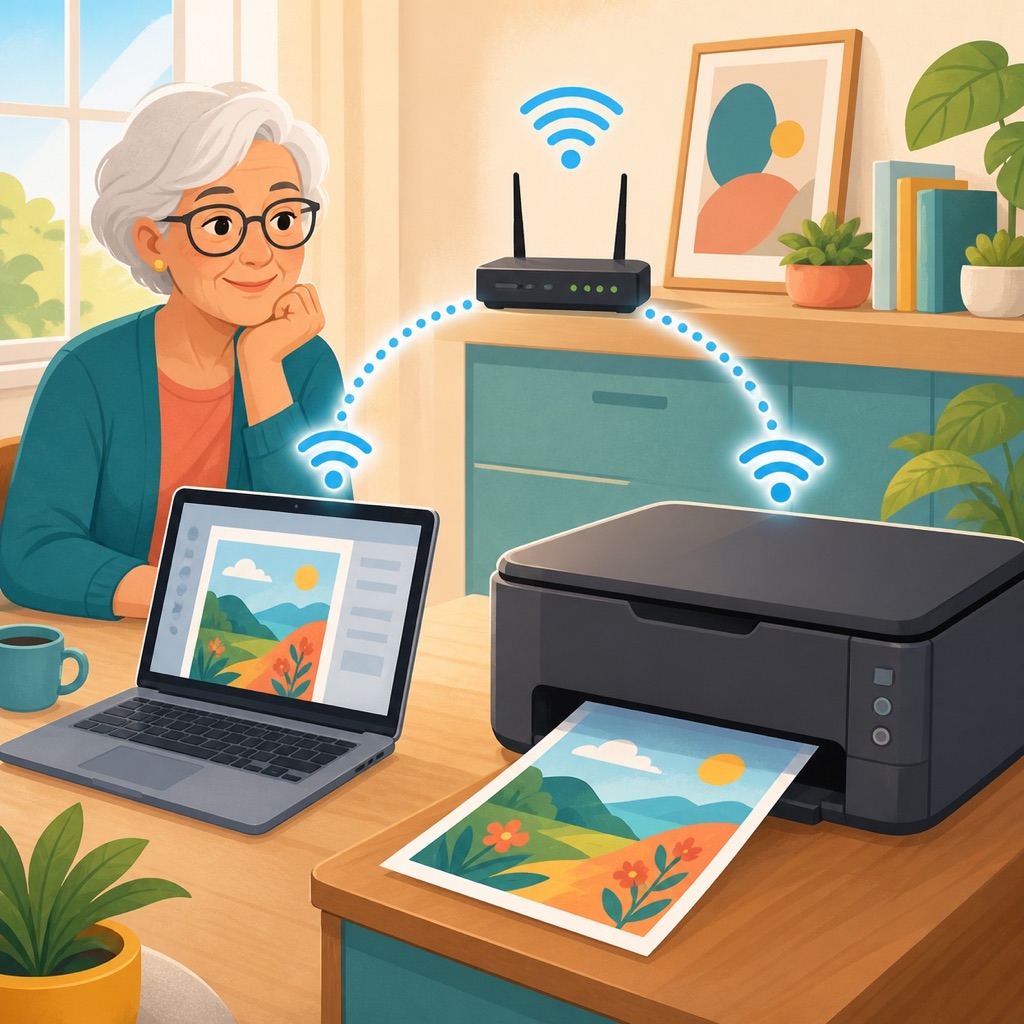
A wireless printer must usually join the same home Wi-Fi network as the computer, phone, or tablet sending the print job. Being in the same room is not enough; the devices need to be on the same network.
- Prepare the printer. Turn it on, load paper, and clear any ink, toner, or paper-jam warnings.
- Connect the printer to Wi-Fi. Use the printer’s screen or the manufacturer’s official setup app. Choose your home network and enter the Wi-Fi password. Some printers use a temporary setup mode during this step.
- Add it to the computer. In Windows 11, open Settings → Bluetooth & devices → Printers & scanners → Add device. On a Mac, open System Settings → Printers & Scanners → Add Printer, Scanner, or Fax.
- Print a test page. This confirms that the computer is using the correct printer.
If the printer is listed as Offline, restart the printer and computer, then confirm that neither device has switched to a different Wi-Fi network, such as a guest network. Removing the printer from settings and adding it again can also help. Download printer software only from the manufacturer’s official website or your device’s built-in update system. Random “driver update” websites can bundle unwanted software and are best avoided.
6. How do I back up the photos on my phone?

The simplest photo backup is automatic, but it is worth checking that it is actually working. An iPhone can use iCloud Photos, while iPhone and Android users can use Google Photos. You can also copy photos to a computer or external drive for a separate backup.
For an iPhone using iCloud Photos, open Settings, tap your name, choose iCloud → Photos, and turn on Sync this iPhone. For Google Photos, open the app, tap your profile picture, choose Photos settings → Backup, and turn Backup on. Keep the phone connected to Wi-Fi and power while a large library uploads.
Then verify the result:
- Check that the app reports the backup or synchronization is complete.
- Sign in to the service from a computer or another device.
- Open several recent photos and videos to make sure they are really there.
Remember that a synchronized photo library is not always an independent backup. When syncing is on, deleting a picture on the phone may also delete it from the cloud library. For irreplaceable family photos, keep a second copy on a computer or external drive. Also check your cloud storage occasionally; automatic backups can stop when the account runs out of space.
7. What should I do if my phone will not charge?
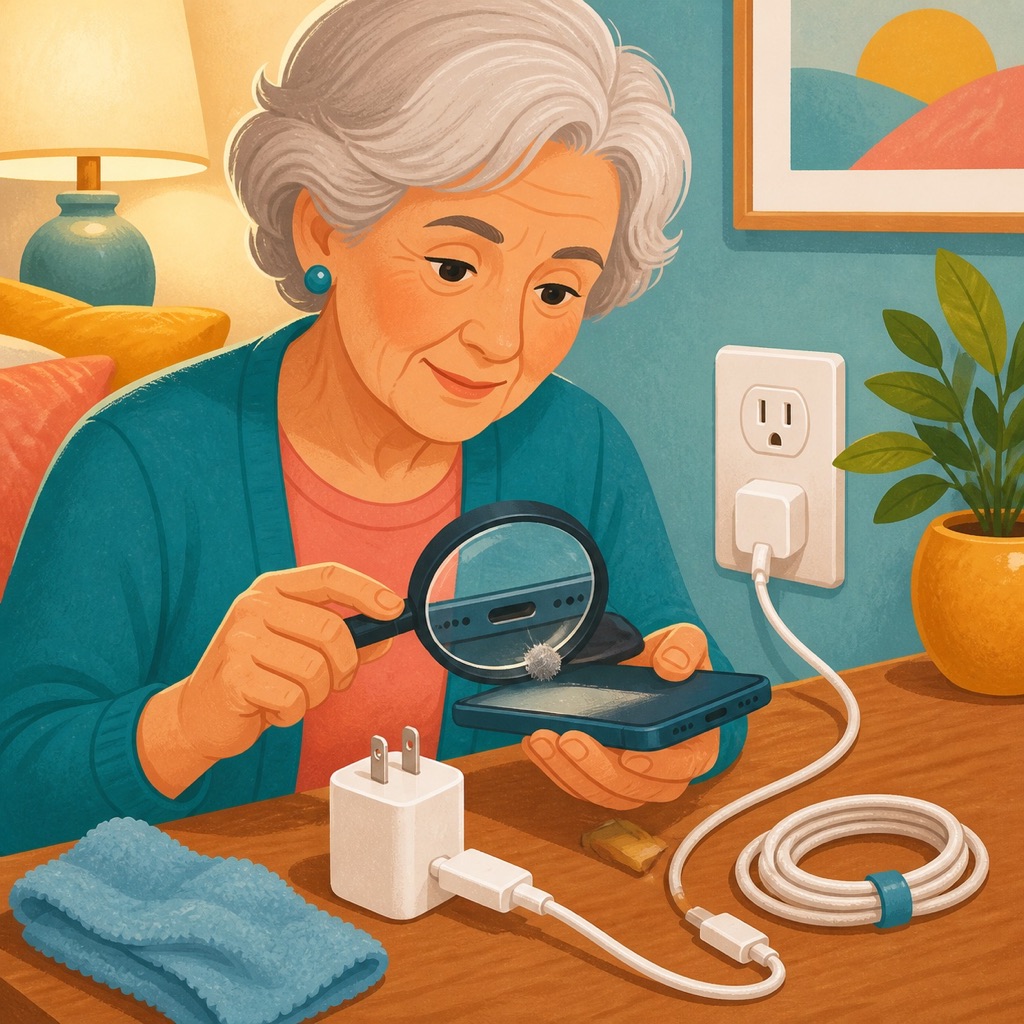
A phone that will not charge may have a bad outlet, cable, adapter, charging port, software problem, or worn battery. Test one part at a time instead of buying several replacements at once.
- Try a known-working outlet. Plug another device into the outlet or move the charger to a different one.
- Inspect the cable and adapter. Do not use accessories with frayed insulation, bent prongs, scorch marks, or loose connectors. Try a compatible cable and adapter that you know work.
- Look at the charging port. Pocket lint can prevent a firm connection. Turn the phone off and use good light. Do not put metal objects or liquid into the port; if debris is packed inside, professional cleaning is safer.
- Restart the phone, then charge it for 30 minutes. A completely drained battery may not respond immediately.
- Check heat and charging settings. Phones may pause charging when too warm. Some newer phones also have an 80-percent charge limit designed to protect battery health.
For wireless charging, remove a thick case and carefully center the phone on the charger. Stop using the phone if the battery is swollen, the screen is lifting, the device becomes unusually hot, or you smell something strange. Those are safety issues, not ordinary troubleshooting problems, and the phone should be disconnected and professionally inspected.
Helpful official guides
- Microsoft: Improve PC performance in Windows
- Google: Fix internet connection problems on Android
- Google: Recover your Google Account or Gmail
- Microsoft: Protect yourself from phishing
- Microsoft: Add or install a printer in Windows
- Google Photos: Back up photos and videos
- Apple: If your iPhone will not charge
Would you rather have someone help?
We provide these steps because we want everyday technology to feel less confusing. But you do not have to troubleshoot everything by yourself, and there is no prize for spending an entire afternoon arguing with a printer.
If any of these problems feels like more than you want to handle—or you would simply feel better with patient, one-on-one guidance—contact Help With My Tech. Helping people solve technology problems calmly, safely, and without judgment is exactly why we are here.