
A bigger monitor sounds like an easy win.
Bigger screen. Bigger text. Easier to see. Problem solved, right?
Not always.
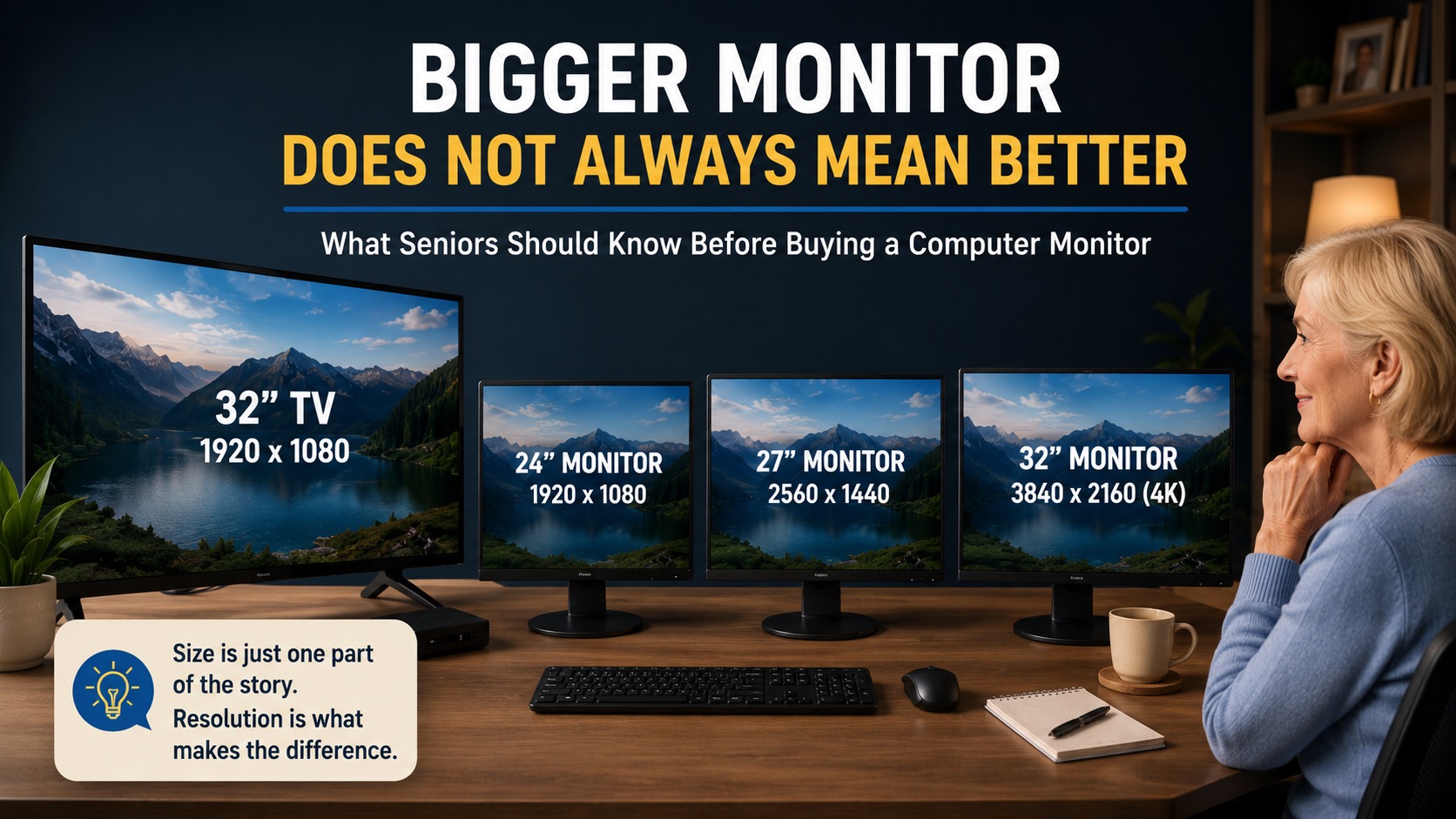
When you are shopping for a computer monitor, especially for a senior, screen size is only one part of the story. A 32-inch screen may sound better than a 24-inch screen, but if the resolution is too low, the picture can look blurry, stretched, or strangely limited.
You may be able to see everything bigger, but you may not actually have more useful space on the screen.
That is the difference between a big screen and a good computer display. 🖥️
Screen Size Is Not the Same as Screen Resolution
Screen size is the physical size of the display. It is usually measured from one corner to the opposite corner.
Resolution is how many pixels the screen can show.
Pixels are the tiny dots that make up the picture on your screen. More pixels usually means a sharper image and more room to work.
For example, a 32-inch TV and a 32-inch computer monitor may be the same physical size, but they may not give you the same computer experience.
A 32-inch TV might only show 1920 x 1080 resolution. That is often called 1080p. It can be fine for watching TV from across the room, but it may not look great when you sit close to it at a desk.
Text may look fuzzy. Windows may feel too large. You may not be able to fit as much on the screen as you expected.
The Problem With Using a TV as a Computer Monitor
A lot of people think, “Why buy a monitor when I can just use a TV?”
Sometimes that works. But it is not always the best choice.
TVs are usually made for watching movies and shows from several feet away. Computer monitors are made for reading text, clicking buttons, working in documents, browsing websites, and sitting much closer to the screen.
That difference matters.
A TV may connect to your computer, but you might run into problems like:
- Blurry text
- Strange screen sizing
- Oversized windows
- Mouse movement that feels delayed
- The TV switching inputs
- The screen cutting off the edges
- Confusing picture settings
For a senior, that can turn into a daily frustration.
And nobody wants to start their morning fighting a TV remote just to check email.
A Large Screen Can Still Feel Cramped
This is the part that tricks people.
A big screen does not always mean you can fit more things on it.
If the resolution is low, everything gets bigger, but you do not gain much extra working space.
Think of it like printing a small flyer on a giant piece of paper. The paper is bigger, but the information is just stretched out. You did not really add more information. You only made the same information larger.
That can help if the only goal is making text bigger.
But if you want to have email open on one side and a website on the other, or if you want larger text plus enough room to work comfortably, resolution matters.
A big low-resolution screen can feel like a giant magnifying glass.
A good monitor feels like a real workspace.
What “Screen Real Estate” Means
Screen real estate means how much useful space you have on your display.
It is not just about inches.
It is about how much information the screen can show clearly at one time.
For example, someone might want to:
- Read email without scrolling constantly
- View a website and a document side by side
- Make text larger without everything feeling crowded
- See family photos clearly
- Use video calls without feeling cramped
- Keep icons and buttons easy to find
A better monitor gives you enough room to do those things comfortably.
A bigger but lower-quality screen may only make everything larger without giving you more room.
Why Resolution Matters for Seniors
For seniors, the goal is not always to fit as much as possible on the screen. That would be annoying.
The goal is balance.
You want text large enough to read, but you also want the screen sharp enough that the text still looks clean.
A higher-resolution monitor gives you more flexibility. You can make text larger while still keeping the picture crisp.
That is why choosing the right monitor matters so much. A senior-friendly monitor should be:
- Easy to read
- Sharp enough for text
- Large enough to feel comfortable
- Simple to wake up and use
- Compatible with the computer
- Not overly complicated
The monitor should make the computer easier to use, not harder. 🙂
Common Monitor Sizes That Make Sense
For most people, these are good starting points:
A 24-inch monitor can work well for basic tasks and smaller desks.
A 27-inch monitor is often a great middle option. It feels larger without taking over the desk.
A 32-inch monitor can be great, but only if the resolution is high enough and the desk setup makes sense.
A large TV can work in certain situations, but I usually would not make it my first recommendation for everyday computer use.
If someone is sitting at a desk, a real computer monitor is usually the better choice.
What Resolution Should You Look For?
Here is the simple version.
- 24-inch monitor: 1080p can be acceptable, though sharper options are better.
- 27-inch monitor: 1440p or 4K is usually better than 1080p.
- 32-inch monitor: 4K is usually the safer choice if you want sharp text and enough useful space.
This does not mean everyone needs the most expensive display.
It just means you should not buy based on size alone.
A cheap 32-inch screen may sound like a bargain until you realize the picture looks fuzzy and everything feels awkward.
Mac Users Need to Be Extra Careful
If you are using a Mac mini, MacBook, or another Mac with an external monitor, monitor choice matters.
Some monitors look great with Macs.
Others technically work, but the text may not look as smooth, the scaling may feel odd, or the monitor may not wake up cleanly.
That is one reason an iMac is so appealing. The screen and computer are already designed to work together. You do not have to research monitor compatibility, cable types, webcams, speakers, or display scaling.
A Mac mini with a good monitor can be a great setup, but it adds more decisions.
For some people, those decisions are fine.
For many seniors, simple is better.
Do Not Forget the Webcam, Speakers, and Microphone
A monitor is only the screen.
If you are helping a senior set up a computer, remember that many monitors do not include a webcam, speakers, or microphone. Even when they do, the quality may not be very good.
That matters for video calls, telehealth appointments, online meetings, and talking with family.
This is another reason all-in-one computers can be easier. With something like an iMac, the screen, camera, speakers, microphone, and computer are built into one device.
With a separate monitor setup, you may need to add:
- A webcam
- Speakers
- A microphone
- Extra cables
- A dock or adapter
- A better keyboard and mouse
That setup can still work beautifully, but it is not always as simple.
A Simple Buying Rule
Here is the rule I would use:
Do not buy the biggest screen you can afford. Buy the screen that gives you the best combination of size, sharpness, simplicity, and compatibility.
For seniors, I would usually rather see someone with a good 27-inch or 32-inch monitor than a cheap giant screen that technically works but feels frustrating every day.
The best monitor is not always the biggest one.
It is the one that makes the computer easier to use. 👍
Final Recommendation
If you are buying a monitor for yourself or helping a senior choose one, slow down before buying the biggest screen on sale.
Look at the resolution. Think about how close the person will sit. Consider whether they need a webcam, speakers, or microphone. Make sure the monitor works well with the computer they already have.
A large monitor can be wonderful, but only when it is the right large monitor.
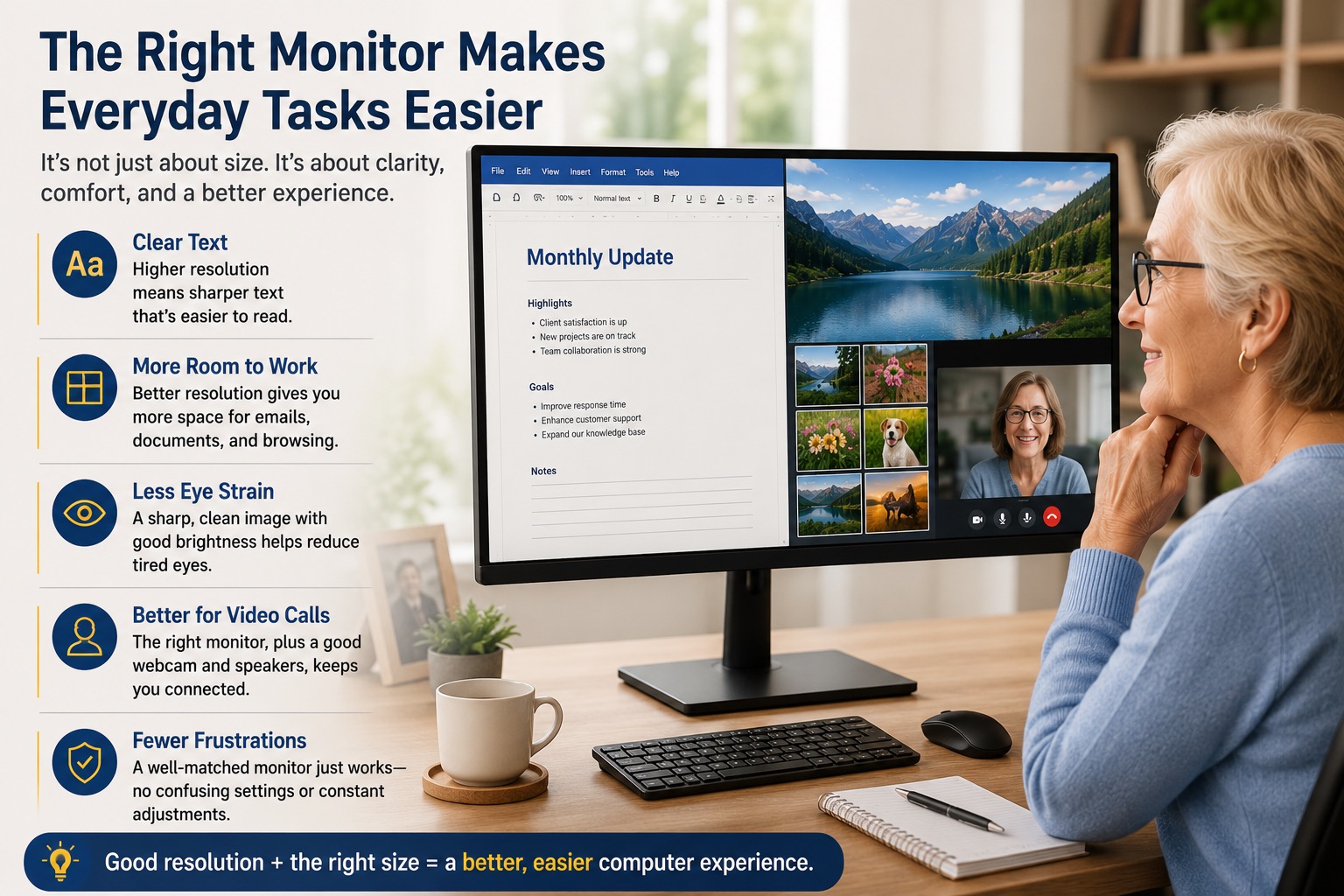
A big screen with poor resolution can create a bigger version of the same frustration. A sharp, well-matched display can make the entire computer feel easier, calmer, and more enjoyable to use.
For help choosing or setting up a monitor, contact Help With My Tech. We can help you pick the right display, connect it properly, adjust the settings, and make sure the computer is comfortable to use.