
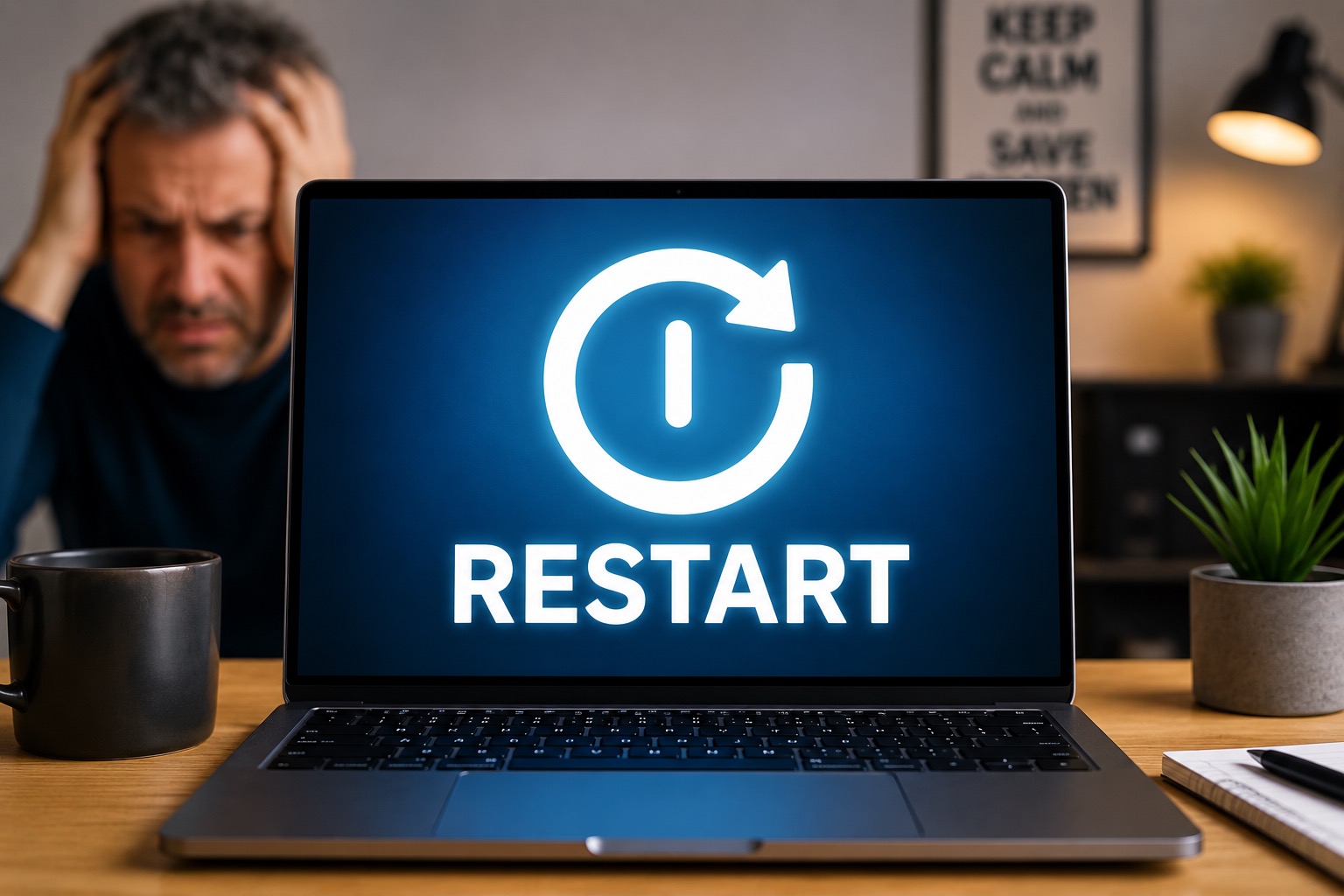
I have bad news about restarting your computer.
The most annoying tech support advice in history is also one of the most effective.
You call tech support.
You explain the problem.
You explain everything you already tried.
You explain that you are not a beginner.
You explain that you have been using computers since before Google existed.
Then they ask:
“Have you tried restarting it?”
And suddenly you’re offended.
Honestly, fair.
😬 Here’s the bad news:
Restarting your computer really does fix a surprising number of problems. Not because tech support is lazy. Because computers are weird little drama machines.
Why Restarting Actually Works
Restarting your computer sounds too simple to be useful.
That is the problem.
It feels like a caveman solution.
Computer broken?
Turn off.
Turn on.
Fire good.
But under the hood, a restart can do a lot.
✅ Restarting can help by:
• Clearing temporary memory.
• Closing stuck programs.
• Restarting background processes.
• Resetting network connections.
• Reloading drivers.
• Giving updates a chance to finish properly.
That is why restarting can fix problems with printers, Wi-Fi, sound, frozen programs, slow performance, updates, weird error messages, and that special category of computer problem known as “it was working yesterday.”
Computers Get Confused Too
People like to think computers are logical.
And they are.
Until they aren’t.
A program can get stuck.
A background service can misbehave.
A printer connection can go sideways.
Your Wi-Fi can act like it has personal issues with you.
Restarting gives the whole system a fresh start.
It is not magic.
It is more like telling everybody in the room to sit down, be quiet, and start over.
🔎 Translation:
A restart does not “fix everything,” but it can clear out temporary problems before they turn into a full afternoon of nonsense.
Restarting Is Not the Same as Giving Up
This is where people get stubborn.
They think restarting means admitting defeat.
It does not.
Restarting is troubleshooting.
It is a real step.
It is often the first smart thing to try because it is simple, safe, and fast.
Also, let’s be honest.
Most of us do not want to restart because we have things open.
Twenty browser tabs.
A half-written email.
A document called “Untitled 7.”
Three windows we are afraid to close because we are not totally sure what they do.
Restarting means facing our digital life choices.
Nobody wants that kind of personal growth before lunch.
😂 Restarting your computer is the technology version of:
“Have you tried getting a good night’s sleep?”
Nobody wants to hear it.
But annoyingly, it helps.
Restart vs. Shut Down
Here is a small detail that surprises a lot of people.
On many Windows computers, “shut down” and “restart” are not always the same thing.
Windows has a feature called Fast Startup. It can make the computer start faster after shutdown, but it does that by saving part of the system state instead of fully starting fresh.
A restart is often a cleaner reset than a normal shutdown on Windows.
✅ Simple rule:
If you are troubleshooting a Windows problem, choose Restart, not just Shut Down.
Yes, that feels silly. No, I do not make the rules.
On a Mac, restarting is also a normal troubleshooting step. Apple Support commonly recommends restarting or checking what happens after a restart when diagnosing certain issues.
When Restarting Is Worth Trying
You do not need to restart every time your computer looks at you funny.
But it is worth trying when something suddenly stops working for no obvious reason.
✅ Try restarting when:
• The computer feels unusually slow.
• A program is frozen or acting strange.
• The printer suddenly refuses to cooperate.
• The internet says it is connected, but clearly has no idea what that means.
• Sound, camera, Bluetooth, or Wi-Fi stops working.
• Updates seem stuck or incomplete.
It is not the only troubleshooting step.
But it is usually one of the easiest.
And when easy works, we should probably take the win.
When Restarting Is Not Enough
Now, to be clear, restarting is not a miracle cure.
If your computer has a failing hard drive, a serious virus, bad hardware, corrupted software, or a broken printer driver from the dark ages, restarting may not fix it.
It might help temporarily.
It might make the problem disappear for ten minutes and then come back like a raccoon with unfinished business.
That is when you need actual troubleshooting.
⚠️ Pay attention if:
• The same problem keeps coming back.
• The computer freezes often.
• You see repeated error messages.
• Your device is unusually hot or noisy.
• Restarting helps briefly, but never really solves the problem.
At that point, the restart was not the fix.
It was the clue.
This Is Really About Us
The funny thing is, this article is not really about restarting computers.
It is about how much we dislike simple answers.
We want the solution to match the size of the problem.
If the problem feels complicated, the fix should feel complicated too.
There should be a secret menu.
A diagnostic tool.
A command prompt.
Maybe someone in a lab coat.
But sometimes the correct answer is:
Turn it off. Turn it back on.
Which is deeply offensive because it is both simple and correct.
🧠 The simple version:
Do not restart because tech support wants to annoy you. Restart because it often clears temporary problems and gives the system a clean start.
The Final Verdict
Restarting your computer is annoying.
It interrupts what you are doing.
It makes you close things.
It feels too basic.
It sounds like the kind of advice someone gives when they are out of ideas.
But the bad news is this:
Restarting your computer works more often than most of us want to admit.
So the next time your computer starts acting strange, restart it first.
Not because it is guaranteed to fix everything.
But because it is fast, simple, and embarrassingly effective.
And if that does not work, then yes, we can move on to the more complicated nonsense.
Sources
Microsoft Learn: Fast Startup changes how shutdown and startup work in Windows
Microsoft Support: Recovery options in Windows
Apple Support: If your Mac restarts and a message appears
Computer still acting weird after a restart?
Help With My Tech can help figure out what is actually going on, whether it is software, updates, internet issues, printer problems, or something else entirely.
If your computer is slow, frozen, confusing, or just being dramatic, you do not have to figure it out alone.