
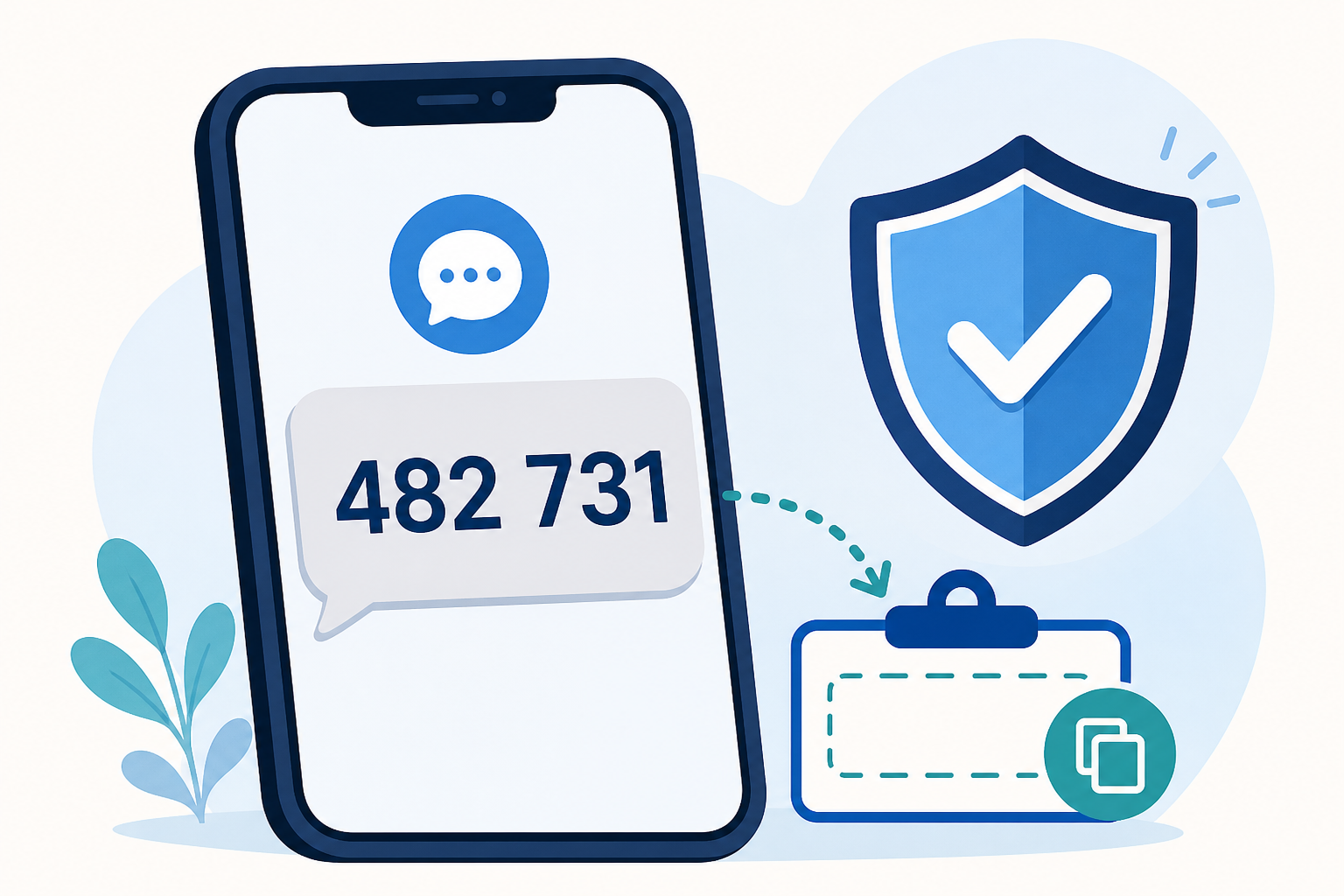
You enter your username and password, and then the app says it sent a six-digit code to your phone. Now what?
That extra code is called two-factor authentication, often shortened to 2FA. It is an extra layer of security. Even if someone learns your password, they usually cannot get into your account without the temporary code sent to your phone.
The good news is that your phone can often enter the code for you. If that does not work, you still have a few easy options.
Option 1: Wait for the code above the keyboard
When a website or app sends a verification code by text message, stay on the screen that is asking for the code. You usually do not need to open the Messages app right away.
- Tap the box where the code belongs so the keyboard appears.
- Wait a few seconds for the text message to arrive.
- Look just above the keyboard. Your iPhone may display the six-digit code there.
- Tap the code. The phone should place it in the box automatically.
This is usually the easiest method. Many Android phones offer a similar feature, although the words and buttons may look different.
If the code never appears above the keyboard
On an iPhone, check this setting:
- Open Settings.
- Tap General.
- Tap AutoFill & Passwords.
- Make sure AutoFill Passwords and Passkeys is turned on.
Then return to the app or website and try again. Some apps and websites do not support automatic code suggestions, so do not worry if the code still does not appear. You can copy and paste it instead.
Option 2: Use “Copy Code”
Open the text message containing the verification code. If the six-digit number is underlined or highlighted, touch and hold the code. A menu may appear with an option such as Copy Code.
- Tap Copy Code.
- Go back to the app or website where you were signing in.
- Touch and hold inside the code box.
- Tap Paste.
Option 3: Copy the message, then select only the code
Sometimes the text says something like, “Here is your code for signing in to Example Company: 482731.” If your phone will not let you copy just the number, you can temporarily turn the message into plain text.
- Touch and hold the text message, then tap Copy.
- Tap the reply field at the bottom of the conversation and choose Paste. Do not tap the Send button. You are only using the reply field as a temporary workspace.
- Double-tap the six-digit code in the pasted text. If needed, drag the selection handles until only the code is highlighted.
- Tap Copy.
- Return to the app or website, touch and hold the code box, and tap Paste.
- Go back to Messages and erase the temporary reply without sending it.
If you are worried about accidentally sending the message, paste it into the Notes app instead. Then select and copy the six-digit code from the note.
A very important safety warning
Never give a verification code to someone who unexpectedly calls, texts, or emails you.
A real verification code is meant for you to enter on the website or in the app where you started signing in. A scammer may claim to be from your bank, Microsoft, Apple, Amazon, Social Security, or even a company you recognize. They may say they need the code to “verify your identity” or “fix your account.” Do not give it to them.
If you did not just request a code, do not use it and do not share it. Someone may be trying to sign in to your account. Change your password by opening the company’s official app or website yourself, or call the company using a phone number you already trust.
The short version
- First, wait for the code to appear above the keyboard and tap it.
- If that does not work, open the text and look for Copy Code.
- If needed, copy the message, paste it into a reply or note, and select only the six-digit code.
- Return to the sign-in screen and paste the code.
- Never share the code with someone who contacted you unexpectedly.
Two-factor authentication can feel like one extra hurdle, but it is there to protect you. Once you know these three methods, those six-digit codes become much easier to handle.