

“My photos are in the cloud” is reassuring—until a phone is lost, replaced, or runs out of space. The important question is not which service you intended to use. It is whether your newest pictures are actually finishing their upload and whether you know how to find them somewhere besides the phone in your hand.
Here is a calm, plain-English way to check iCloud Photos or Google Photos. You do not need to understand every setting to get a useful answer.
First: syncing and backup are related, but not identical
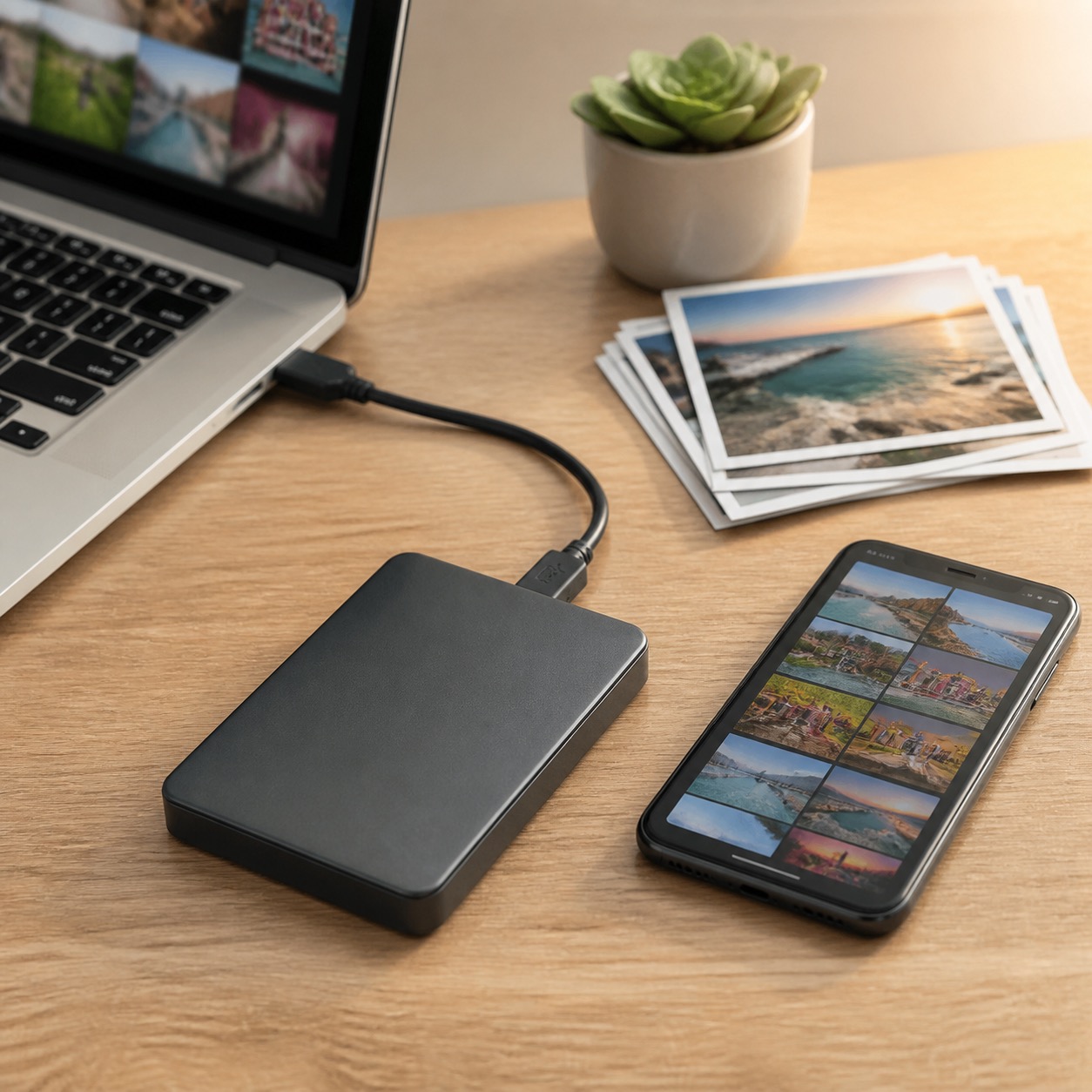
iCloud Photos and Google Photos can automatically copy your library to your account and make it available on other devices. That is very useful. But with a syncing service, an edit or deletion can also travel to the other devices. That is why irreplaceable family photos deserve an additional copy from time to time—such as an external drive kept safely at home.
The first goal is simpler: confirm the photos you care about are showing in the service you expect.

How to check iCloud Photos on an iPhone or iPad
- Open Settings, tap your name, then tap iCloud.
- Tap Photos.
- Make sure Sync this iPhone or Sync this iPad is turned on.
- Open the Photos app and look at your newest photo. Then, if you can, sign in at iCloud Photos in a browser and confirm that same recent photo appears.
Apple explains that iCloud Photos keeps the library available across devices using the same Apple Account, and that deletions also sync. If a library is large, it can take time. Keep the device on Wi-Fi and power and let it finish. If you see a paused or status message in Photos, read it before turning anything off; Apple specifically advises against switching iCloud Photos off simply because syncing is paused.
For the official steps and common status messages, see Apple’s iCloud Photos guide and its guide for paused or incomplete syncing.

How to check Google Photos
- Open the Google Photos app on the phone or tablet.
- Tap your profile picture or initial in the upper-right corner.
- Confirm you are signed into the intended Google Account.
- Look for the backup status. It may say “Backup complete,” “Backing up,” “Waiting for Wi-Fi,” or explain what needs attention.
- In a browser, go to photos.google.com, sign in to that same account, and look for a very recent picture.
Google’s own backup-status instructions are especially helpful when the app says it is waiting, paused, or still preparing a large library. On some devices, the app needs time on Wi-Fi and power. Avoid deleting pictures from the phone until you have confirmed they appear where you expect online.
A five-minute photo safety check
- Take one new photo of something ordinary, such as a coffee mug.
- Wait a few minutes on Wi-Fi.
- Find that photo in iCloud Photos or Google Photos in a browser or on another device.
- Check available account storage; a full account can stop uploads.
- Write down which Apple Account or Google Account is being used. Many people have more than one.
This small test is more meaningful than guessing from an old album. It proves the current connection and account are working today.
Common reasons photos seem missing
The most common causes are being signed into a different account, having sync turned off on one device, a full cloud-storage plan, poor Wi-Fi, Low Power Mode, or simply a large library still working in the background. A shared album is also not the same thing as your main library.
If a photo was deleted, check the Recently Deleted area quickly. Those items are not kept forever. If there are years of family photos involved, pause before making big changes; a careful look is safer than a rushed cleanup.
Want in-person help? That’s why we’re here.
Help With My Tech offers patient, in-person help with iPhones, Macs, photos, cloud accounts, and backups. If you are in Mesa or the East Valley and would rather have someone sit with you and make sure your memories are protected, contact Help With My Tech.