
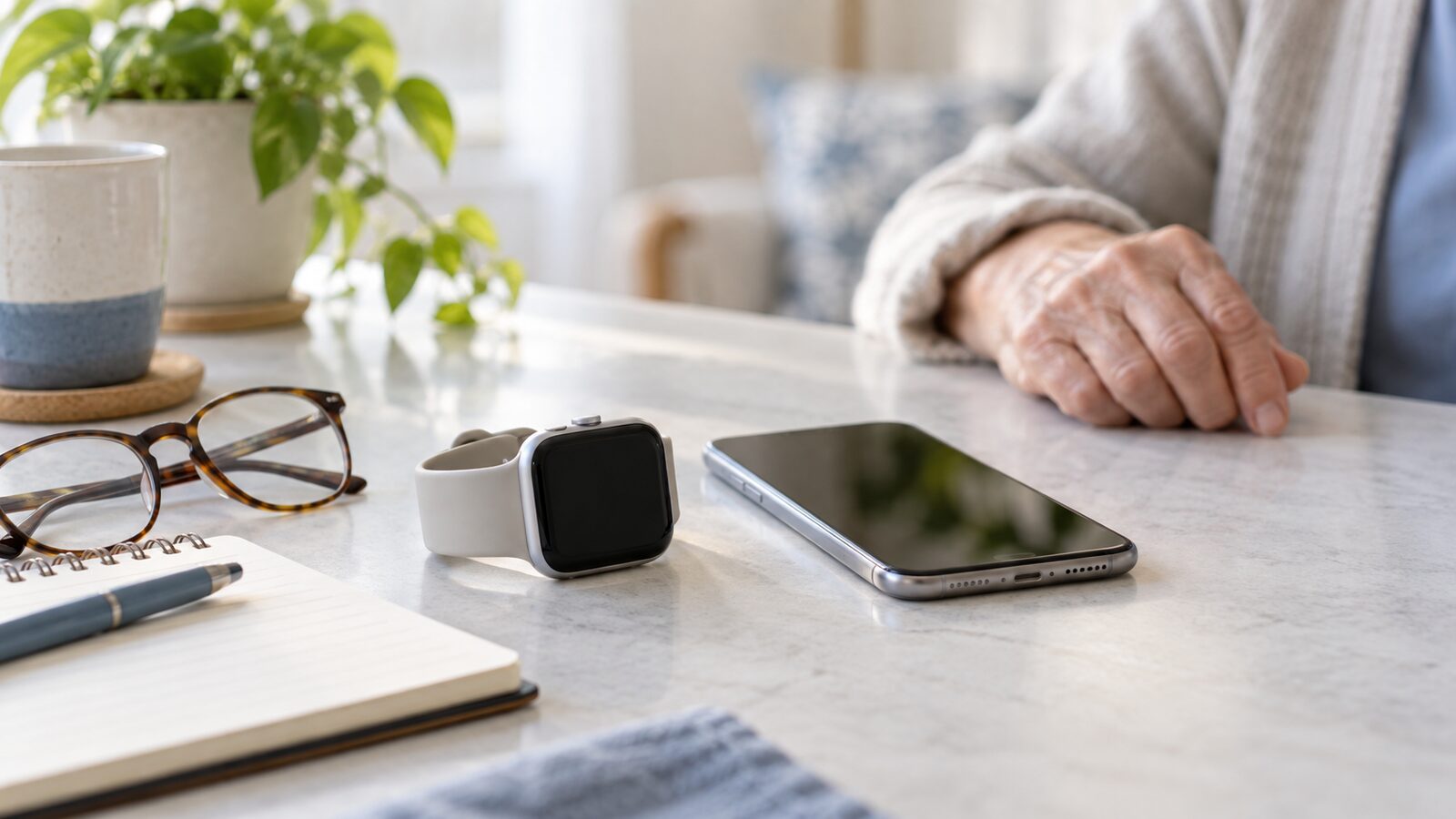
Apple Watch can show messages, track activity, provide directions, play audio, and help you stay connected without reaching for your iPhone every time. It is also a small computer on your wrist, so a few basic questions come up often.
Current as of September 6, 2026: Apple may move or rename settings in future updates. If a path looks different, open the Watch app on your iPhone and use its search field, or open the iPhone’s Settings app and search for the feature by name. The exact buttons can vary by Apple Watch model, iPhone model, and cellular carrier.
Does Apple Watch work by itself?
Apple Watch is designed to work with an iPhone. Some models and plans can use cellular service away from the iPhone, but features vary. When the watch is near the iPhone, it can use the iPhone’s connection. When it is away, it may use Wi-Fi or cellular if those services are set up.
If the watch shows a red iPhone symbol or says it is disconnected, bring it near the iPhone, make sure Bluetooth and Wi-Fi are on, and check that both devices have power. A disconnected watch may still show the time, but messages and other features may not work normally.
How do I pair an Apple Watch?
- Update the iPhone if an update is available.
- Make sure Bluetooth is on and the iPhone is connected to Wi-Fi or cellular service.
- Turn on the watch by holding its side button until the Apple logo appears.
- Unlock the iPhone and hold the watch close to it.
- When the iPhone offers to set up the watch, tap Continue.
- Use the iPhone camera to scan the animation on the watch, or choose manual pairing if the camera method does not work.
- Choose whether to set up the watch as new or restore from a backup.
Keep the iPhone and watch close together until setup finishes. If the setup message does not appear, open the Watch app, tap All Watches, and choose Add Watch.
What is my Apple Watch passcode?
The watch passcode helps protect information on the watch. You can create one during setup, and you may need it for features such as Apple Pay. Use a passcode you can remember, but do not use the same simple number that you use everywhere else.
Never tell someone your watch passcode, iPhone passcode, Apple Account password, or text-message verification code. A stranger who asks for a code because your watch is “under attack” is not helping you. Stop and contact the company through an official number.
How do I change the watch face?
Touch and hold the current watch face, then swipe through available faces. Tap Edit when you want to change its color or add information such as weather, calendar, or activity. The Watch app on the iPhone also lets you choose and organize faces.
Choose a face that is easy to read. More information is not always better. A simple face with large numbers may be the most useful choice for everyday life.
How do I read messages and notifications?
Raise your wrist or tap the screen when a notification appears. Turn the Digital Crown to read more. You can often reply with a suggested response, dictation, scribbling, or an emoji.
To change which apps can alert you, open the Watch app on your iPhone, choose notification settings, and review the apps one at a time. If the menu has moved, search the Watch app or the iPhone Settings app for notifications. Turn off alerts that create stress or confusion.
Why is my Apple Watch not making sound?
Check whether Silent Mode, Do Not Disturb, or another Focus is active. Look for a bell or Focus control on the watch, or search the Watch app for sounds and haptics. You can increase alert volume and choose stronger wrist taps.
If you are wearing hearing aids or Bluetooth headphones, sound may be routed somewhere else. Test the watch without the accessory nearby. Also check that the watch is not in Theater Mode, which can change how the screen wakes.
How do I charge the watch?
Place the back of the watch on its magnetic charger and make sure the charging symbol appears. Keep the charger connected to power. Clean and dry the back of the watch and the charger if charging is inconsistent.
Battery life changes with age, settings, workouts, cellular use, and signal strength. Search the Watch app for battery to review usage and available options. If the watch becomes unusually hot or the battery swells, stop using it and seek service.
Can Apple Watch call for emergency help?
Depending on the model, connection, and region, Apple Watch may offer Emergency SOS, fall detection, crash detection, and health notifications. These features can be helpful, but they are not a guarantee that emergency help will arrive. They depend on power, network access, location, and correct settings.
Learn how Emergency SOS works on your own watch before you need it. Search the Watch app or Apple Support for the feature name. Do not test an emergency call casually. Keep emergency contacts and medical information current.
How does Apple Watch track health and activity?
The Activity and Health apps can record movement, workouts, heart-related information, sleep, and other measurements depending on your watch and settings. These readings are helpful information, not a diagnosis. Talk with a medical professional about health concerns.
For health and activity information to follow you to a new iPhone, make sure Health is turned on in iCloud on the old iPhone and the new iPhone. If you back up to a computer, an encrypted backup may be needed for some health data. Check Apple’s current instructions before moving devices.
How do I use Apple Pay on the watch?
Apple Pay lets you use supported cards from the watch. Cards may require verification from the bank during setup. Complete that verification only in the bank’s official app or through a trusted phone number. Never tell a caller the code that your bank sends.
If you remove the watch passcode, Apple Pay may no longer be available. This is a security feature, not a problem with the watch.
How do I update Apple Watch?
Keep the watch on its charger and make sure the iPhone is nearby and connected to Wi-Fi. Open the Watch app and search for software update. Follow the onscreen steps. Updates may take time and can require the iPhone and watch to remain close.
If the update will not start, check the battery, charger, Wi-Fi, available storage, and iPhone software. Do not turn off the watch during an update unless Apple’s instructions tell you to do so.
How do I move my watch to a new iPhone?
Before setting up the new iPhone, update the old iPhone and the watch. Make sure both iPhones are connected to Wi-Fi, and charge the watch and new iPhone. Make a fresh iCloud backup of the old iPhone. Apple Watch information is included with an iPhone backup, and Health should be syncing if you want the newest health data to appear.
Set up the new iPhone using Quick Start or an iCloud backup. If the iPhone asks whether you want to use your Apple Watch, keep the watch unlocked and on your wrist, then follow the steps. If it does not finish, open the Watch app on the new iPhone and check All Watches. You may see an option to finish pairing.
If you no longer have the old iPhone, you may need to erase the watch and pair it with the new iPhone. Restore from the newest watch backup if one appears. Do not erase anything until you understand what backup is available.
What if Apple Watch is stuck or will not respond?
Wait briefly, then check whether the watch is charging. A restart can help. If the watch is completely frozen, Apple provides a force-restart method using the Digital Crown and side button. Search Apple Support for force restart Apple Watch and follow the instructions for your situation.
If the watch shows an Activation Lock screen, it is still linked to an Apple Account. The owner must enter the account information or remove the watch from the account. Do not buy a used watch with Activation Lock still enabled.
When should you ask for help?
Ask for help when the watch will not pair, health information is missing, cellular service will not activate, an emergency feature is unclear, or someone is asking for passwords or codes. It is safer to pause than to erase a watch or approve a request you do not understand.
For one-on-one, in-home tech help, we can pair your Apple Watch, adjust notifications and accessibility settings, check its connection to your iPhone, and explain the features you actually want to use.
How can I make the watch easier to read?
Open the Watch app on the iPhone and search for display, text size, or accessibility. You may be able to make text larger, turn on bold text, increase brightness, or adjust the wrist tap strength. Try one setting at a time and wear the watch for a day before deciding.
If water or accidental touches are a concern, learn how Water Lock works on your model. It helps prevent unwanted taps during water activities, but it does not make every watch safe for every kind of water exposure.