
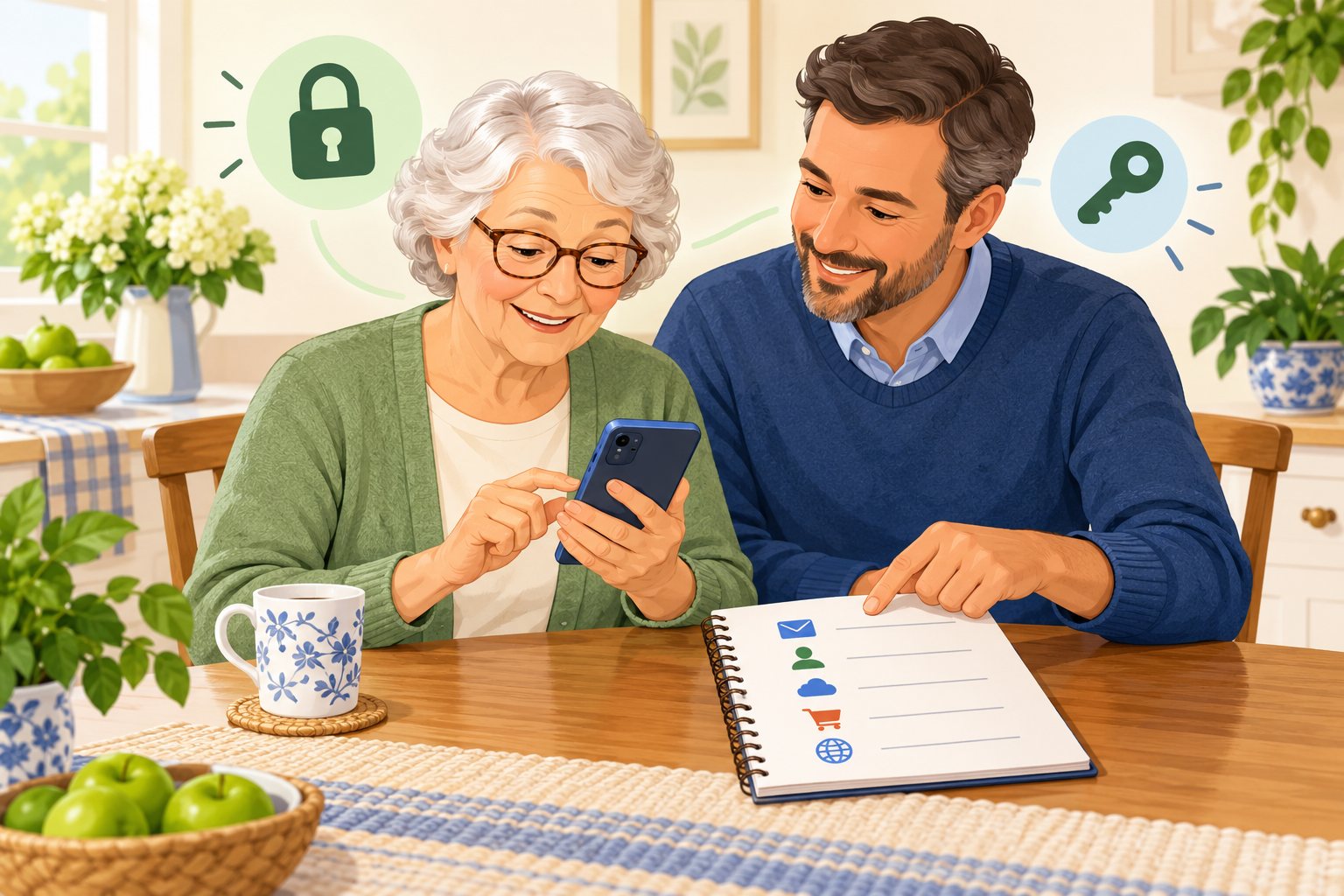
If a password notebook has crossed-out entries and your phone keeps offering a login that does not work, starting over can feel tempting. Our password help for seniors in Mesa, AZ, begins with a more useful question: which account are you trying to open, and what access still works?
Help With My Tech visits your home to review sign-in problems on the devices you use every day. We can identify the correct username, explain confusing password prompts, and guide official resets when needed. You handle private entries yourself. We do not collect a master list of your passwords, bypass account ownership checks, or guarantee recovery. The goal is working access and a routine you can repeat.
- Prepare a practical account backup plan
- Try autofill on your own device
- Tell different account passwords apart
- Look for a working saved entry
Which Common Passwords Should Mesa Seniors Avoid?
A password that once seemed sensible may now be an obvious guess. Common words, keyboard runs, and personal dates are not good foundations for a new login. Our password help in Mesa includes explaining these patterns without making anyone feel embarrassed about past choices.
- Simple counting passwords like 123456
- Adjacent keyboard letters such as qwerty
- Names combined with familiar calendar dates
- The same password on different websites
- Sports choices such as football
- Pet names using predictable number endings
- The word password with extra digits
- Pa55word! with predictable character swaps
Check your own passwords privately. Review your own passwords for the following examples and anything similar. Do not share the real values to get an opinion. A longer version of a common word may still be predictable, especially if the only addition is a digit or punctuation mark.
What Should You Use Instead of a Weak Password?
Use a long, unique password generated by a trusted manager, or a lengthy passphrase of unrelated words when you need to remember it. Keep each account’s password different. Replace it inside the real website or app, then update the saved entry. Begin with your email and other accounts that provide recovery for the rest.
- Use a trusted password generator
- Replace repeated passwords with unique ones
- Confirm saved updates actually sign in
- Favor long passwords over predictable edits
Further reading: NCSC advice on common weak passwords and NIST guidance on choosing a good password.
Password Manager Setup and Training in Mesa
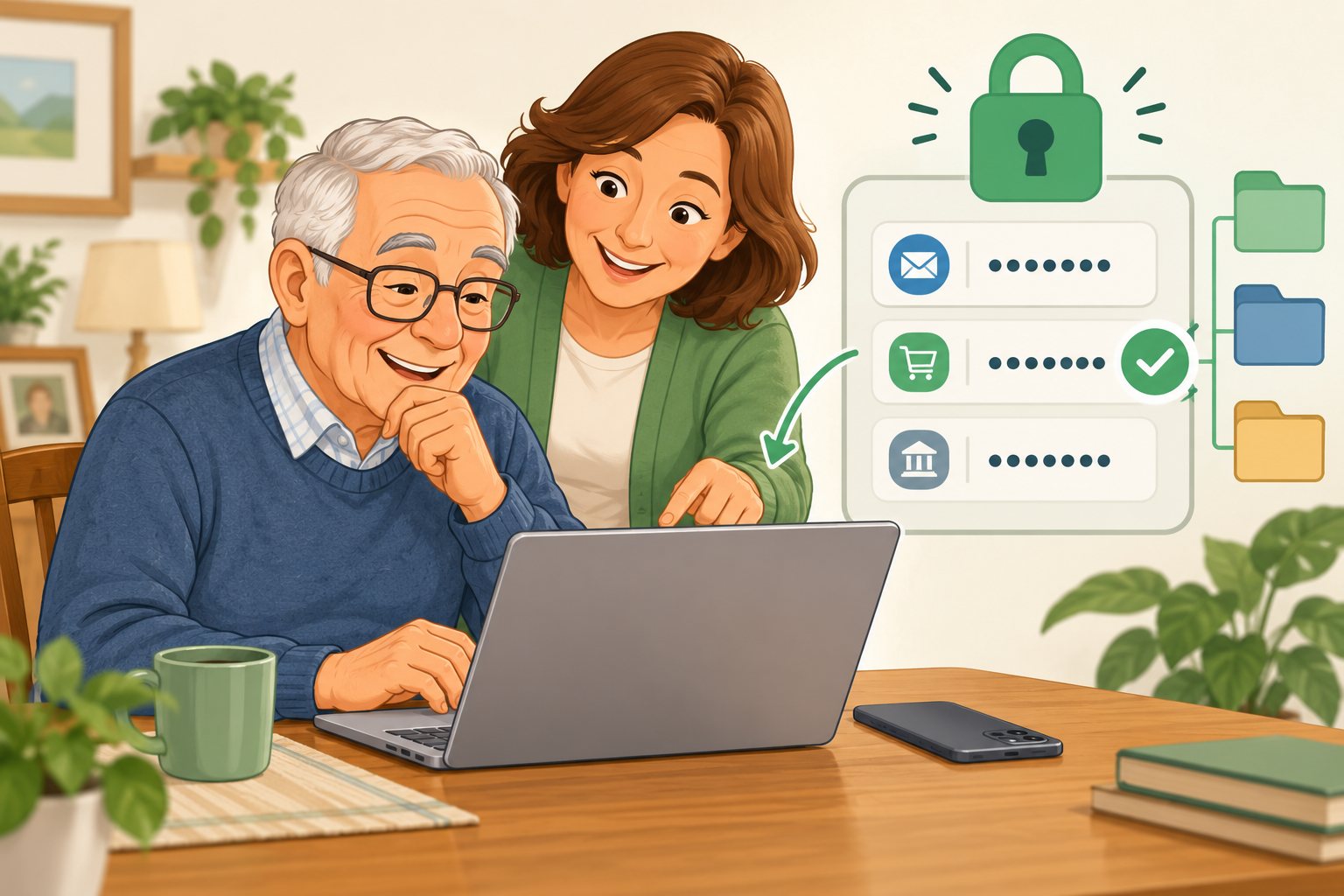
Password manager setup and training in Mesa is about learning a dependable habit. We can review Apple's Passwords app, Google Password Manager, or another suitable reputable option based on your equipment. We explain what is stored, how autofill works, and which unlock method protects access to the manager.
Rather than moving every account in a single sitting, we can begin with a few that matter most. We check usernames, test current credentials, and explain how a website password change relates to its saved copy. You practice finding and using an entry yourself. We also review recovery access and discuss how a trusted family helper could assist with your permission while you remain in control.
- Keep saved logins clearly labeled
- Understand how your password manager unlocks
- Save the correct username and password
- Use different passwords across your accounts
Help With Passkeys and Verification Codes in Mesa
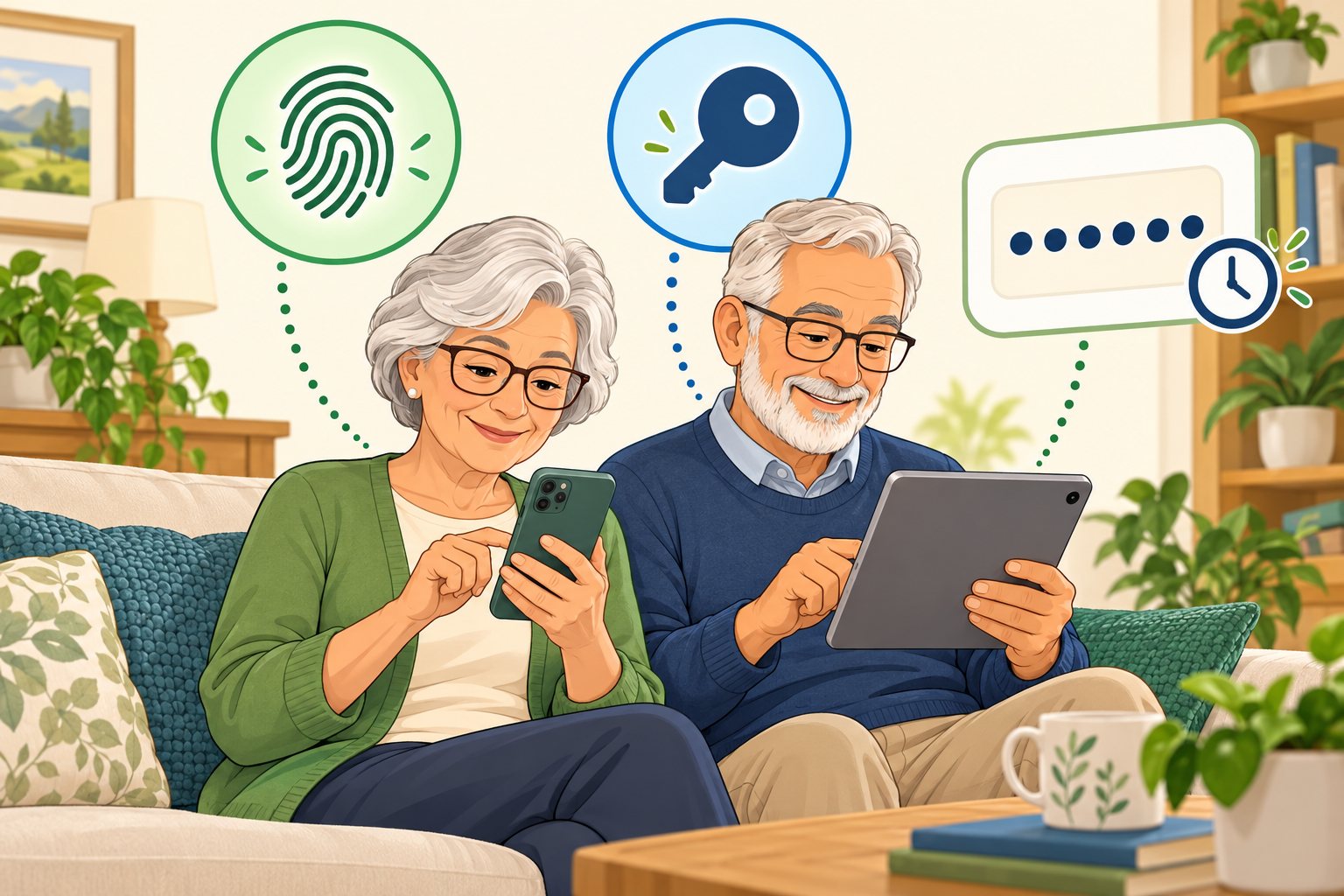
Passkeys and temporary verification codes can make sign-ins safer, but unfamiliar prompts can still be confusing. Our passkey and verification-code help in Mesa explains the difference between a device unlock, a saved passkey, and a code requested during a login. We help you recognize the action you actually started.
A supported passkey should be set up on a device you own and control. Before relying on it, we review the service's available recovery choices and how another device would be used. You should never read a login code to an unexpected caller or approve an unexplained sign-in. We guide the process while you enter sensitive details privately, and we explain when the provider must take over.
- Keep unexpected verification codes private
- Understand what each sign-in prompt requests
- Keep account recovery information current
- Check whether your passkeys can sync
Official guidance: Apple Passwords, Google passkeys, and FTC verification-code advice. Features vary by device, software, and account provider.
Patient help at home in Mesa. Help With My Tech explains the steps, lets you practice, and helps make everyday sign-ins feel more manageable. Contact us to request a visit, call 480-463-7030, or send a text. We confirm availability before your appointment.
- Protect your own recovery information
- Start with a familiar everyday login
- Build confidence through guided sign-in practice
- Discuss options before replacing working logins
For current service information, visit our pricing page. You can also explore our technology support in Mesa and other service areas.
Original illustrations created for Help With My Tech. Unbranded artistic examples, not actual app screenshots. We provide independent assistance and are not affiliated with account providers.