
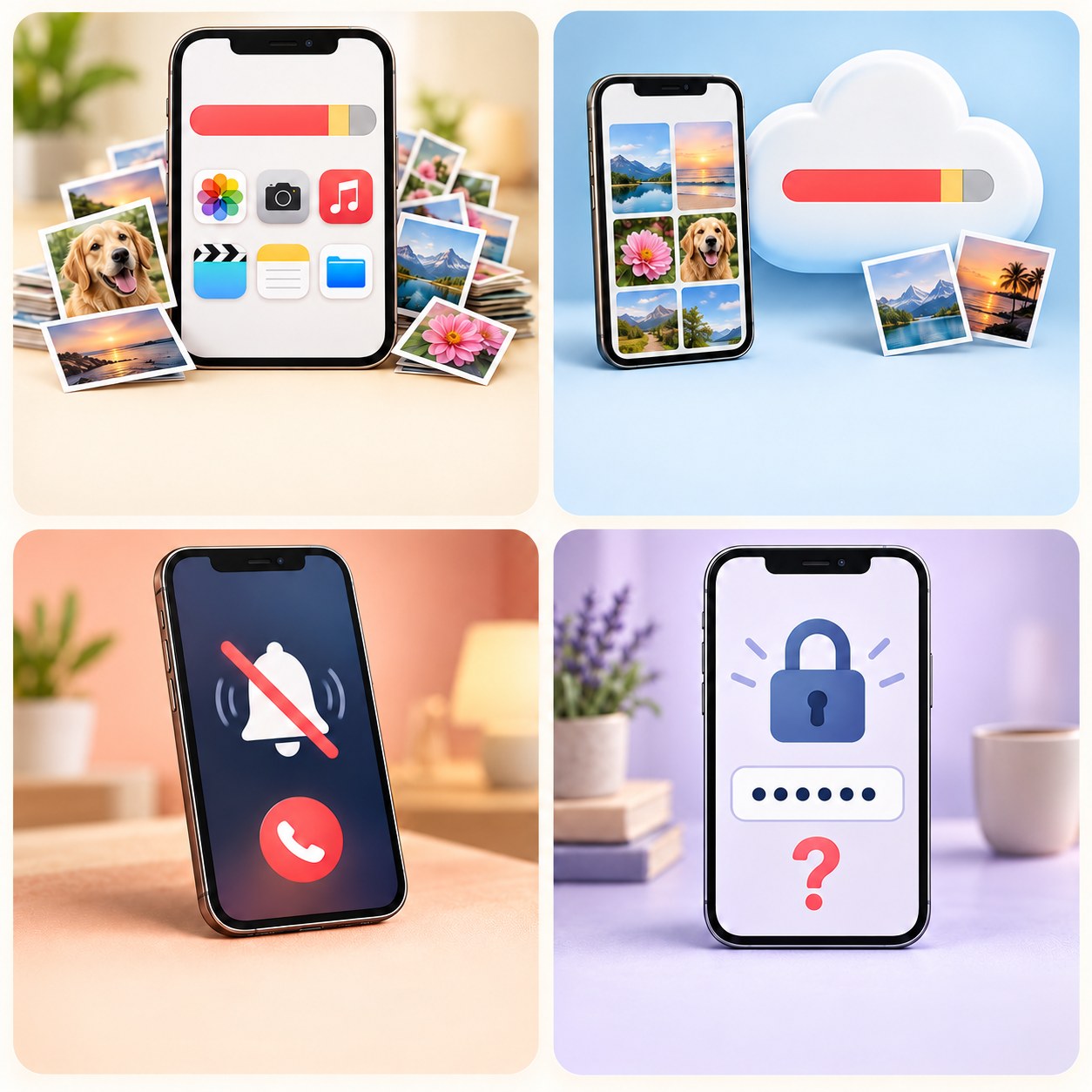
Your iPhone should help you stay connected. When calls, messages, photos, or settings become confusing, a little patient help can make everyday tasks feel more manageable.
Help With My Tech offers patient, in-home iPhone support for seniors. We listen to what you want to do, explain the choices in plain language, and work with the iPhone you already use.
- Help with everyday iPhone tasks
- Practice on your own phone
- Ask questions at your own pace
- Learn in familiar home surroundings
You do not need to know the technical name for the problem. Tell us what is happening, and we can discuss a useful place to begin.
What can we help you do on your iPhone?
Sometimes an iPhone problem is a setting you do not recognize. Other times, you know what you want to do but cannot find the right place to start. We can help you work through calling, messaging, pictures, apps, and other everyday questions.
We can look at why a call seems quiet, discuss a confusing notification, help you find a contact, or explain a choice on the screen. Your questions guide the visit, so the help stays connected to how you actually use your phone.
- Calls, sound, and voicemail questions
- Messages, contacts, and video calls
- Photos, storage, and backup questions
- Apps, passwords, and account settings
If an issue involves damaged hardware or a carrier account, we can explain which kind of support may be needed. The first step is understanding what is getting in your way.
What can I try before calling for iPhone help?
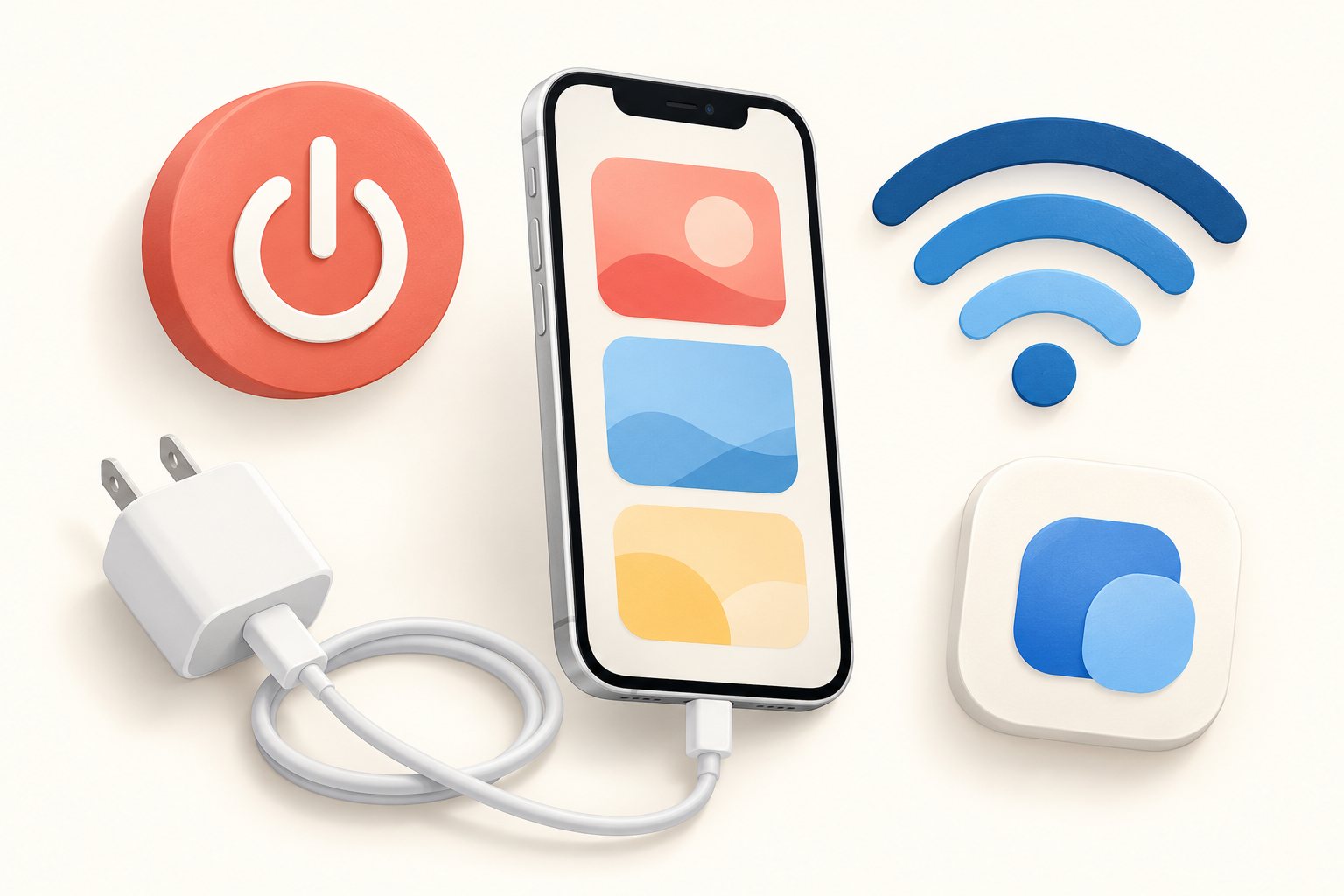
A small problem sometimes has a simple starting point. If you feel comfortable, choose the check that matches what is happening. You do not need to try every step.
These are optional checks, not a test you must pass before asking for help. If a step feels unfamiliar or the problem keeps returning, we can talk through what to do next.
- Close only an app that froze
- Try a normal iPhone restart
- Check the connection you actually need
- Reconnect a compatible charging cable
Start with one small check. Stop whenever you would rather have patient help.
What if one app has stopped responding?
Close just the app that froze, then open it again. The way to close an app depends on whether your iPhone has a Home button. Apple shows both methods.
You do not need to close all your apps as a daily routine. If the same app keeps freezing, tell us which app it is and what happens before it stops.
Could a normal restart help?
If the iPhone still responds, try turning it off, waiting about 30 seconds, and turning it back on. Make sure you know your device passcode before restarting. Follow Apple’s restart steps for your model.
If the phone will not respond, a force restart uses a different button sequence. Check Apple’s model-specific instructions or ask for help. Restarting is different from erasing or resetting the phone.
What should I check for calls or Wi-Fi?
For usual cellular calls, check that Airplane Mode is off. If calls are quiet or seem to disappear, sound and Focus settings may also need attention. Your carrier may need to check account or network issues. See Apple’s calling guidance.
For an internet task, check that Wi-Fi is connected to the trusted network you expect. Apple explains how to check the connection. A Wi-Fi problem and a cellular calling problem may have different causes.
What if my iPhone will not charge?
Check that a compatible charging cable and adapter are firmly connected to the phone and a working outlet. You can unplug and reconnect those charging connections, or try a different outlet. Do not use a damaged cable or adapter.
If that does not help, follow Apple’s charging guidance or contact us to discuss the next step. You do not need to take the phone apart to ask for help.
Still stuck, or would you prefer to skip the checks? Tell us what is happening. We can help you find a sensible next step.
Would patient iPhone lessons help you feel more confident?
You can use an iPhone for years and still have questions about it. Private iPhone lessons can focus on one useful activity, such as sending a photo, finding a message, using the speaker during a call, or returning to a familiar app.
We explain the task and give you time to try it. You can ask for another explanation, repeat a step, or discuss available text and sound settings that may make the activity more comfortable. There is no need to keep up with a class.
- Practice the tasks you use most
- Ask questions without feeling rushed
- Try each step on your iPhone
- Repeat anything that still feels unfamiliar
The focus is patience, practical knowledge, and your own practice. We want the process to make more sense when you return to it later.
Can we help with a new iPhone or your photos?
Changing phones can raise a lot of questions. You may want help understanding the available setup and transfer choices, checking where pictures are stored, or finding the apps and contacts you use most. We can talk through those questions on your own devices.
It also helps to understand what is saved on the phone and what may depend on an account or backup. We can review the options available to you and explain them before you choose a next step. You enter your own passwords and verification codes.
- Discuss new iPhone setup choices
- Find familiar apps and contacts
- Understand photo storage and backup options
- Review account access before making changes
Available options depend on your devices, account access, and existing backups. We can help you understand those limits without promising that every missing item can be recovered.

Are you arranging iPhone help for a parent?
If you are helping a parent arrange a visit, tell us what has become frustrating for them. Perhaps they miss calls, have trouble finding messages, or feel unsure after a screen changes. A simple description can help us understand the kind of assistance they want.
The person using the iPhone should remain part of the conversation. We can discuss their goals and how a family member would like to participate, while respecting their comfort, choices, and private account information.
- Explain your parent’s everyday concerns
- Include them in the conversation
- Discuss how you want to participate
- Keep their comfort and choices central
The aim is to make everyday phone use feel more manageable. Patient explanations and a familiar setting can give everyone a clearer starting point.
How do you arrange in-home iPhone support?
Contact Help With My Tech and describe what you would like help with. You can mention missed calls, a new iPhone, a confusing app, or a task you want to learn. Everyday language is fine.
We can discuss your goals, service options, and appointment availability. For current service rates and visit details, visit our pricing page. Ask about help in your neighborhood or beyond; we’ll confirm availability when you contact us.
- Tell us which iPhone you use
- Describe what you want to do
- Ask about a suitable visit
- Confirm the details before booking
You do not have to figure out every setting on your own. Text or call 480-463-7030, or send a request so we can talk about the help you need.
Original illustrations are conceptual, not actual customer visits or app screenshots. Help With My Tech provides independent assistance and is not affiliated with Apple. For Apple’s own resources, visit official iPhone support.