
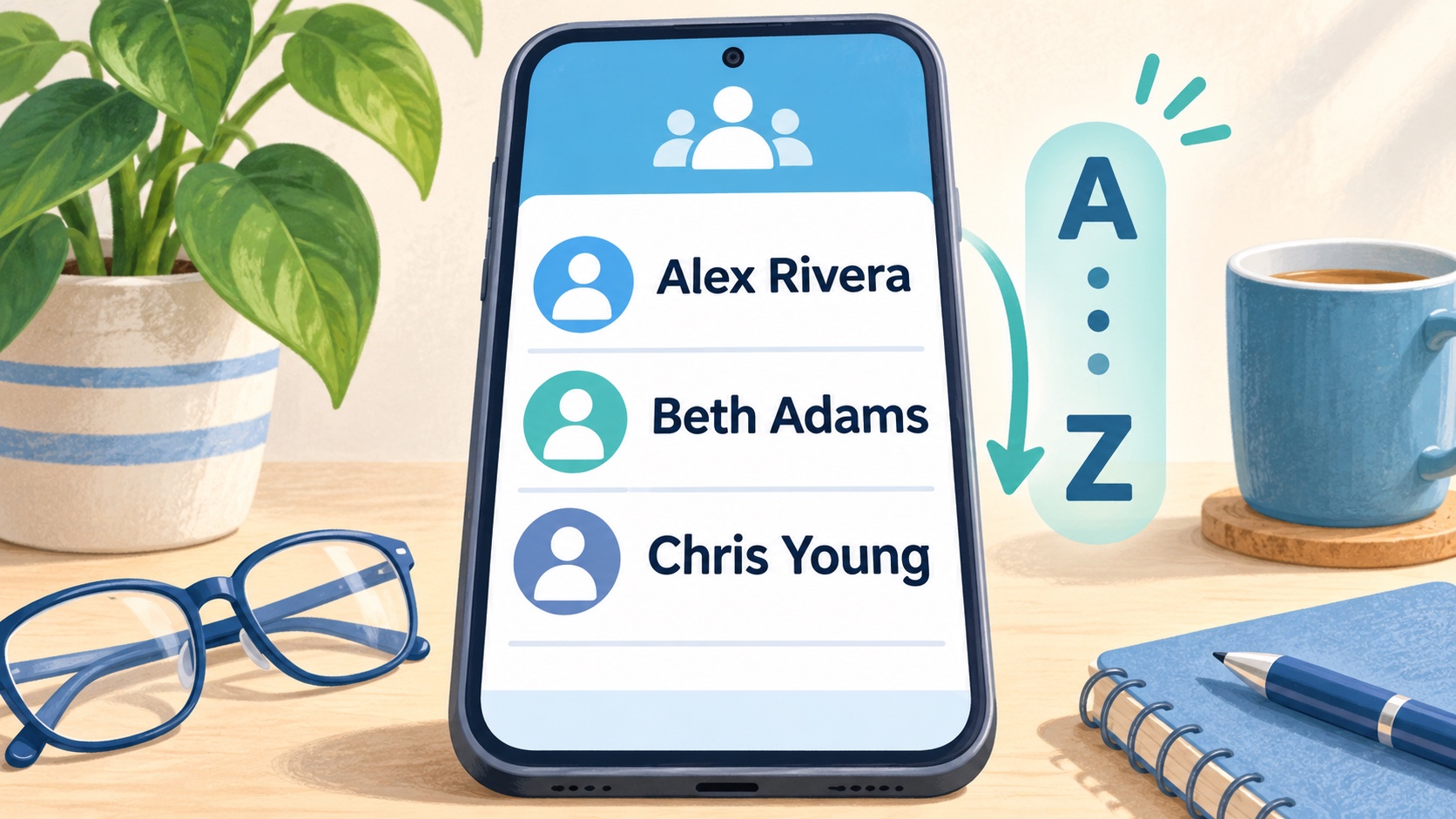
When you want to call your friend Beth, do you look under “B” or stop to remember her last name?
I think in first names. That is how I know my friends, family, and the people I talk to every day. So I prefer my phone’s contacts to be in alphabetical order by first name, with the first name shown first.
If that sounds like you, here is some good news: you can change those settings. Your iPhone offers both choices. Many Android phones do, too.
Two settings that sound alike but do different jobs
Sort order controls where each person lands in the list. Display order controls how that person’s name looks on the screen.
Here is a simple example. If your contacts are sorted by first name, these three people would appear in this order:
- Alex Rivera
- Beth Adams
- Chris Young
If they are sorted by last name, Beth Adams comes before Alex Rivera. Yet Alex’s name could still appear as “Alex Rivera.” Seeing a first name first does not always mean the list is sorted by first name.
For the setup I like, change both settings.
How to sort iPhone contacts by first name
On current iPhone software:
- Open Settings.
- Tap Apps, then Contacts.
- Tap Sort Order and choose First, Last.
- Go back to the Contacts settings.
- Tap Display Order and choose First, Last there, too.
On older iPhones, Contacts may be directly in Settings, without the Apps step. You can also use the search box in Settings to find it.
Now open the Contacts app and browse the list. Look for someone whose first and last names begin with different letters. That makes the change easy to spot. Apple’s contact settings guide explains these options.
How to change it on Android
Android phones can use different Contacts apps, so the buttons may look a little different. Start with the separate Contacts app.
If you use Google Contacts, try these steps:
- Open Contacts and tap your profile picture or initial.
- Open Contacts settings or the gear icon.
- Find Sort by and select First name.
- Find Name format and select First name first.
Some versions put settings behind a menu instead. Motorola’s Android guide covers these sorting and name-format options.
Using Samsung Contacts?
On many Samsung Galaxy phones, open Contacts, tap the menu with three lines, and tap the Settings gear. Set Sort contacts by to First name. Then set Name format to First, last.
Labels can vary by phone and software version. Look for the same two ideas: which name sets the order, and which name appears first. A Samsung moderator explains both settings here.
What if a name still looks out of place?
Check how that person’s name was saved. Open the contact and tap Edit. Make sure the first name is in the first-name box and the last name is in the last-name box. A phone cannot always guess which is which when an old contact was entered in the wrong fields.
Also check where you are looking. A recent-calls list follows your calls, while Favorites is a separate view. On some Android phones, the Phone app has its own display settings. Other apps may handle names differently, too.
Make your phone easier for you
Changing these settings does not delete contacts or change their phone numbers. You are choosing how to view the list. You can switch back whenever you want.
There is no single right choice for everyone. If last names make sense to you, keep them. If you think “Beth” before “Adams,” try first names for both settings.
A small change like this can make an everyday task feel much more natural. Your phone should be set up in a way that makes sense to you.
Need a hand finding the settings? Contact Help With My Tech for patient, plain-language help.
Steps reviewed November 8, 2026. Menus may vary by software version. Featured illustration: Human Imagined + AI Generated.