
Help With My Tech · Everyday tech that works together

Sometimes you know what you want to say, but getting it into a text or email feels like work. Your thumbs move slowly. You lose your place. A simple reply turns into a small writing project.
Two tools can make that easier: the Dictation feature on your iPhone and ChatGPT. Dictation turns your spoken words into text. ChatGPT can help shape that rough text into a clear message. You still decide what the message says and when to send it.
The simple routine: Talk naturally, check the words, ask for a clear draft, and review it before sending.
Let each tool handle one job
Dictation does the typing
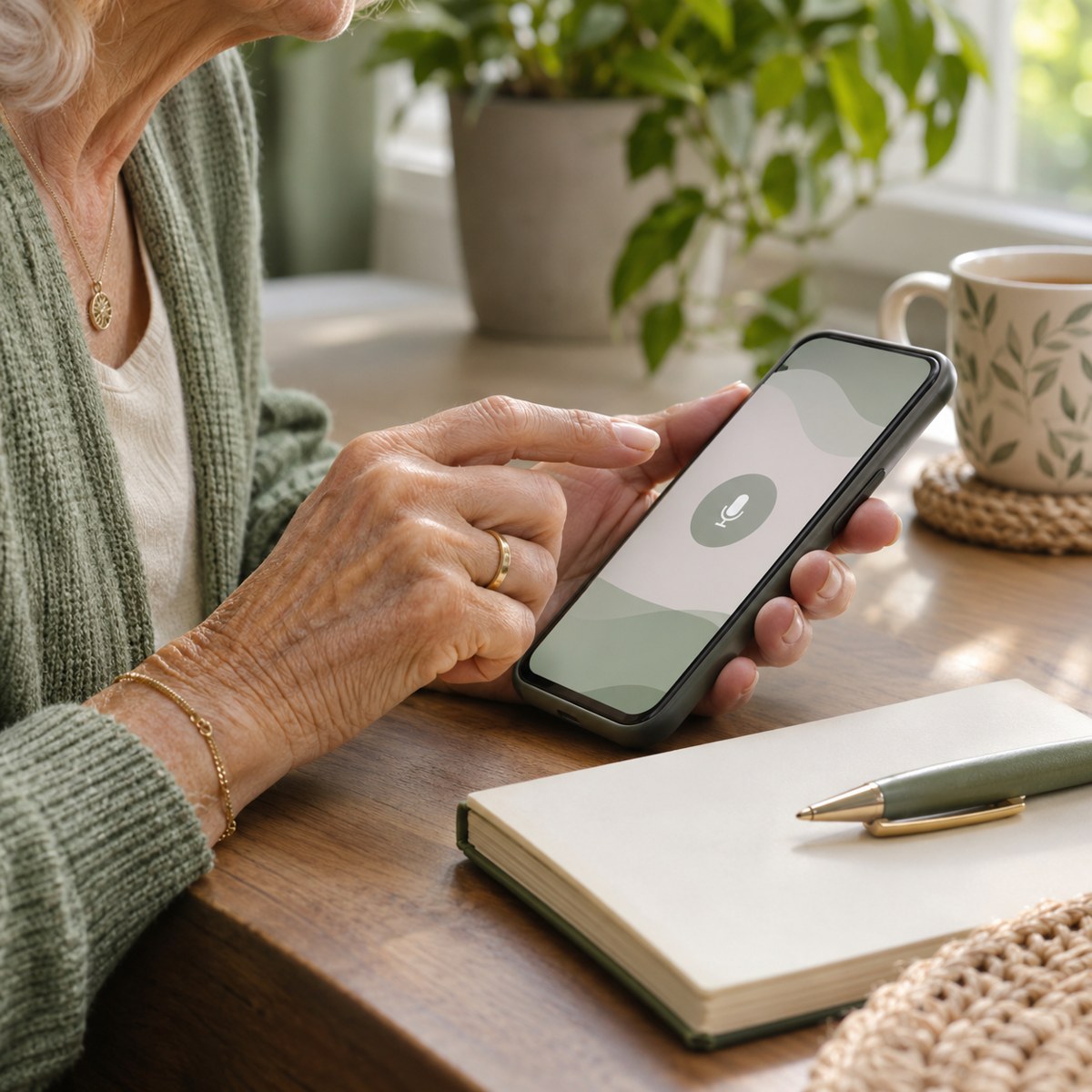
Tap the microphone on your iPhone keyboard and speak. Your words appear in the text field, where you can correct them.
ChatGPT helps with the wording
Give it your rough thoughts and explain the result you want: a short email, a warm reply, or a clear set of instructions.
You do not have to speak in perfect sentences. You can pause, repeat yourself, or say, “Actually, leave that part out.” Just read the text afterward so an important name or detail does not get lost.
Start with iPhone Dictation
- Open ChatGPT and start a conversation.
- Tap the message box to bring up your iPhone keyboard.
- Tap the microphone on the keyboard and begin speaking.
- Say your rough message and explain what you want ChatGPT to do with it.
- Tap the Dictation button again when you finish.
- Read the text. Fix names, dates, and any words your phone misunderstood. Then send your request.
If the keyboard microphone is missing, open Settings > General > Keyboard and turn on Enable Dictation. Availability and features vary by language and region.
This guide uses Apple’s keyboard Dictation. ChatGPT also has its own voice features, but you do not need a spoken back-and-forth conversation for this method. You are creating text that you can check before sending.
Try a real-life kind of message
Imagine a neighbor invited you to dinner. You would like to go, but you already have plans. You might dictate:
“Help me write a friendly text to my neighbor. She invited us to dinner Friday, but we will be out of town. Thank her, say we would love to do it another time, and keep it casual. Don’t make it too long.”
A draft might read: “Thanks so much for inviting us to dinner Friday! We’ll be out of town, but we’d love to get together another time.” That is the same meaning in two short sentences. It does not add a reason for the trip or promise a new date.
Compare that with a rough first thought: “Friday dinner, that sounds nice, but we can’t go because we won’t be here. I need to tell her thanks and maybe another time.” You supply the meaning. The useful change is clearer wording, not a new story.
That gives ChatGPT the job, the important facts, and the tone. You can then ask, “Make that a little shorter,” or “That sounds too formal. Make it sound like a normal text.”
For a different situation, dictate the main points of an email to a club organizer. Include the event, the question you need answered, and your preferred length. The same routine works without saving a special script.
Copy this reusable writing prompt
Use this when you want a steady starting point. Paste it into ChatGPT, then add your rough thoughts by typing or Dictation.
You can say the three labels aloud and fill them in. For example: “Who it is for: the book club. What I need to say: I can bring the snacks Tuesday. Tone and length: friendly, two sentences.”

Review the draft like it came from a helpful friend
A smooth sentence is not proof that every detail is right. Before you copy the draft into Messages or Mail, check these four things:
- Meaning: Does it say what you intended?
- Facts: Are names, dates, times, and numbers correct?
- Tone: Does it sound like something you would say?
- Promises: Did it add an offer or commitment you did not make?
Change anything you dislike. Then copy the finished text, paste it into your message or email, choose the correct recipient, and review it once more before sending. Drafting in ChatGPT does not send the message for you.
Small fixes that make this easier
What if Dictation hears the wrong word?
Tap the text and fix it with the keyboard. You can mix talking and typing. For an unfamiliar name, it may be easier to type that one word.
What if the draft sounds too polished?
Ask for a simpler version: “Use everyday words. Keep it warm, but leave out extra greetings and explanations.” You can also supply one short sentence that sounds like you.
What should I leave out?
Use only the details needed for the draft. A birthday greeting or meeting reply does not need private account information. You can use a placeholder such as “[name]” and fill it in later.
A little less typing, a little more control
The goal is to get your thoughts onto the screen with less effort. Dictation handles the first pass. ChatGPT helps organize it. You keep the final say.
Start with a low-pressure message, such as a thank-you note. After a few tries, you will learn how much detail to give and which changes make a draft sound like you.
Want to try it with someone beside you?
Help With My Tech offers patient help using the devices you already own. We can practice Dictation and simple ChatGPT requests together, at your pace. Explore our technology lessons or get in touch when you are ready.
Sources
Instructions checked November 11, 2026. See Apple’s Dictation guide and the official OpenAI documentation on prompting. Screen labels and available features may vary by app version, device, language, and region.
Images: Human Imagined + AI Generated for Help With My Tech. These scenes illustrate the ideas; they are not photographs of actual customers or exact app screens.