
Help With My Tech · Everyday tech that works together

You find an interesting article on your iPhone, but you do not have time to finish it. By the time you sit down later, the link is buried in a message or lost among open tabs.
Two Safari features make a useful pair. Reading List holds pages you want to revisit. Listen to Page can read supported webpages aloud. Together, they give you a small collection of articles you can return to and enjoy by ear.
Save a few stories about a hobby, travel, gardening, or technology. Later, open one and listen while you relax. You choose the articles, and you choose when to spend time with them.
Save it for later
Reading List keeps a page close at hand without making you leave its tab open.
Give your eyes a break
Listen to Page reads the text on supported webpages aloud in Safari.
Save Your First Article
- Open Safari on your iPhone.
- Visit an article you would like to read later.
- Tap the Page Menu button, then Share. Some software versions call this the More button. If your layout already shows a Share button, tap it directly.
- Choose Add to Reading List.
You can also touch and hold a webpage link and choose Add to Reading List without opening it first. That is handy when someone sends you an article during a conversation.
Keep the List Small at First
Start with three articles you actually want to finish. A short list is easier to use than a large pile of links you feel you ought to read someday.
Choose ordinary article pages for your first test. A story with a title and several paragraphs is a better starting point than a store checkout page, a photo gallery, or a page made mostly of video. Listening works with supported text pages, so not every website will offer the same controls.
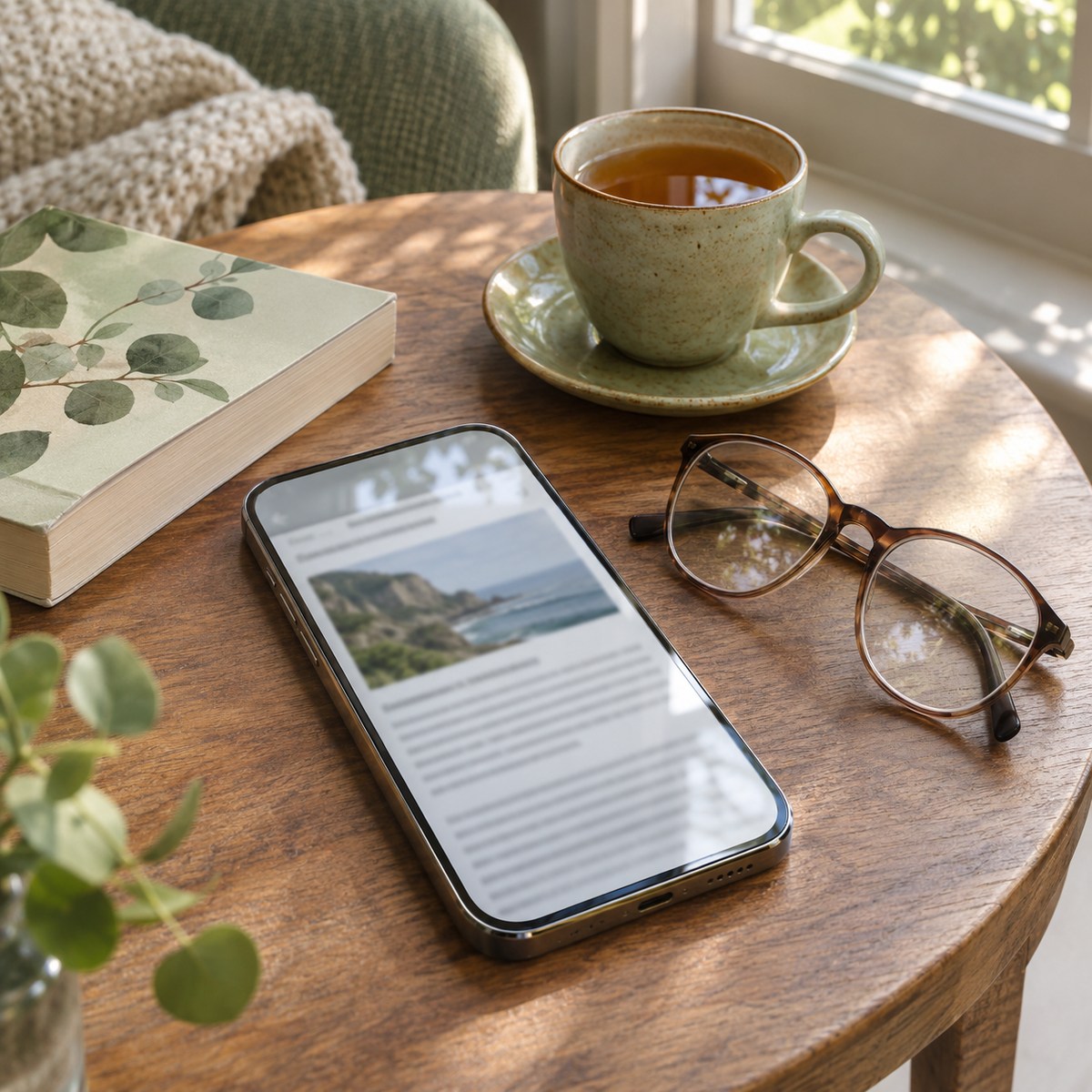
Open a Saved Page and Listen
- In Safari, open your Reading List. On the current start page, look for its Reading List button. Depending on your layout or software version, you may reach it through Bookmarks, then the Reading List button that looks like eyeglasses.
- Tap a saved article to open it.
- Tap the Page Menu button.
- If it is available, tap Listen to Page.
- Set a comfortable volume and let the article play.
To pause, open the Page Menu and tap the pause control. Use the play control there to start listening again. You can listen through the phone’s speaker or through headphones you already use with your iPhone.
One useful distinction: Reading List saves a page for later. It does not create an audio recording, podcast episode, or MP3 file. Listen to Page reads a supported page when you open it in Safari.
Try Reader When You Want to Follow Along
Sometimes you want to listen and glance at the words. Safari’s Reader can make a supported article easier to view by showing its relevant text and images with fewer surrounding distractions.
Open the Page Menu and choose Show Reader when the option is available. To return to the original webpage, use Hide Reader. Reader is an optional companion to this routine. You do not need to turn every saved page into Reader before checking for Listen to Page.
A Simple Morning Routine
Imagine that you saved a story about growing herbs, a local history article, and a guide to a phone feature. After breakfast, you open Reading List and choose whichever sounds interesting.
If the page supports listening, start the audio and settle into a chair. Pause when something needs your attention. When you finish, remove the page from Reading List so the next visit feels fresh.
The goal is to make a few useful articles easier to enjoy. There is no prize for saving the most links.

What About Reading Without Internet?
Safari can save Reading List pages for offline reading. Apple’s current path is Settings > Apps > Safari, then turn on Automatically Save Offline under Reading List. Save and test a page while you have an internet connection before relying on it away from home.
Offline reading and spoken playback are separate things. A saved page is not a promise that Listen to Page will work offline. If listening is your main goal, plan to use a connection and test the exact page first.
Common Questions
Why do I not see Listen to Page?
Open the article itself in Safari, rather than a preview inside another app. Check the Page Menu, and try another ordinary text article. The option depends on support for that page and your setup; it is not offered on every website.
Can it get around a website’s sign-in or subscription?
Use the page you are allowed to access normally. Treat listening as another way to enjoy available text, not a way to unlock an article.
How do I remove a saved article?
Open Reading List, swipe left on the item, and delete it. Removing the list entry clears that saved item; it does not remove the publisher’s webpage.
Do I have to listen to everything I save?
No. Read some pages, listen to others, and remove anything you no longer want. A helpful list should fit your interests, not become another chore.
Try saving one article today. The next time you have a quiet moment, open it from Reading List and check for Listen to Page. A small habit can make interesting reading easier to fit into your day.
Official Apple Guides
Instructions checked November 11, 2026. Safari menus can vary with the software version and tab layout.
Make Your Phone Work More Comfortably for You
Help With My Tech can walk through Safari, headphones, and other everyday features with you at a comfortable pace. If that would help, take a look at our patient technology lessons or send us a note.
Images: Human Imagined + AI Generated for Help With My Tech. These scenes illustrate the ideas; they are not photographs of actual customers or exact app screens.