
Help With My Tech · Small skills for everyday technology

You click Send, and then you notice it. The attachment is missing. A name is wrong. Or the message went to the other person with the same first name. That small sinking feeling is familiar to many email users.
Gmail has a useful setting for moments like this. You can give yourself up to 30 seconds to cancel a message after clicking Send. It takes a short visit to Gmail’s settings on a computer, followed by a simple practice message.
Know the limit: Undo Send gives you a brief chance to cancel sending. It does not reach into someone else’s inbox and retrieve an email that has already been delivered.
Give yourself a little room to notice a mistake
Thirty seconds is not enough time to rewrite a long letter. It can be enough time to spot the missing file you meant to attach or realize that the subject still says “Draft.” The setting is a small cushion for everyday mistakes.
Before you send
Check the recipient, the message, and any attachment. A careful first look still matters.
Right after you send
Keep your attention on Gmail’s confirmation message. That is where the short-lived Undo option appears.
This is a good setting to arrange while you are calm. You do not want to be hunting through menus after sending the wrong email. Once you know where Undo appears, the feature feels much less mysterious.
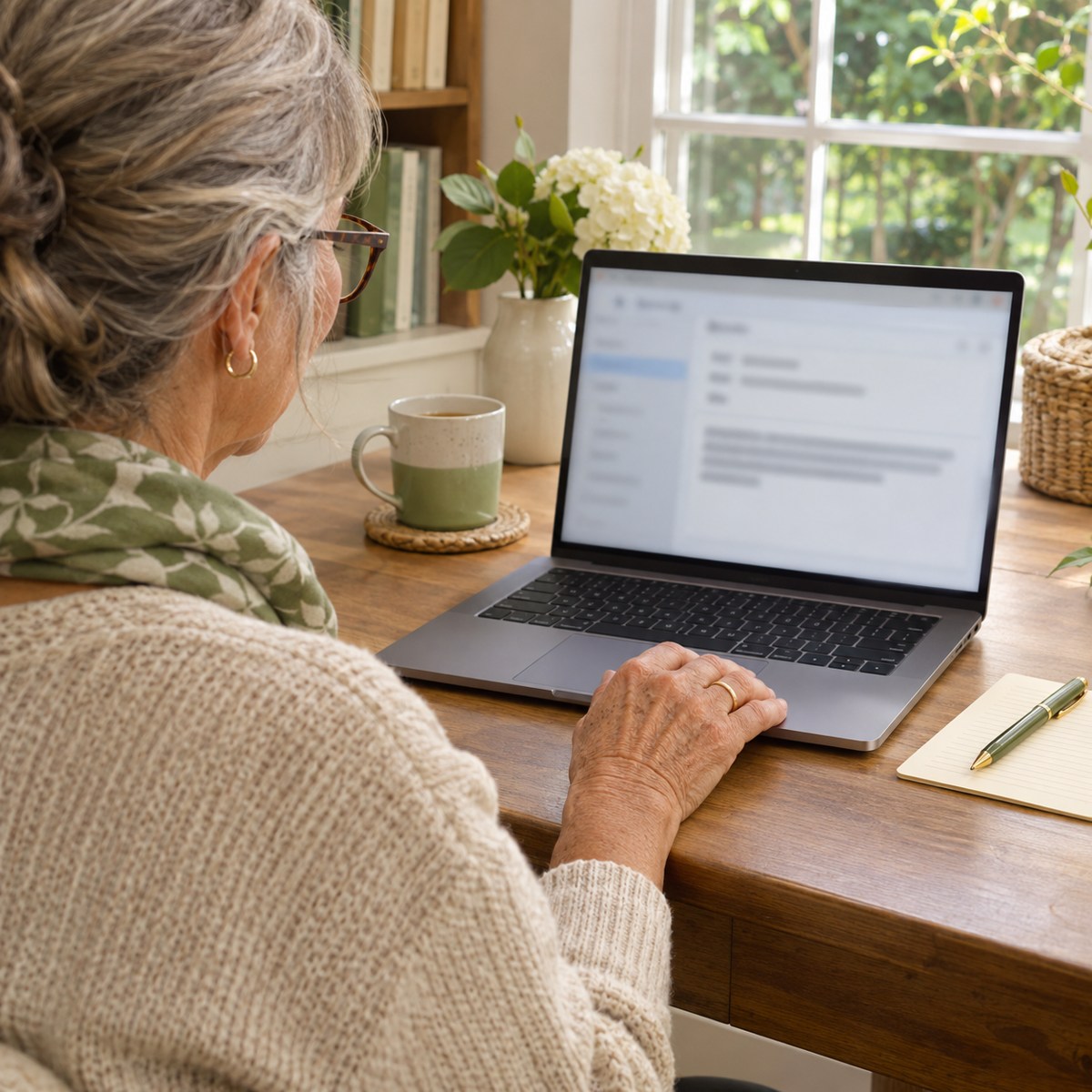
Set Gmail’s cancellation window to 30 seconds
- On a computer, open your browser and go to gmail.com. Sign in to the account you use for email.
- Click the Settings gear near the upper-right corner.
- Choose See all settings.
- Find Undo Send on the General settings page.
- Open the Send cancellation period menu and choose 30 seconds. Gmail also offers 5, 10, and 20 seconds.
- Scroll to the bottom and click Save Changes.
If you have more than one Gmail account, check which account is open before making the change. Repeat the setup in another account if you want the same window there.
Practice with a message to yourself
Start with something unimportant. Address a new email to your own email address, use a subject such as “Practice message,” and write one plain sentence. Check that you entered your own address before sending.
Click Send and look near the bottom-left corner of Gmail’s browser window. The confirmation includes Undo. Click it promptly. The message should return for editing, where you can make a change or leave the draft unsent.
Try the exercise once more if you want. Notice where your eyes need to go and how quickly the option disappears. You are learning the location while nothing important depends on it.
A familiar example: the missing attachment
Imagine emailing the club treasurer about an expense. You write, “The receipt is attached,” and click Send. Then you see the receipt file still sitting on your desktop.
If Undo is still showing, click it. Add the correct receipt, check the recipient again, and review the message before sending. The useful part is catching the mistake during the short window, rather than hoping you can cancel it several minutes later.
What about Gmail on a phone?
Google’s Gmail app also shows an Undo option immediately after sending. On an iPhone or iPad, look for it in the Sent confirmation and tap it right away. The 30-second setup described above is reached through Gmail’s computer browser settings.
Check the behavior in the app you actually use. An email address ending in gmail.com can be read in several apps. Apple’s Mail app and Microsoft’s Outlook have their own controls; opening your Gmail address in one of them does not turn that app into Gmail.
For the clearest first test, use Gmail at gmail.com on your computer. Then practice separately in the Gmail phone app if that is where you usually send messages. Follow the on-screen opportunity instead of waiting until the final second.
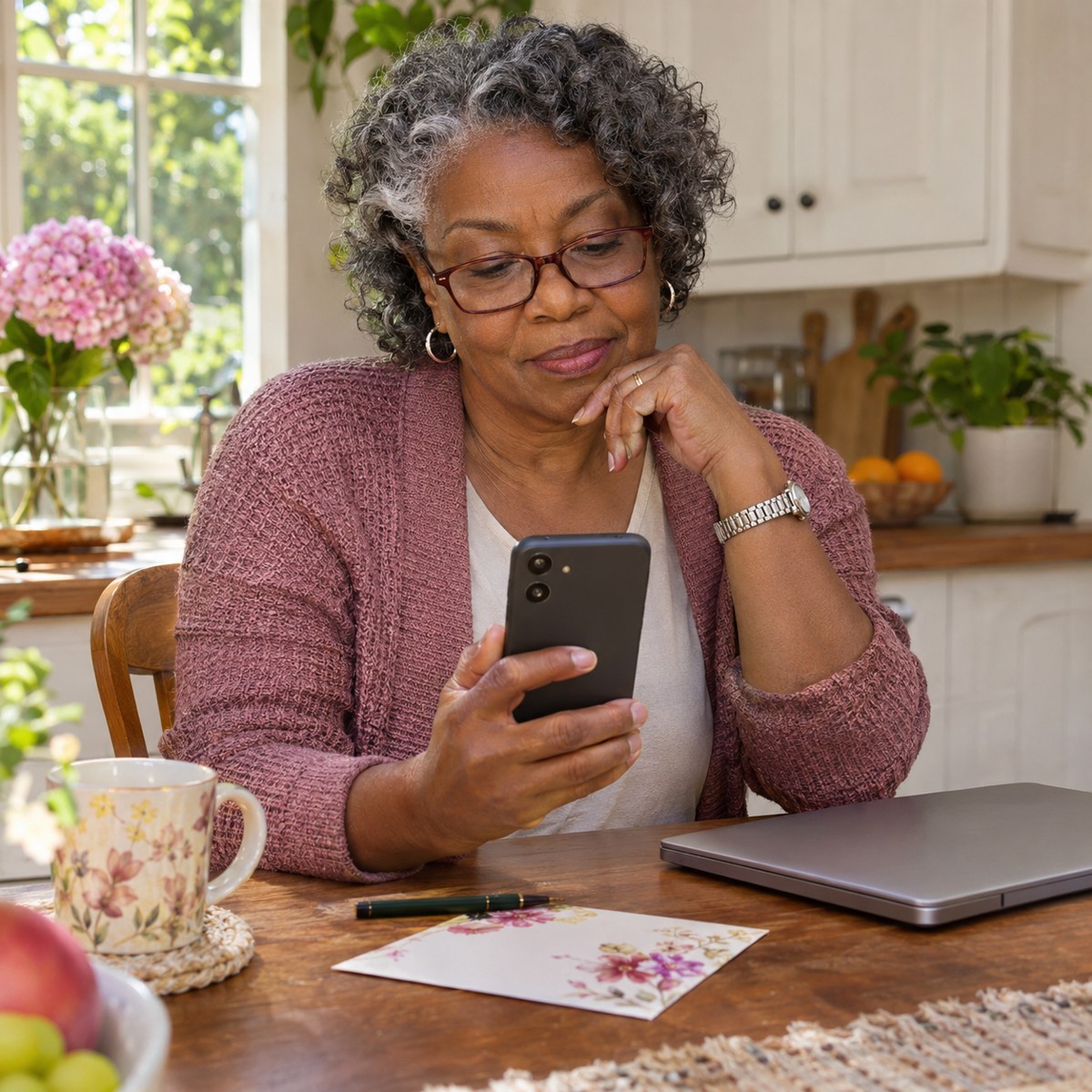
Build a five-second check before Send
A small routine can prevent the mistakes that Undo Send cannot catch in time. Before you click Send, pause and ask:
- Who: Is this the correct person, including everyone in Cc?
- What: Does the message say what I mean?
- When: Are any dates and times correct?
- Files: Did I attach the right file, and does it contain only what I intend to share?
For an important message, read the recipient address rather than relying on a familiar display name. Two contacts can have similar names. A second look is especially useful for a reply that includes several people.
Common questions
Undo has disappeared. Can I bring it back?
The cancellation opportunity is brief. Changing the setting afterward does not restore it for a message already sent. You may need to send a short correction or contact the recipient.
Does this work like a recall button?
Think of it as a short pause before delivery. It gives you time to cancel within the window. It does not remove a delivered copy from another person’s account.
I chose 30 seconds, but I am not sure it saved.
Return to the same General settings page and check the value. Be sure you clicked Save Changes at the bottom and that you are looking at the intended Gmail account.
A little preparation can make sending email feel calmer. Set the window, practice once, and keep checking your message before Send. You will know where to look if you spot a mistake right afterward.
Want a hand finding your email settings?
Help With My Tech can walk through the email app you actually use and help you practice at your pace. Get in touch when you would like some patient help.
Sources
Instructions checked November 11, 2026. See Google’s guides to sending and undoing Gmail messages on a computer and Undo in the Gmail app for iPhone and iPad. Screen labels and layout may change.
Images: Human Imagined + AI Generated for Help With My Tech. These illustrative scenes are not photographs of actual customers or exact app screens.