
Help With My Tech · Small skills for everyday technology

You have directions on your phone, a full tank, and a plan for the day. Then the cell signal disappears on a quiet stretch of road. A little preparation at home can make that moment much less frustrating.
Apple Maps lets you download a map of an area to your iPhone. The saved map can help with navigation inside that area when you cannot get Wi-Fi or cellular service. Downloading and checking it before you leave is the useful habit.
Start while you have a connection. A map you intend to save later will not help after service is gone. Choose the area, finish the download, and test it while you are still at home.
What a downloaded map gives you
A saved map keeps information on the phone instead of requiring the phone to fetch every part of it during your trip. Apple’s offline maps can provide turn-by-turn directions and information about places within the downloaded area. Available features vary by country and region.
The area matters
Include the places you plan to visit and enough of the route between them. A small map around a hotel may not cover the road leading there.
The phone matters
Make the download on the iPhone you will take with you. A saved map is useful only when it is available on that device.
Offline maps are available in Apple Maps with iOS 17 or later in supported areas. This guide is for Apple’s Maps app on iPhone. If you normally use a different map app, its download controls may be different.
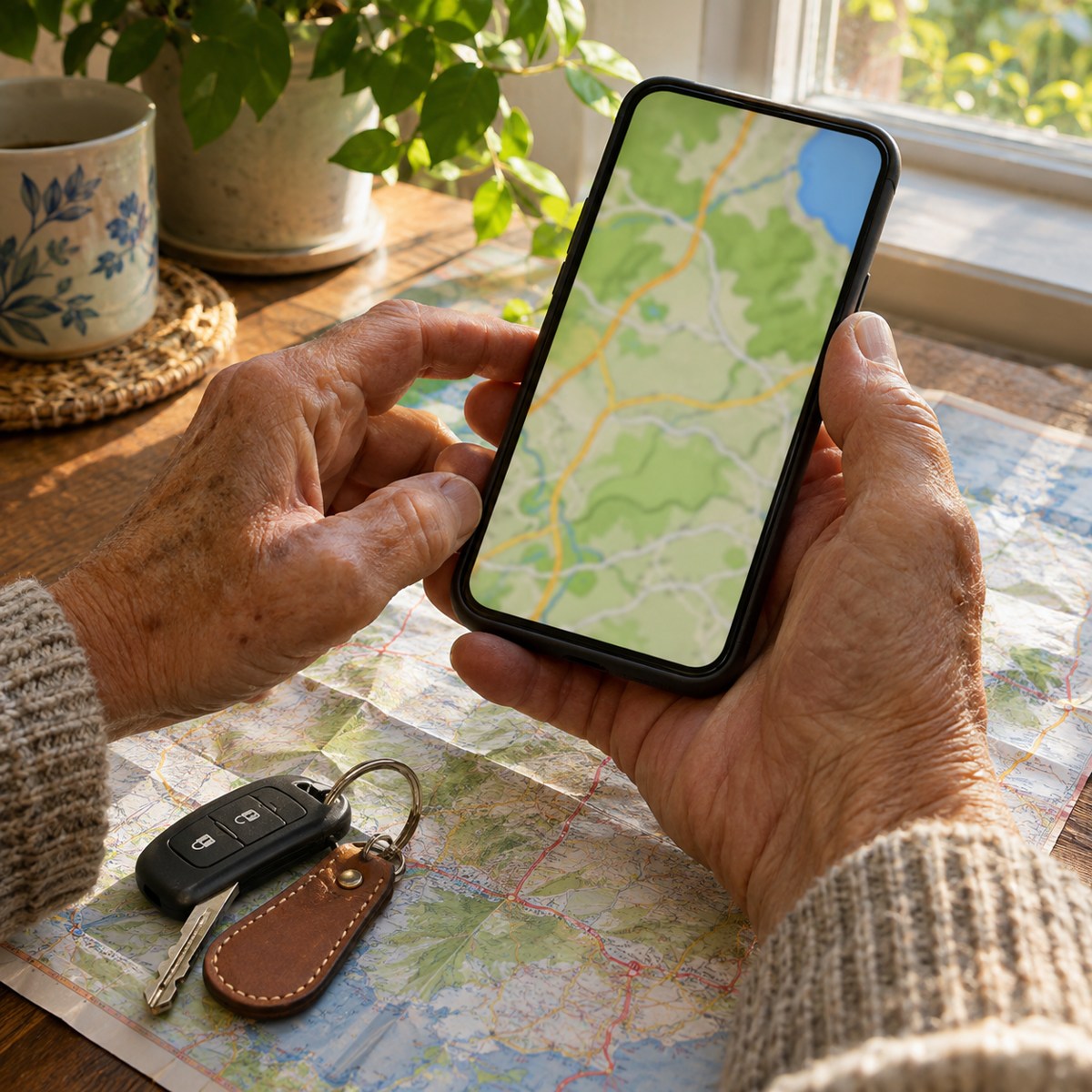
Save an area in Apple Maps
- Connect your iPhone to dependable Wi-Fi and open Maps.
- Tap your picture or initials beside the search field, then open Offline Maps.
- Choose Add Offline Map or the plus (+) button, depending on your version.
- Search for the place or area you want to save.
- Adjust the selection so it includes the places and roads you need. Check the download size shown.
- Tap Download and wait for it to finish.
- Return to Offline Maps and confirm the saved area appears in the list.
You can also search for a place in Maps and look for Download, or More followed by Download Map. If no download option is available, check Apple’s current instructions and regional availability.
Choose a useful area, not just a destination pin
Think about the whole outing. Where will you start? Where might you stop? Will you need a different road on the way back? These questions help you decide how much area to save.
A tightly drawn box may be small enough to download quickly but leave out a road you need. A very large area may take more space than you want. Use the size estimate as a guide and choose a practical amount of coverage.
A simple day-trip plan
Suppose you are visiting friends outside town and stopping for lunch along the way. Save an area that includes their neighborhood, the lunch stop, and the roads you expect to use.
Before leaving, search for both stops in the downloaded area. Look at the route while you have time to notice anything missing. If a road or stop falls outside the saved area, resize the map or download another useful area.
Test the saved map before the trip
Open Offline Maps and select your download. Confirm that its coverage matches your plan. Then try finding a familiar destination within it.
For an extra check, you can temporarily turn on Only Use Offline Maps in the Offline Maps settings. Try the route while you are safely seated at home. Turn that option off afterward if you want Maps to use online information when a connection is available.
This test helps you learn how the saved map behaves before you rely on it. It also gives you time to ask a question or adjust the download. Wait until you are parked before changing a route or map setting during travel.

Give the download a quick check before leaving
- Coverage: Does the saved area include the trip you actually plan to take?
- Download: Is it finished, rather than still waiting for Wi-Fi?
- Updates: Allow map updates while you have a good connection.
- Power: Charge the phone and bring a charger suitable for your trip.
- Important details: Keep the destination address and a contact number somewhere easy to find.
Apple Maps offers Automatic Updates for saved maps. Check the setting if you want downloads to stay current. A saved copy still reflects available information; it cannot tell you every new thing happening on the road.
Know what a saved map cannot promise
A downloaded map does not create cell service. It does not make an ordinary phone call or internet search work without a connection. Treat current traffic, sudden closures, and other live information as separate from the map stored on your phone.
Follow road signs and local conditions even when a route appears on the screen. For a remote outing, keep a backup plan that fits the trip. Downloaded maps are a useful layer of preparation, not a reason to ignore changing conditions.
Common questions
The download takes too much space. What can I do?
Select a smaller area or remove an old map you no longer need. In Offline Maps, choose the saved map to review its size, resize it, or delete it.
Can I remove a map after the trip?
Yes. Open Offline Maps, select the saved area, and choose Delete Map. Check that you no longer need it before removing it.
Can I download everywhere?
No. Offline maps are available only in supported areas, and features vary by region. Check the exact destination before relying on a download.
Try saving a familiar area first. Once you have practiced finding it and checking a route, the next trip’s preparation becomes a small, useful routine.
Want to practice before you go?
Help With My Tech can help you get comfortable with Maps and the iPhone features you use every day. Explore our patient technology lessons or send us a note when you would like a hand.
Sources
Instructions checked November 11, 2026. See Apple’s iPhone guide to offline maps and offline map setup and management guide. Menu names, regional availability, and supported features may vary.
Images: Human Imagined + AI Generated for Help With My Tech. These illustrative scenes are not photographs of actual customers or exact app screens.