
Help With My Tech · Everyday technology, made clearer

You plug in your iPhone, leave it for a while, and find the battery sitting at 80%. Before you blame the cable or the phone, check whether charging paused on purpose.
Several iPhone features can stop or delay charging near that level. The useful question is not just “Why isn’t it at 100%?” It is “What does the phone say, and which charging setting is active?”
Three reasons charging can pause near 80%
Optimized Battery Charging
This feature can wait before finishing a long charging session. It learns your routine and aims to finish around the time you usually unplug.
A selected Charge Limit
On iPhone 15 and later, a limit below 100% can intentionally stop charging near the chosen percentage.
Temperature protection
A phone that is too hot or too cold may slow or pause charging until it returns to a normal temperature.
These causes need different responses. A phone following an 80% limit is doing what the setting asks. A hot phone needs time in a suitable place. A loose cable needs a connection check.

Check the setting for your iPhone model
On iPhone 15 and later
- Open Settings.
- Tap Battery, then Charging.
- Look at the selected Charge Limit. Apple offers choices from 80% to 100% in five-point steps.
- If the limit is 100%, check whether Optimized Battery Charging is enabled.
On iPhone 14 and earlier, go to Settings > Battery > Battery Health & Charging to check Optimized Battery Charging. Menu labels can change with software updates.
A lower limit and optimization are related tools, but they work differently. A limit chooses an upper target. Optimization delays part of a charging session. Apple also notes that a phone with a lower limit may occasionally reach 100% to keep its battery estimates accurate.
You do not need to turn these features off simply because you notice them. The setting should fit how you use the phone. If you normally finish the day comfortably, an intentional pause may require no action at all.
Two mornings, two different explanations
Imagine checking your phone early before a trip. It is at 80%, and the Lock Screen says it will finish charging later. That points toward an optimized charging delay. On a different phone, you open Charging and find an 80% limit selected. Waiting longer is unlikely to make that setting aim for 100%.
Checking the message and setting first saves you from replacing a working cable just because two different situations look similar.
Need a full charge for a longer day?
If Optimized Battery Charging is active, Apple says you can touch and hold its Lock Screen notification and choose Charge Now. That is useful when your plans change.
If you selected a lower Charge Limit, review that setting when you need extra battery for a particular day. Make a deliberate choice rather than switching off every battery feature. Apple warns that turning off charging optimizations can increase battery wear.
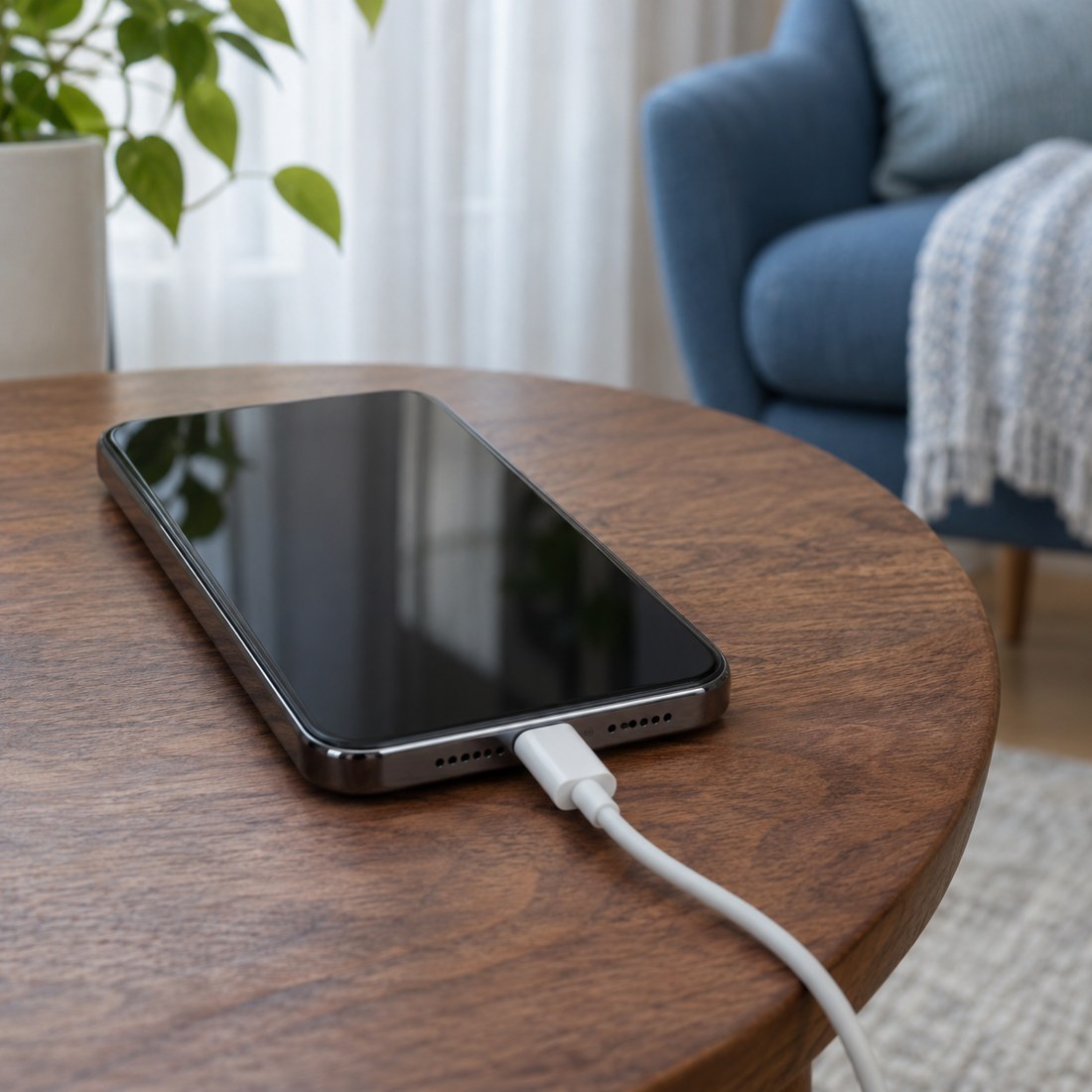
If the phone is warm, give it a sensible break
A sunny windowsill, a hot car, navigation, or other demanding activity can add heat. Move the phone and charger away from direct sun to a cooler indoor spot. Pause heavy use and let the phone cool naturally. Do not put it in a refrigerator or freezer.
If a temperature warning appears, Apple’s advice is to turn the phone off, move it to a cooler environment, and allow it to cool. A “Charging On Hold” message can also mean the phone is temporarily too hot or too cold.
This matters in Arizona, where a car or outdoor table can become hot quickly. Choose a charging spot based on the conditions around the phone, not just the nearest outlet.
When it may be a charging problem
If there is no intentional limit, no delayed-charging message, and no temperature issue, try simple checks before assuming the battery has failed:
- Check that the cable, adapter, and wall connection are firm.
- Inspect the accessories for damage. Stop using a damaged cable or adapter.
- Try another outlet and a known working, compatible cable and charger.
- Restart the iPhone and try again.
Do not force a connector or dig into the charging port with a metal object. If it still will not charge normally, seek help. Write down the percentage, any message, the charger used, and whether the phone felt warm. Those details make the next check more useful.
Quick questions
Is 80% battery health the same thing?
No. The charge percentage describes how full the battery is now. Battery health describes its condition compared with when it was new.
Does stopping at 80% prove the battery is failing?
No. Check the charging setting and temperature first.
Should everyone use the same limit?
No. Start with your daily needs and the options available on your model.
Make the settings make sense
Help With My Tech can walk through your iPhone’s charging options and basic checks with you. Get in touch for clear, patient help.
Official Apple references: Charge Limit and Optimized Battery Charging; Temperature and charging protection; If your iPhone will not charge. Checked November 12, 2026.
Images: Human Imagined + AI Generated for Help With My Tech. These illustrative scenes are not photographs of actual customers or exact app screens.