
Help With My Tech · Small skills for everyday technology
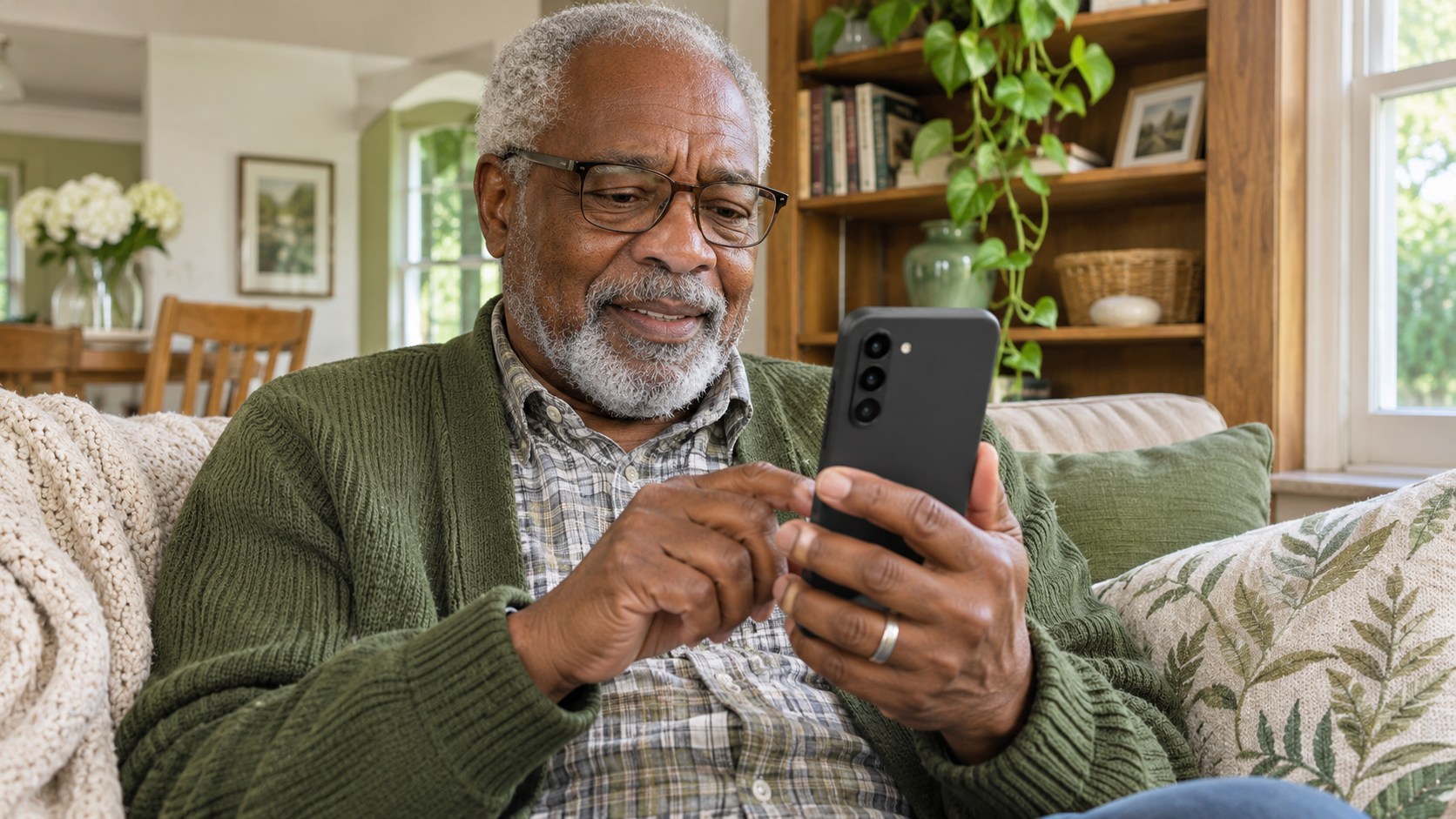
You swipe away an alert just as you realize it might have mattered. Was that a message from the club, a delivery update, or a reminder you meant to read?
On supported Android phones, Notification History gives recently dismissed alerts a place to stay for a short time. It can help you find the app behind an alert and pick up where you left off.
Turn it on before you need it. Notification History cannot bring back alerts that arrived before the feature was enabled. If it is off today, setting it up now helps with future alerts.
What this feature is good for
A quick second look
Review a recently dismissed notification when a fast swipe carried it away before you finished reading.
Finding the right app
See where an alert came from so you can open the app and check the current message or task.
Notification History is a short-term aid, not a permanent filing cabinet. Keep important messages, receipts, and appointments in the apps where you normally manage them. History is the place to look when you need to retrace a recent moment.
The exact menus depend on your phone. Google Pixel and Samsung Galaxy phones use slightly different paths, so start with the set of steps that matches yours.
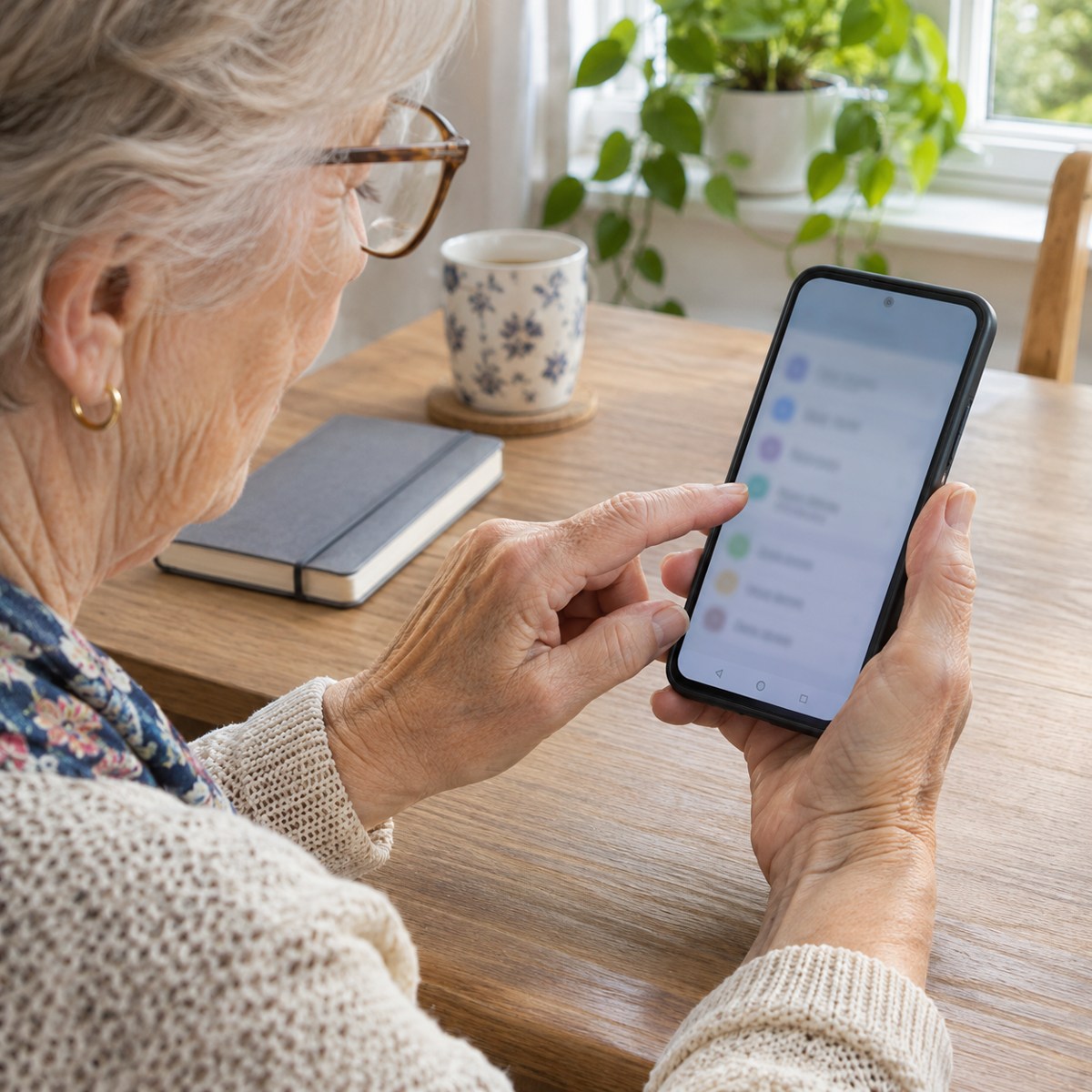
Turn it on on a Google Pixel
- Open Settings.
- Tap Notifications.
- Tap Notification history.
- Turn on Use notification history.
Google says a Pixel keeps dismissed notifications from the last 24 hours while this feature is enabled. Give it time to collect new alerts after you turn it on.
Find it on a Samsung Galaxy
- Open Settings.
- Tap Notifications.
- Open Advanced settings.
- Tap Notification history and turn on the switch at the top.
Samsung notes that screens and settings can vary by model, software version, and service provider. If you do not see the option, use the search box in Settings to look for “notification history.” Some Android phones do not offer it.
Try a harmless test
After enabling the feature, wait for an ordinary notification you are comfortable dismissing. A routine message from a family member or a low-priority app alert can work. Read it first so the test does not make you miss something important.
Swipe that alert away. Then return to the Notification History page and look for the app and the recent alert. You are learning the route while you are relaxed, rather than trying it for the first time when you are worried about a missing message.
If you cannot find the test alert, double-check that history was enabled before it arrived. Also confirm you are on the same phone that received it.
A simple example: the changed meeting room
Suppose your community group sends a message about a different meeting room. You clear several alerts while making breakfast, then remember seeing the group’s name.
If Notification History was already enabled and the alert is still available, you can look for that app in the recent list. Use the entry as a clue, then open the group’s conversation to read the current information in full. The app is the best place to check for any later changes.

Return to your recent alerts
On a Pixel, go back to Settings > Notifications > Notification history. You may also find a History button at the bottom of the notification list after swiping down from the top of the screen.
On a Galaxy, return through Settings > Notifications > Advanced settings > Notification history. Look for the app you remember, then review its recent entry.
On Pixel, tapping a history entry opens the app it came from. In any case, you can open the app yourself to read the latest message or complete the task. An old notification preview may leave out details or reflect an earlier version of the information.
Keep the feature comfortable to use
A recent-alert list can contain personal snippets. Keep that in mind when handing an unlocked phone to someone else or showing them your history. You do not need to show the whole list to ask a question about one app.
If you decide history is not useful, return to the same page and turn its switch off. Do not depend on the list as a long-term record. For something you need later, keep the original message or make a separate note in the app you trust.
If one app sends too many alerts, history does not solve that problem. Review that app’s notification settings separately. A smaller number of useful alerts can be easier to manage than a large list you keep clearing without reading.
Common questions
Can I recover an alert from before I enabled history?
No. Start with the app that may have sent it. Check recent conversations, updates, or reminders there. Turning history on now prepares for later alerts.
Does this restore a deleted text message?
No. A saved notification preview is different from restoring a message inside an app. Open the messaging app to see what is actually still there.
Does every Android phone have the same feature?
No. Availability and menus vary. If Settings search does not find it, check your phone maker’s guide. You can still open individual apps to review their current information.
How far back should I expect to look?
On Pixel, Google’s stated window is the last 24 hours of dismissed notifications while history is on. Treat it as a recent-events list and check your own phone’s options.
Official sources
Instructions checked November 11, 2026. See Google’s Pixel Notification History guide and Android notification guidance, plus Samsung’s Galaxy notification settings guide. Phone menus and feature availability can change.
Want a hand finding it on your phone?
Help With My Tech can help you find your Android notification settings and practice a routine that feels comfortable. We can also help reduce alerts you do not need. Send us a note when you would like some patient guidance.
Images: Human Imagined + AI Generated for Help With My Tech. These illustrative scenes are not photographs of actual customers or exact app screens.