
What if a few typed characters could paste an entire set of instructions into ChatGPT?
Apple's Text Replacement feature can do that. You create a short code, such as ;groceries, and your iPhone or Mac replaces it with a much longer block of text. Most people use Text Replacement for a phone number, email address, or common reply. It can also hold a reusable prompt that tells ChatGPT exactly how you want help.
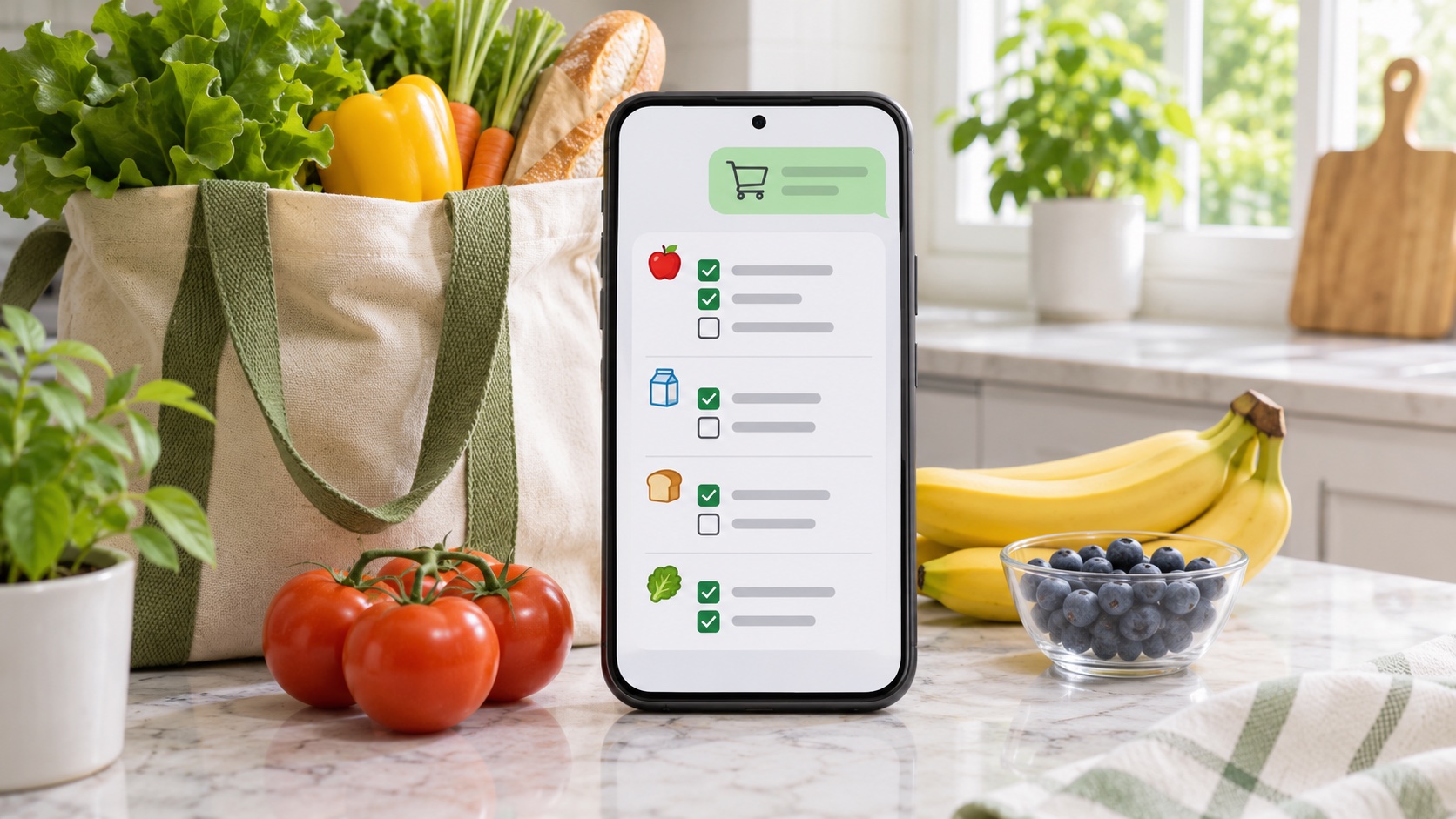
One of my favorite uses is grocery shopping. I open ChatGPT, type my shortcut, and the full grocery assistant prompt appears. ChatGPT organizes my list into store sections, adds an emoji to each heading, and keeps showing only what is left. While I shop, I can say, “Okay, I got salmon,” or “I got a block of cheese.” Those items disappear from the active list.
This guide shows you how to set up the shortcut on an iPhone or Mac. You will also get a polished prompt you can copy and use.
What Is Apple Text Replacement?
Text Replacement is a keyboard feature built into iPhone, iPad, and Mac. It pairs a short code with a longer word, sentence, or block of text.
For example:
- Type
@@to enter your email address. - Type
;addrto enter your mailing address. - Type
;lateto enter a polite “I’m running late” message. - Type
;groceriesto enter a complete ChatGPT grocery assistant prompt.
Choose shortcuts you would not type by accident. Starting them with a semicolon is a simple trick because normal words rarely begin with one.
Apple says Text Replacement works in supported text fields and can sync across your devices through iCloud. It is different from the Shortcuts app: Text Replacement expands typed text, while the Shortcuts app runs multi-step actions.
Why a Long ChatGPT Prompt Makes a Good Text Shortcut
A detailed prompt helps ChatGPT give you the same style of help every time. The problem is that no one wants to find and paste a long prompt before every shopping trip.
Text Replacement removes that extra work. Type your short code in the ChatGPT message box, press the space bar, and the full prompt appears. Send it, then start adding items in normal language.
The grocery workflow can:
- Sort foods into sections such as produce, dairy, meat and seafood, frozen foods, and pantry items.
- Add clear emoji headings so the list is easy to scan in a store.
- Combine duplicates and keep quantities or notes.
- Remove items as soon as you say you bought them.
- Display only the remaining items after every update.
- Review a shelf, cart, or product photo and compare clearly visible items with the list.
- Ask before removing an item when a photo is unclear.
A Real Shopping Example
During a shopping trip, the list was divided into headings such as:
🧀 Dairy & Refrigerated
- Block of cheese
🛒 Pantry & Snacks
- Takis (please!)
- Trail mix bar
- Nutri-Grain bar
- Seaweed
The conversation stayed simple. I could say, “Okay, I got salmon,” and salmon disappeared. After I said I had a block of cheese, that item disappeared too. When I reported getting the trail mix bars and Nutri-Grain bars, those were removed as well. ChatGPT kept returning a clean list of what remained instead of making me scan through completed items.
That is the useful part: you do not have to talk like a computer. You can shop and speak naturally.
Copy This ChatGPT Grocery Shopping Assistant Prompt
Copy everything in the box below. You can change any rule to match the way you shop.
Suggested Text Replacement shortcut: ;groceries
How to Add the Prompt on an iPhone or iPad
Apple's current setup path is:
- Copy the grocery assistant prompt above.
- Open Settings.
- Tap General.
- Tap Keyboard.
- Tap Text Replacement.
- Tap the plus (+) button.
- Tap the Phrase field and paste the complete prompt.
- In the Shortcut field, enter
;groceriesor another code you will remember. - Tap Save.
You can also reach the same settings while typing: touch and hold the emoji or globe key, tap Keyboard Settings, and then tap Text Replacement.
How to Add the Prompt on a Mac
On a current version of macOS:
- Copy the prompt above.
- Choose the Apple menu .
- Open System Settings.
- Click Keyboard in the sidebar. You may need to scroll.
- Click Text Replacements.
- Click the plus (+) button.
- In the Replace field, enter
;groceries. - In the With field, paste the complete prompt.
- Click Add, and then click Done.
Text Replacement is not available in every Mac app. In many supported apps, you can check Edit > Substitutions > Text Replacement if your shortcut does not expand.
How to Use Your New Shortcut in ChatGPT
- Open ChatGPT and start a new conversation.
- Tap or click the message box.
- Type
;groceries. - Press the space bar if the prompt does not expand right away.
- Review the expanded prompt, then send it.
- Tell ChatGPT what you need in any order.
You might say:
- “Add salmon, Lunchables, a block of cheese, Takis, trail mix bars, Nutri-Grain bars, and seaweed.”
- “Put anything that looks good for Mariah under Other.”
- “Okay, I got salmon.”
- “Remove Lunchables and anything that looks good.”
- “I got a block of cheese.”
ChatGPT should keep returning only the organized list of remaining items.
If you send a photo, tell ChatGPT what kind of help you want. For example: “Which of these looks like the item on my list?” or “Can you compare the package sizes you can clearly see?” A photo can be helpful, but confirm uncertain matches yourself before an item is removed.
Keep Text Replacements in Sync
Apple says your personal dictionary and Text Replacements can stay up to date across your Apple devices through iCloud.
On iPhone, open Settings > [your name] > iCloud > See All > iCloud Drive, then make sure Sync this iPhone is turned on. Sign in to the same Apple Account on your Mac and use iCloud Drive there as well.
Syncing may take a little time. If a new replacement does not appear on another device immediately, check the internet connection and iCloud settings, then wait a few minutes.
More Useful Text Replacement Ideas
Once you create one helpful shortcut, you will probably think of more.
Everyday contact details
@@→ your email address;phone→ your phone number;addr→ your mailing address
Friendly replies
;thanks→ a complete thank-you message;late→ a polite message explaining that you are running late;meet→ your usual meeting link and joining instructions
Reusable ChatGPT prompts
;mealplan→ instructions for making a weekly meal plan from foods you already have;proofread→ instructions to fix grammar while keeping your voice;techhelp→ instructions to explain a technical problem in simple, step-by-step language;triplist→ instructions to build a packing list by weather, activity, and number of days
Do not save passwords, credit card numbers, Social Security numbers, or other highly sensitive information in Text Replacement. Anyone who can type on an unlocked device may be able to trigger the saved phrase.
Troubleshooting: What If the Shortcut Does Not Expand?
Try these quick fixes:
- Type the shortcut and then press the space bar or punctuation key.
- Check the spelling and capitalization of the shortcut.
- Make sure the shortcut is still listed under Text Replacement.
- On a Mac, check Edit > Substitutions > Text Replacement in the app you are using.
- Try the shortcut in another supported app, such as Notes, to see whether the problem is app-specific.
- If you use more than one Apple device, confirm that iCloud Drive is enabled and that each device uses the same Apple Account.
- If a very long replacement is awkward to edit on an iPhone, create or revise it on a Mac and allow iCloud to sync it.
A Tiny Shortcut Can Save a Lot of Repeating
Apple Text Replacement is easy to overlook because it sits inside the keyboard settings. But it can save much more than a few keystrokes. A short code can carry an entire set of instructions into ChatGPT and turn a normal conversation into a consistent tool.
For grocery shopping, that means a list arranged by store section, clear emoji headings, natural updates, purchased items that disappear, and careful help with product photos. You spend less time managing the list and more time finishing the shopping.
Start with ;groceries. Once you see how useful one long shortcut can be, you may find many more jobs for it.