
AI tools like ChatGPT are getting more powerful, but they’re also getting more complicated.
A year or two ago, most people simply opened ChatGPT, typed a question, and waited for an answer. Now, depending on how you’re using ChatGPT, you may see choices for different models, reasoning or “effort” levels, speed settings, Work mode, Codex, and other options.
If you’ve looked at all of those settings and thought, “I have absolutely no idea which one I’m supposed to use,” you’re definitely not alone.
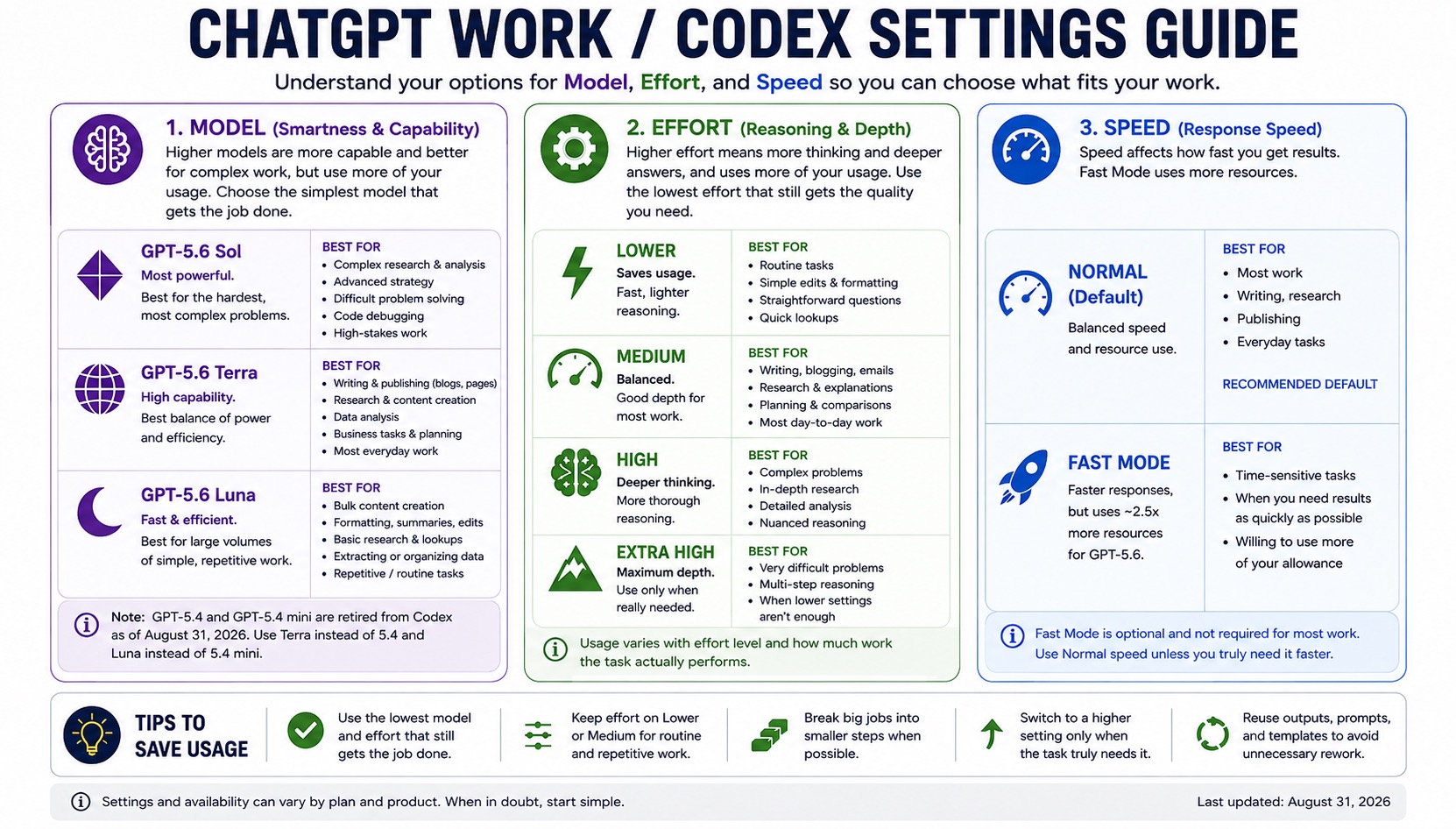
The graphic above is a quick guide I put together to make those settings a little easier to understand.
Model = How Capable the AI Is
The model determines the overall capability of the AI you’re using.
More powerful models are generally better at complicated research, troubleshooting, strategy, coding, difficult multi-step problems, and situations where you want the AI to carefully work through a problem.
But you don’t necessarily need the most powerful model for everything.
If you’re asking ChatGPT to rewrite a paragraph, organize some notes, summarize information, format content, or perform another straightforward task, using the highest-powered option may simply use more of your available resources without giving you much additional benefit.
A good rule is to use the simplest model that can comfortably handle the job.
Effort = How Much Reasoning ChatGPT Uses
The Effort setting controls how much reasoning ChatGPT puts into a task before giving you an answer.
Lower effort works well for simple, repetitive, or straightforward tasks. Medium is a good choice for a lot of everyday work. High and Extra High are better when the problem requires deeper analysis, multiple steps, careful comparisons, or more complicated reasoning.
Think of it like asking someone a question at work.
Sometimes you need a quick answer. Other times you’re asking someone to sit down, research the problem, compare several possibilities, think through the consequences, and give you a detailed recommendation.
Those two situations don’t necessarily need the same amount of effort.
Speed = How Quickly You Want the Work Completed
Speed controls how quickly ChatGPT processes and returns the result.
For most work, Normal mode is perfectly fine. Faster modes can be useful when you’re in a hurry, but faster processing can also use more of your available usage.
Unless you have a specific reason to prioritize speed, Normal is usually a good default.
Start Simple and Move Up When You Need To
For most people, the best strategy is actually pretty simple:
Start with the lowest model and effort level that can comfortably handle the job.
If the answer isn’t detailed enough, the problem turns out to be more complicated than expected, or you’re doing something where accuracy and deeper reasoning really matter, move up to a more capable setting.
You don’t need to drive a race car to the mailbox.
This becomes especially important when you start using AI for real work: writing articles, researching purchases, working with spreadsheets, troubleshooting computers, creating marketing content, analyzing information, planning projects, or helping operate a business.
Learning which tool and setting to use can make AI faster, less frustrating, and much more useful.
One Important Note About ChatGPT Settings
These options can change.
ChatGPT is evolving extremely quickly, and available models, names, usage limits, features, and settings can vary depending on your account, subscription, and the part of ChatGPT you’re using.
This guide reflects the Work and Codex options available as of August 31, 2026.
Need Help Getting Started With AI?
This is definitely a more advanced AI guide. If most of this sounds like another language and you’d simply like some help starting to use AI, figuring out what ChatGPT can actually do for you, or setting it up so it’s useful instead of overwhelming, reach out to Help With My Tech.
Whether you want to use AI for your business, everyday questions, writing, organization, research, or simply want someone to show you how it works, I can help you get comfortable with it.
Help With My Tech provides friendly, one-on-one technology help without making things unnecessarily complicated.