
Email should help you stay connected. When messages stop arriving, an attachment will not open, or a password request keeps returning, a simple task can become a frustrating afternoon.
Help With My Tech provides in-home email setup and troubleshooting for seniors. We help you understand your email account, the app you use to read it, and what is happening on your own devices.
- Patient explanations in everyday language
- Help using your own familiar devices
- Practical choices discussed before important changes
- Time for questions at your pace
Tell us what is happening. You do not need to solve the problem before asking for help.
What email problems can you help me with?
You might be able to read email on your phone but not your computer, or see an inbox that looks different after an update. We listen to what you want to do and identify which account and app are involved.
We can help with everyday email tasks as well as setup and confusing messages. When access depends on the email provider, we use its official sign-in or recovery options.
- Email setup on familiar home devices
- Missing messages and confusing inbox views
- Sending photos and opening attachments
- Repeated sign-in and password requests
For locked accounts and verification problems, our password and account recovery help page explains what assistance can and cannot accomplish.
What should I check when email stops working?
First, notice whether other apps can reach the internet. Then look at the email address shown in the app and the message it displays. These details can help separate a connection problem from an account problem.
A missing message might be in another folder, filtered from view, or sent to a different address. We can help you review the possibilities without immediately removing the account from your device.
- Notice whether other internet apps work
- Check which email account is open
- Look in spam and trash folders
- Write down the exact error message
Please do not send us your password or verification codes. You can explain what the screen says while keeping those details private.
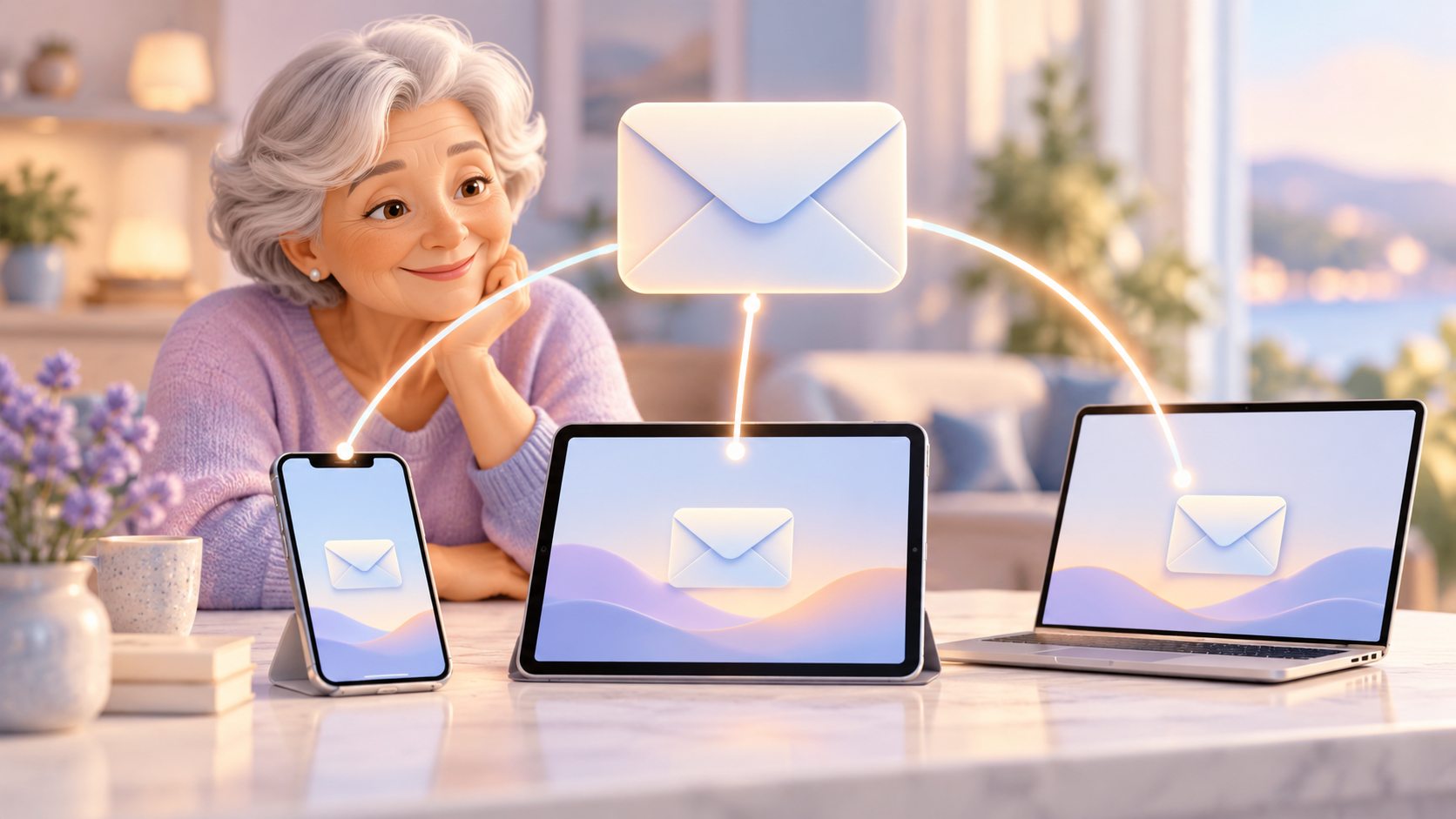
Can you get my email on my phone and computer?
We can review the options for using your existing email account on compatible devices. That may mean setting up a supported app or using the provider’s website, depending on what suits you.
Email behavior depends on the account and how it is configured. We can explain whether read status, folders, and deletions are shared across devices and test a small example with you.
- Identify the email account you use
- Review supported apps and website access
- Compare folders across your familiar devices
- Test sending and receiving a message
Adding an account is not the same as creating a new email address. We explain that distinction before making a change so you can keep the address people already know.
Can you help me send photos and attachments?
Yes. We can practice attaching a photo or document, finding a downloaded file, and checking the recipient before sending. You choose what to share and who should receive it.
Some files are too large for ordinary email. We can discuss a provider-supported sharing option and explain who can open the link before you send it.
- Find the photo or document first
- Check the intended recipient carefully
- Practice attaching a file to email
- Understand who can open shared links
A familiar practice task is often more useful than memorizing every button. We use the app and device you expect to use again.
Can you help me recognize suspicious emails?
We can explain common warning signs, such as pressure to act immediately, unexpected payment requests, or a link that leads somewhere unfamiliar. A message looking polished does not prove it is genuine.
If you are unsure, pause before clicking and contact the company through a method you already trust. We can help you review a confusing message, but no inspection can guarantee that every email is safe.
- Pause before responding to urgent demands
- Check requests through trusted contact methods
- Keep passwords and verification codes private
- Ask about unfamiliar links or attachments
If money or an account may already be at risk, contact the relevant bank or provider promptly through an official channel. Tell us what happened so we can discuss appropriate technology help.
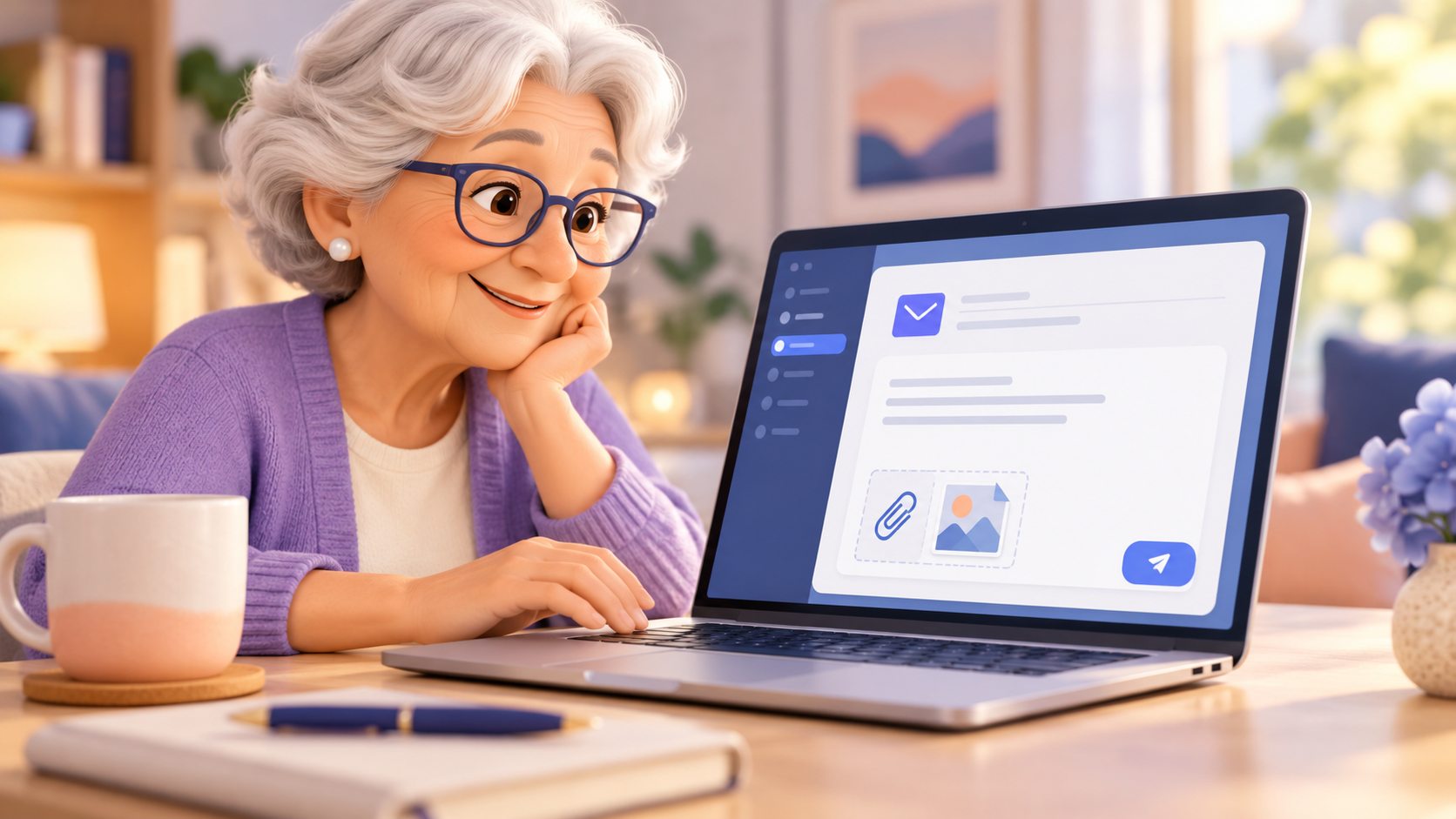
What happens during an email help visit?
We begin with the email task that matters to you. We can look at the account, app, connection, and message together, then explain the available options before changing settings.
You enter your own private sign-in information. We can help you practice a useful task after setup, such as replying, finding a message, or attaching a picture.
- Identify the address you normally use
- Explain the task that is failing
- Review changes before applying new settings
- Practice everyday email at your pace
We cannot promise access to an account the provider will not restore or recovery of messages that are permanently gone. Clear expectations are part of patient help.
How do I arrange patient help from Help With My Tech?
Text or call 480-463-7030 and tell us what you would like help with. We can discuss your goals and a suitable next step.
For current rates and visit details, visit our pricing page. Ask about support in your neighborhood or beyond; availability is confirmed before booking.
- Describe the help you are seeking
- Mention the devices you normally use
- Discuss a suitable appointment and priorities
- Confirm visit details before making arrangements
You deserve clear explanations and patient support. Contact Help With My Tech so we can talk about making your everyday technology easier to use.