
Moving from an old iPhone to a new iPhone is usually straightforward, but it is worth slowing down. A calm setup helps you keep your photos, messages, apps, and important account access in the right place.
Plan to do the transfer at home with dependable Wi-Fi, both phones charged, and a little uninterrupted time.
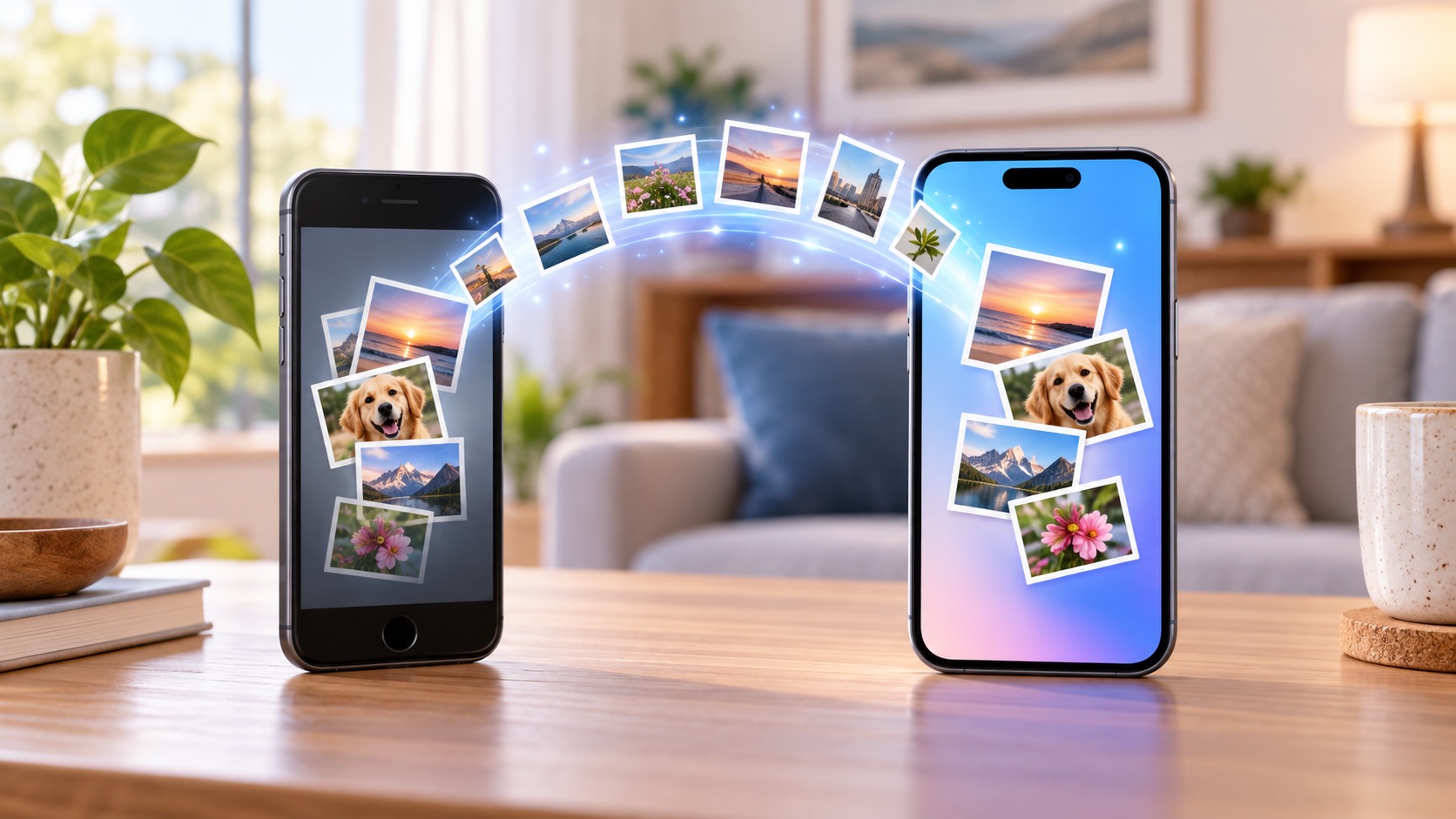
Prepare the old iPhone
Update the old phone if possible, connect it to Wi-Fi, and make a fresh iCloud backup. In Settings, look for your Apple Account, iCloud, and Backup. Keep it connected to power while the backup finishes. Apple’s iCloud Backup guide has current instructions.
Also make sure you know your Apple Account password. If you use two-factor authentication, keep the old phone nearby. You may need it to approve the move or receive a code.
Start the new phone
Place the old and new phones near each other. Turn on the new phone and follow the welcome screens. Apple’s Quick Start process often detects the old phone and offers to help transfer your information. Follow the prompts carefully and do not erase the old device.
Let the transfer finish
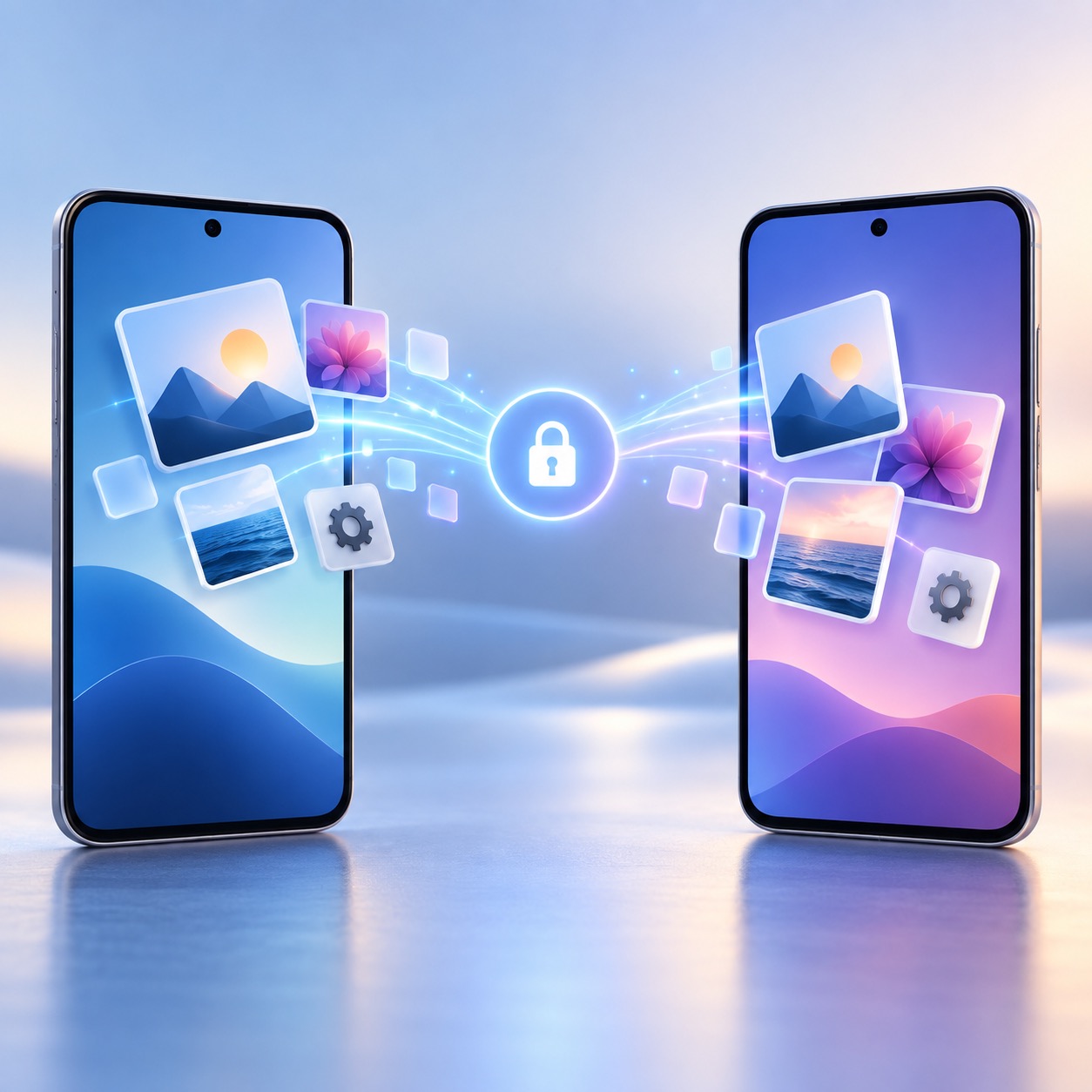
The time can vary depending on how many photos, videos, apps, and messages you have. Keep both devices nearby and powered. Some apps and photos may continue downloading after the first setup screen appears. That is normal.
You may need to sign in again to banking, health, password-manager, and streaming apps. Take your time. Do not give out any security code to someone who contacts you unexpectedly.
Check the important things
Before you erase or trade in the old phone, test the basics: make a call, send a text, open your email, check your photos, use your camera, and open critical apps. Check that contacts and calendar entries are present. If something is missing, the old phone and its backup may help you recover it.
Apple’s transfer guidance is useful if Quick Start does not appear or a transfer pauses.
Erase the old phone only when ready
Once you are certain the new phone is working, you can decide whether to keep, sell, trade in, give away, or recycle the old one. Before it leaves your hands, sign out of your Apple Account, turn off Find My, and erase all content and settings. Apple’s preparation guide covers the safe order.
New-phone setup is much easier with a patient helper nearby. Help With My Tech can come to your home to handle the transfer, check your apps, set up security, and make sure the new device feels familiar. Contact Help With My Tech when you would like one-on-one help.