
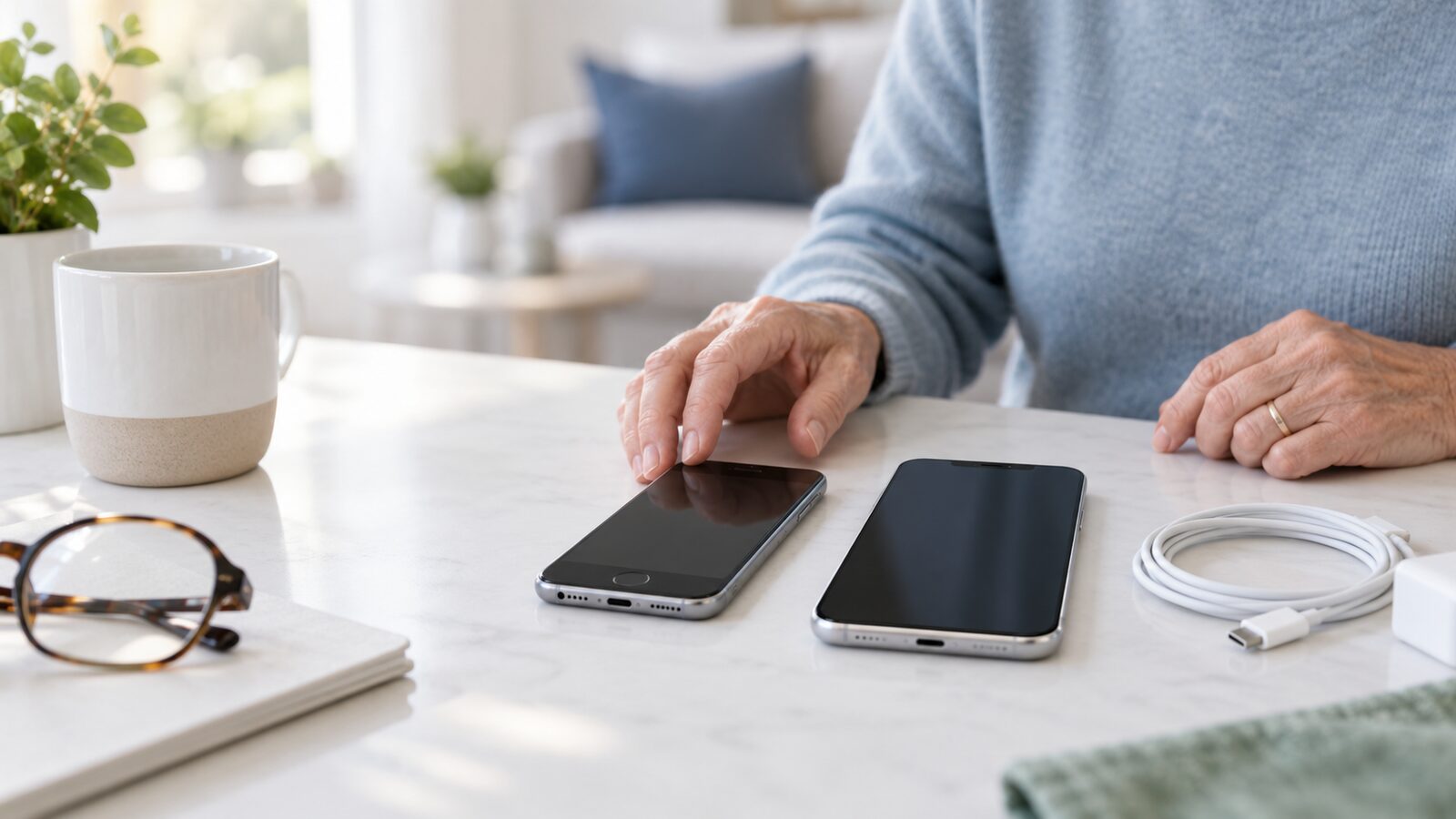
Moving from an old iPhone to a new iPhone can feel stressful, especially when the old phone contains years of photos, contacts, messages, and family memories. The good news is that Apple provides a guided process called Quick Start. If you use iCloud, your new iPhone can also continue downloading apps and information after setup.
Current as of September 6, 2026: Apple may move or rename settings in future updates. If a path looks different, open Settings and use the search field at the top. Search for iCloud Backup, software update, eSIM, Photos, or another word from this guide. The goal is the same even if the labels change.
Before you begin
Choose a time when you can leave both iPhones alone for a while. A transfer may take minutes or much longer, depending on the amount of data and the speed of your Wi-Fi. Keep both phones near each other and connect them to power if they are not well charged.
Have these items ready:
- Your Apple Account email address or phone number.
- Your Apple Account password, typed by you on the phone’s normal setup screen.
- The passcode for your old iPhone.
- Your new iPhone, its charging cable, and a reliable Wi-Fi network.
- Access to your mobile carrier account if cellular service needs to be activated.
Safety reminder: Never tell another person your Apple Account password, iPhone passcode, or text-message verification code. A helper can explain the screen, but you should type private information yourself. Apple Support does not need a stranger to read a code aloud.
Step 1: Update the old iPhone
On the old iPhone, open Settings and search for software update. Install the newest update that the phone offers, if possible. An updated old phone is more likely to work smoothly with the new phone.
Do not begin a transfer if the old phone is nearly out of power. Also check that you know the passcode. If you cannot unlock the old iPhone, stop and solve that problem first. Do not erase it hoping that the transfer will fix the issue.
Step 2: Make a fresh iCloud backup
Connect the old iPhone to Wi-Fi. Open Settings, tap your name, tap iCloud, and search for iCloud Backup. Tap Back Up Now. Stay connected to Wi-Fi until the backup finishes. Under the backup control, check the date and time of the latest successful backup.
If the phone says there is not enough iCloud storage, do not ignore the warning. Review the storage recommendations or choose an appropriate storage option. A backup is valuable if the transfer is interrupted, the phone is lost, or the new phone needs to be set up again.
If you use Apple Watch, also make sure Health is included in iCloud and that the watch and old iPhone are updated. Apple says an iPhone backup also backs up Apple Watch information, but the newest data must have time to sync.
Step 3: Check your iCloud Photos and important information
Open Settings, tap your name, tap iCloud, and look for Photos. If iCloud Photos is on, the library is being synced with iCloud. Wait for uploads to finish if the old phone shows that photos are still uploading. A large photo library may take time.
Remember that iCloud Photos is a syncing service. Photos stored in iCloud Photos are not duplicated inside your iCloud backup. Your photos should still appear when you sign in to the same Apple Account on the new phone, but important family photos should also have a separate copy when possible.
Check that your contacts, calendars, notes, reminders, and iCloud Drive files are present. If some information belongs to Gmail, Outlook, or another account, make sure you know that account’s password without sharing it with anyone.
Step 4: Start Quick Start
- Turn on the new iPhone and place it next to the old iPhone.
- Make sure Bluetooth is on and the old iPhone is connected to Wi-Fi.
- When the old iPhone shows a message asking whether you want to set up the new iPhone, follow the onscreen instructions.
- An animation may appear on the new iPhone. Use the old iPhone’s camera to scan it when asked.
- Enter the old iPhone’s passcode on the new iPhone.
- Set up Face ID or Touch ID when the new iPhone offers it.
- Connect the new iPhone to Wi-Fi or its cellular network.
If the Quick Start message disappears, restart both iPhones and place them together again. Do not repeatedly tap random buttons. The setup process is designed to guide you.
Step 5: Choose how to transfer your information
Quick Start normally gives you a choice. One option transfers directly from the old iPhone. Another option downloads from iCloud. Because this guide assumes you use iCloud, the iCloud choice may be comfortable if you want to start using the new phone while apps and data continue downloading in the background.
A direct transfer may require you to wait until the process completes on both devices before using them. An iCloud transfer can let you use the new phone sooner, but some apps, photos, or files may take additional time to appear. Keep the new iPhone connected to power and Wi-Fi, and keep the old iPhone nearby until the process is complete.
Transfer times vary. A large photo library, a slow network, or a crowded home Wi-Fi connection can make the process take longer. A progress bar that moves slowly does not necessarily mean the transfer is broken.
Step 6: Activate cellular service
During setup, the new iPhone may ask you to transfer or activate cellular service. Follow the carrier instructions on the screen. Some carriers use an eSIM, which is a digital SIM built into the phone. You may need a carrier account login or a confirmation from the carrier.
If the new iPhone has no service after setup, check the carrier’s official app or website from a trusted browser. Do not click a link in a suspicious text message that claims your phone number will be canceled. If you are unsure, call the carrier using the number on your bill.
Step 7: Check the new iPhone before erasing the old one
Take your time with this checklist:
- Unlock the new iPhone with its passcode and Face ID or Touch ID.
- Open Photos and look for recent pictures and older family albums.
- Open Contacts and confirm that important people are present.
- Send a test message and make a short phone call.
- Test Wi-Fi, cellular data, the camera, speaker, microphone, and charging.
- Open the App Store and confirm that important apps are downloading.
- Open Notes, Calendar, Reminders, and Files.
- Check Find My and make sure the new iPhone appears under your devices.
- Open Settings and confirm that you are signed in to the correct Apple Account.
Some apps ask you to sign in again. That is normal. Banking, health, password-manager, and other security-sensitive apps may require extra verification. Enter those details only in the official app. Never share the verification code with a caller.
What about Apple Pay?
For security, payment cards may need to be added again to Apple Wallet. Open Wallet and follow the card issuer’s verification steps. The bank may send a code or ask you to approve the card in its official app. Do not give that code to another person, even if the person claims to be helping with the transfer.
What about my Apple Watch?
Keep the watch unlocked and on your wrist with the new iPhone nearby. Open the Apple Watch app on the new iPhone. If setup offers to use your watch, follow the onscreen steps and choose the most recent backup when asked.
If the watch does not finish pairing, open the Watch app, tap All Watches, and look for a pairing option or a message that setup is incomplete. Update the iPhone and watch if needed. Do not erase the watch until you understand whether a backup is available.
What if something is missing?
First, keep the new iPhone connected to power and Wi-Fi. iCloud information may still be downloading. Check that the new phone uses the same Apple Account as the old phone. Search Settings for the missing feature, such as Photos, Contacts, or iCloud Drive, and compare its sync setting on both phones.
If an app is missing, look in the App Store under your account’s purchased apps. If a message history is missing, give the phone time and check that Messages in iCloud is turned on if you use that feature. Do not erase the new iPhone until you have reviewed the situation and confirmed that a fresh backup exists.
When can I erase or recycle the old iPhone?
Only erase the old iPhone after you have checked the new phone carefully and are sure you will not need the old phone to recover anything. You may want to keep it for a few days. When you are ready, search Settings for erase all content and settings and read every screen carefully. This removes personal information from the old device.
If you are selling or giving away the old iPhone, make sure it is removed from your Apple Account and that Activation Lock is no longer connected. If you are unsure, ask for help before erasing or handing it to someone.
When should you get help?
Get help when the old iPhone will not back up, the new phone will not activate, the Quick Start transfer stops, cellular service disappears, photos are missing, or an unfamiliar person is asking for passwords or codes. A calm review can prevent a rushed mistake.
For one-on-one, in-home tech help, we can help you prepare, guide the transfer, check the new iPhone afterward, and make sure you understand what happened. You do not have to hand over your passwords or passcodes. You stay in control while we explain each step.