
Help With My Tech · Everyday tech that works together

The instructions are right there on the package. The trouble is that the print seems to get smaller every year.
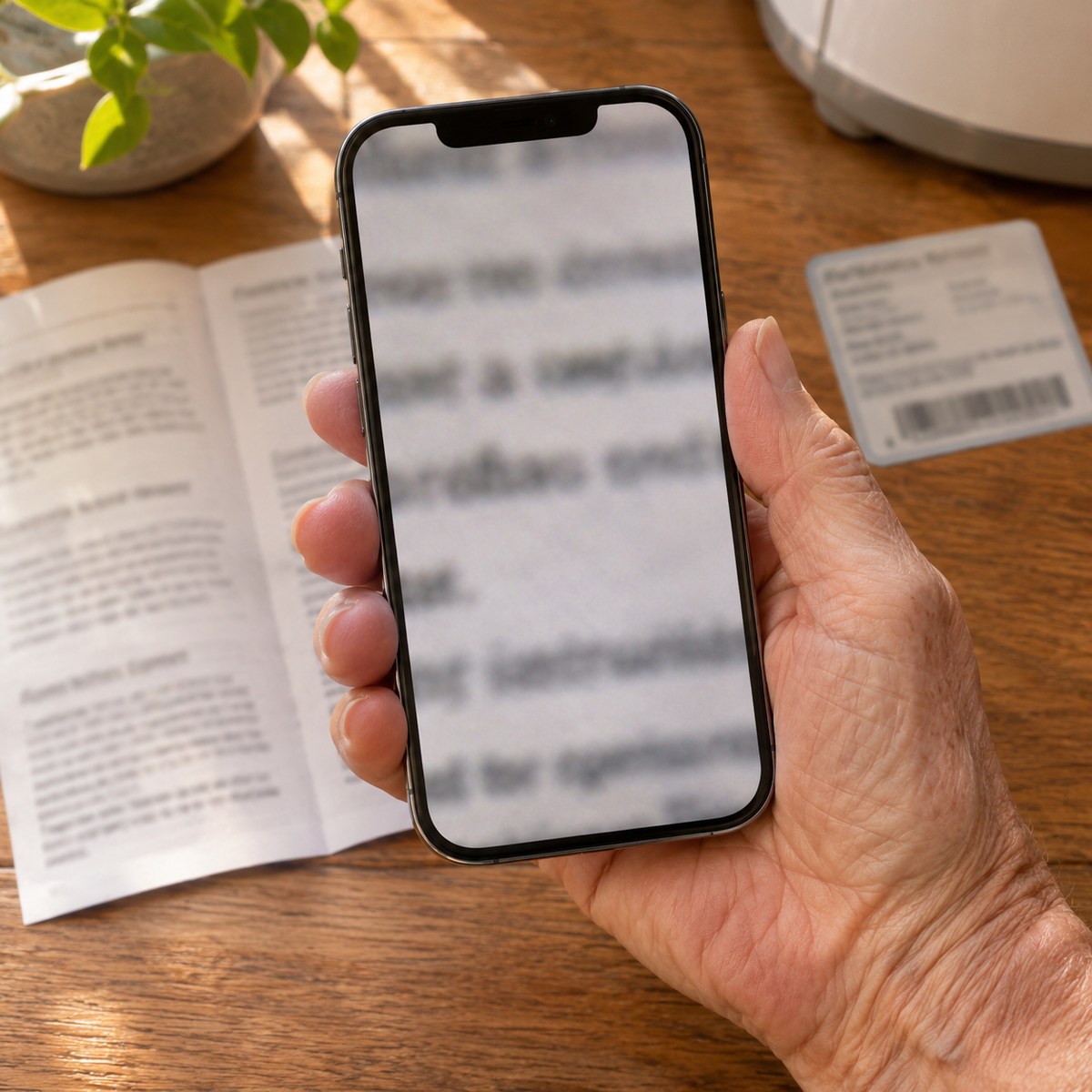
Your iPhone can help in two useful ways. Magnifier uses the camera to give you a larger view of nearby text and objects. Back Tap can open that tool when you tap the back of the phone twice or three times. Put them together, and a helpful reading tool is only a short gesture away.
This is handy for a pantry label, a small instruction sheet, or an appliance model number. You can set it up once, practice a few times, and use it whenever something is hard to see.
Magnifier does the looking
Point your camera at something nearby and enlarge the view. It works like a digital magnifying glass.
Back Tap opens the tool
A double or triple tap on the back of the phone runs the action you choose in Settings.
Start by Trying Magnifier
Before setting up a gesture, get comfortable with the app itself. Open Magnifier on your iPhone. If you do not see it on the Home Screen, use the phone’s app search to look for its name.
Point the camera at a book cover or another easy object. Move the zoom slider until the view is large enough to read. Keep a little distance between the phone and the object, then adjust slowly until the details look clear. Moving very close is not always the best answer.
Magnifier enlarges things in the world around you. If your goal is to make buttons and words on the iPhone screen bigger, that is a different setting. For this project, think about paper, labels, and objects in front of the camera.
Connect Magnifier to Back Tap
Apple supports Back Tap on iPhone 8 and later with iOS 14 or later. Use the latest software available for your model.
- Open Settings.
- Tap Accessibility.
- Tap Touch.
- Scroll down and tap Back Tap.
- Choose Double Tap or Triple Tap.
- Choose Magnifier from the available actions.
- Return to the Home Screen and test the gesture while the phone is awake and unlocked.
If you use the Accessibility Shortcut route instead, first choose Magnifier under Settings > Accessibility > Accessibility Shortcut. Then assign Accessibility Shortcut to your Back Tap gesture. Selecting several accessibility features can bring up a choice rather than opening one tool immediately.
Practice With Something Easy
Hold the iPhone securely in one hand. With a finger from the other hand, give the back two quick, gentle taps. If you chose Triple Tap, use three. You do not need to hit the phone hard.
Practice opening Magnifier while sitting at a table. Once it opens, point it at a familiar package and adjust the view. Do this a few times before trying it in a busy store. A new gesture becomes easier when you are not also trying to read a difficult label.
Choose the gesture that fits you. If Double Tap opens Magnifier when you do not want it, try Triple Tap. If tapping feels awkward, simply open the Magnifier app. The useful part is having a tool you are comfortable using.
Make the View Easier to Read
- Start with the light. Move the label toward a lamp or window before adding more zoom. Tilt shiny packaging to reduce glare.
- Steady both objects. Rest the package on the table instead of holding the phone and package in the air.
- Use a little zoom first. Find the correct line, then enlarge it. Too much zoom makes it harder to know where you are on a page.
- Try the available controls. Magnifier can offer brightness, contrast, filters, and a flashlight. In the app’s Settings, you can choose which controls appear.
- Freeze a view when helpful. The freeze-frame or capture control lets you examine a still view instead of keeping the camera perfectly steady.

A Small Example: Finding a Model Number
Suppose you want help with a printer, but its model number is printed on a tiny label. Put the printer label in good light, open Magnifier with your chosen gesture, and enlarge the view.
Read a few characters at a time and write them down. Check whether a character is a zero or the letter O. A clear model number can make a support conversation much easier. There is no need to read the entire label at once.
What If It Does Not Work?
Magnifier does not open when I tap.
Confirm which gesture you assigned, then test with the phone awake and unlocked. Reopen Back Tap in Settings and check the chosen action. If that still feels unreliable, use the app directly while you work out the gesture.
The view is large but blurry.
Back away a little, hold still, and improve the light. Enlarging an unclear view also enlarges the blur. Try again with a flat, well-lit page.
I want to stop using Back Tap.
Return to the same Back Tap settings, open the assigned gesture, and choose None. You can keep using Magnifier on its own.
Two familiar tools can solve one small daily frustration. Try the setup with a book or food package today. Once it feels natural, you will know where to turn the next time the print is too small.
Official Apple Guides
Instructions checked November 11, 2026. Controls can vary with your iPhone and software version.
A Little Help Getting Comfortable
If you would like someone to set this up with you and practice at your pace, Help With My Tech offers patient help with your own devices. You can get in touch whenever you are ready.
Images: Human Imagined + AI Generated for Help With My Tech. These scenes illustrate the ideas; they are not photographs of actual customers or exact app screens.