
Remote access is not automatically bad. It is how a trusted technician can help when you have asked them to, and it is how many workplaces support their computers. The concern is unexpected access: a stranger calling about a virus, a pop-up telling you to call immediately, or a screen-sharing app you do not remember installing.
The best response is calm and practical. You do not need to prove exactly what happened before taking a few protective steps.
Know the difference between expected and unexpected help
Expected remote help starts because you contacted a person or company you trust, arranged the session, and know what they are doing. You may see a code or a clear permission request, and you can end the session.
Unexpected remote help starts with fear or pressure: “Your computer is infected,” “Your bank account is being used,” “Call this number now,” or “Buy gift cards to fix the problem.” The Federal Trade Commission warns that tech-support scammers use alarming pop-ups, calls, messages, and false company names to get money or remote access.

If someone is connected right now
- Tell them you are ending the session and close the remote-access or screen-sharing window.
- If you feel pressured or unsure, disconnect the computer from Wi-Fi or unplug the network cable.
- Do not give them your password, a verification code, bank information, or payment.
- Do not call a phone number shown in a pop-up. Contact a trusted local person or the company using a number you already know is real.
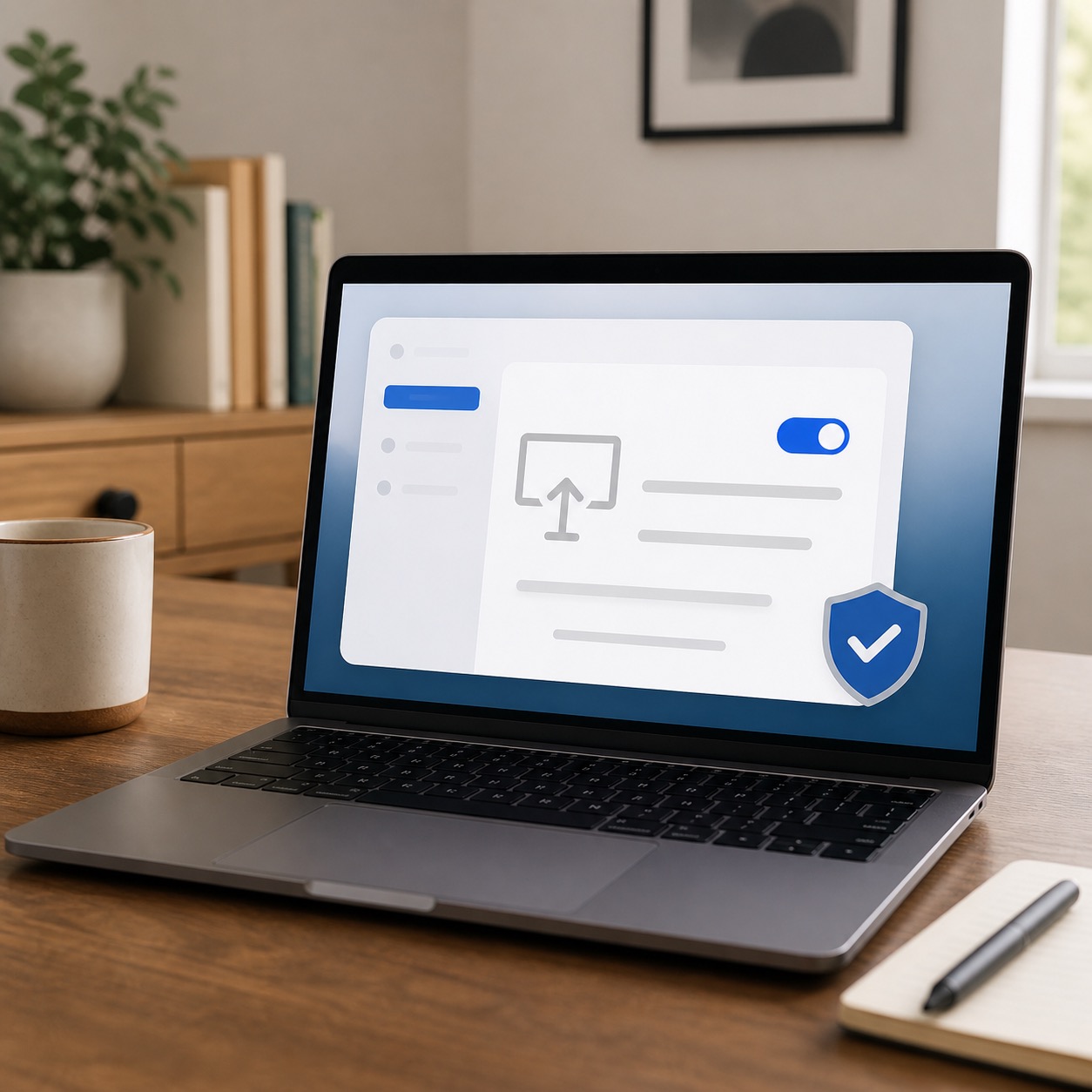
On a Mac, legitimate screen sharing can be stopped from the menu bar during a session. You can also check Apple menu > System Settings > General > Sharing and make sure Screen Sharing and Remote Management are off unless you intentionally use them. Apple’s Screen Sharing guide explains those settings.
Signs that deserve a closer look
- A pop-up says you have a virus and demands that you call a number.
- Someone calls without being invited and claims to be Apple, Microsoft, your bank, or “security.”
- You are asked to install a remote-control app after an unexpected contact.
- You see a payment for a service you did not authorize.
- Your cursor moves or windows open while nobody you trust is helping.
- You are told to pay with a gift card, wire transfer, cryptocurrency, or a payment app.
One sign is not proof of a break-in. A stuck key, a Bluetooth mouse, or a browser pop-up can look alarming. But it is always reasonable to pause and investigate rather than follow an urgent stranger’s instructions.
What to do if you gave someone access
First, end the connection and use a different, trusted device to change passwords for your email and other important accounts. Email comes first because it is often used to reset other passwords. If you used the same password elsewhere, change those accounts too and turn on two-factor authentication where available.
If you gave bank or credit-card details, call the financial institution using the number on the back of the card or its official website—not a number from the pop-up or email. Watch account activity closely. If you paid a scammer or shared personal information, report it at ReportFraud.ftc.gov.
The FTC’s tech-support scam guidance says unexpected callers who claim there is a computer problem are trying to create urgency. A trusted helper will not demand gift cards, rush you, or ask you to hide the situation from family.
Do a gentle cleanup
After a suspicious session, remove any remote-control app you do not recognize, restart the computer, install operating-system updates, and run the security checks already built into your device. Save screenshots of suspicious pop-ups or payment receipts before closing them if you can do so safely. They may help with a report.
Avoid downloading “cleanup” tools from advertisements. If you are not sure which app is legitimate, get a second set of eyes before deleting software or changing advanced settings.
Want in-person help? That’s why we’re here.
Help With My Tech offers patient, in-person help checking computers, removing unwanted software, improving account security, and explaining what happened in plain English. If you are in Mesa or the East Valley and want a trusted person beside you, contact Help With My Tech.