
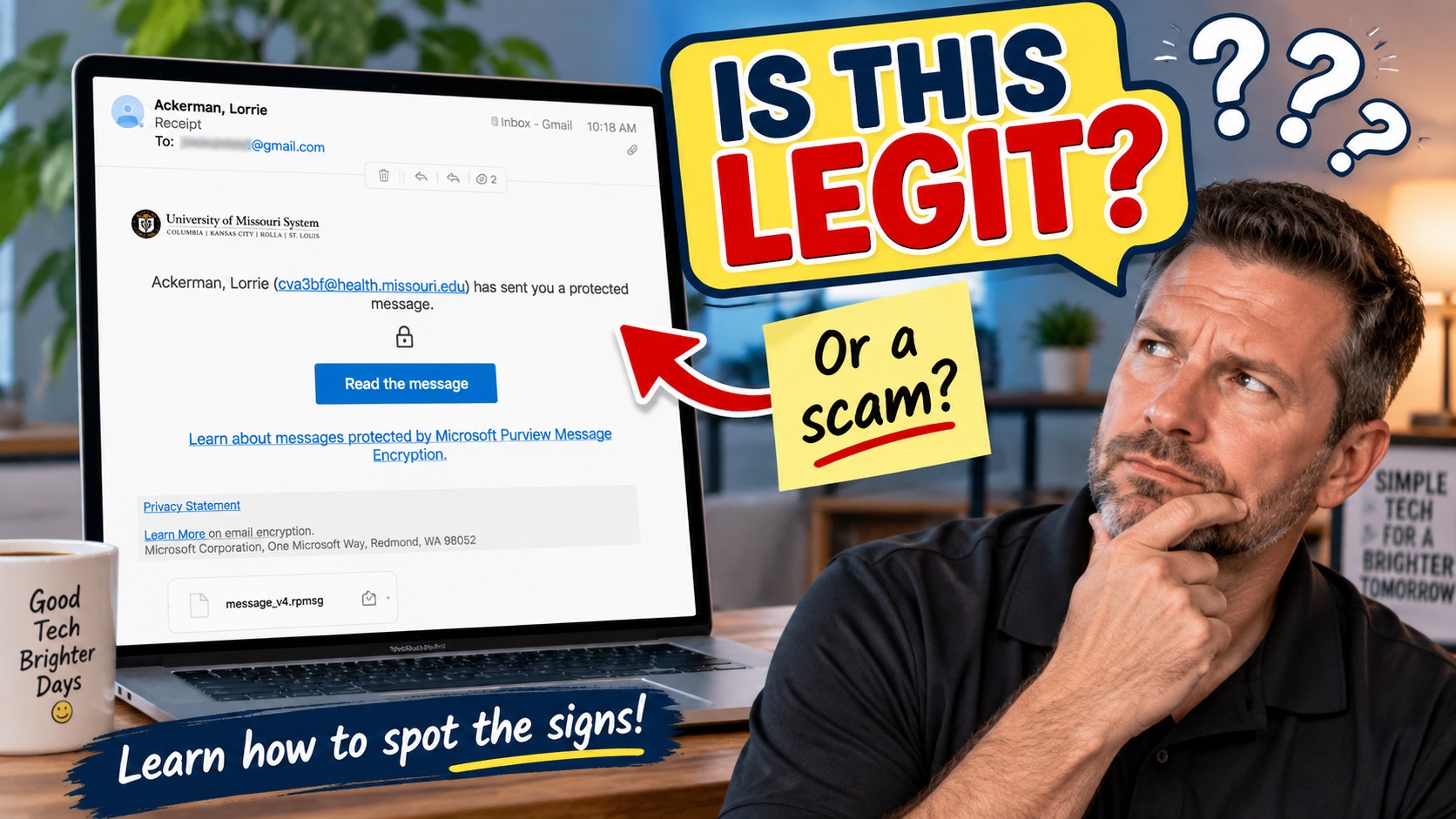
You open your email and see a message that looks official. It has a university logo, a person’s name, a Microsoft security notice, and a big button asking you to read a protected message.
So… is it legitimate?
Maybe. But that is exactly why emails like this deserve a closer look before you click anything.
The most important rule: If you were not expecting the email and do not recognize why it was sent to you, do not click the links or open the attachment until you have verified where it came from.
The email shown above is a great example because it contains several things that look reassuring. That does not automatically make it safe. It also contains enough uncertainty that I would stop and verify it before interacting with it.
Start With the Simplest Question: Were You Expecting This?
This is one of the best scam filters you have.
Ask yourself:
- Do I know this person?
- Have I recently communicated with this organization?
- Was I expecting a document, receipt, secure message, or attachment?
- Does the subject make sense based on something I recently did?
In this example, I was not expecting a protected message from this person or organization. That immediately gives me a reason to be cautious.
It does not prove the message is fraudulent. It simply means I should verify it before clicking.
A good habit: An unexpected email should have to earn your trust. Do not give it the benefit of the doubt just because it looks professional.
Look Closely at the Sender
The sender in this example is someone I do not recognize.
That matters more than whether the name sounds believable. Scammers can choose almost any display name they want. A message might say it came from a bank, a doctor, Microsoft, Apple, your pastor, your boss, or someone you know.
Always look at the actual email address too.
In this case, the address ends in:
That domain by itself is not proof of a scam. Universities and university health systems can legitimately use addresses like this.
However, I live in Arizona, I do not recognize the sender, and I was not expecting anything from this organization. Taken together, those facts give me a reason to investigate further.
Do Not Assume a Professional Logo Means an Email Is Safe
The message includes a University of Missouri System logo. It looks official.
But logos are easy to copy.
A scammer can place the logo of a bank, hospital, government agency, shipping company, or technology company inside an email in seconds.
Likewise, a blurry logo is not proof that something is fraudulent. Email programs sometimes resize or compress images badly. The important point is that the logo should not be used as evidence that an email is trustworthy.
Logos, colors, company names, signatures, and professional-looking formatting can all be copied.
Ask whether the message makes sense based on your actual relationship with the sender.
Be Careful With the Big Button
The most obvious action in this email is a large button that says:
That does not mean the button is dangerous. Legitimate encrypted-email systems use buttons like this all the time.
But you should never click a button simply because the email tells you to.
Instead, stop and ask:
- Where is this button taking me?
- Do I recognize the organization?
- Was I expecting a secure message?
- Can I verify the message another way?
On a computer, you can often hover your mouse over a link without clicking it. Your browser or email program may show the destination address.
If the destination looks completely unrelated to the company supposedly sending the email, that is a major warning sign.
If you are unsure what the destination means, do not click it just to find out.
The Microsoft Information at the Bottom Is Not Proof Either Way
This email mentions Microsoft Purview Message Encryption and includes Microsoft’s address:
One Microsoft Way
Redmond, WA 98052
Microsoft Purview Message Encryption is a real technology used by organizations to send encrypted email.
So seeing Microsoft mentioned at the bottom is not automatically suspicious.
But it also does not prove that the person who sent you the email is someone you should trust.
That is an important distinction.
Think of it this way:
A real security service can be used to deliver a message you were not expecting. Your job is still to verify the sender and the reason for the message before interacting with it.
Be Especially Careful With Attachments
This message also includes an attached file.
Attachments deserve even more caution than links.
Unexpected attachments can contain malicious software, redirect you to fake login pages, or attempt to trick you into granting access to your computer or online accounts.
If you do not know why the file was sent to you, do not download or open it.
Do not open an unexpected attachment simply to see what it is. If the message is legitimate, you can verify that first.
How to Verify an Email Without Clicking Anything
If the message might be legitimate, you do not have to ignore it forever. Verify it independently.
Contact the person another way
If you know the sender, call them or send a brand-new text or email using contact information you already have.
Do not use a phone number included in the suspicious email.
You can simply ask:
Visit the company’s website yourself
If the email claims to be from a company you use, open your browser and type the website address yourself or use a trusted bookmark.
For example, if an email says there is a problem with your bank account, do not use the email’s button to log in. Open your bank’s app or visit the bank’s website directly.
Use a phone number you already trust
If the message supposedly came from a doctor’s office, insurance company, financial institution, or other organization you already work with, call the number printed on a statement, card, or official website.
Watch Out for Fake Login Pages
One of the most common tricks is not necessarily installing a virus. It is stealing your password.
You click a link and see a page that looks exactly like Microsoft, Google, Apple, your bank, or another familiar service.
The page asks you to log in.
You enter your email address and password.
Now the scammer has them.
This is why the safest approach is often to skip the email link entirely and navigate to the service yourself.
What About the Strange Email Address?
Sometimes a sender address contains random-looking letters or numbers. That can certainly deserve closer inspection.
But it is not enough by itself to prove that an email is fraudulent. Organizations sometimes use automated mail systems, internal account identifiers, or unusual naming conventions.
What matters is the entire picture:
- You do not know the sender.
- You were not expecting the message.
- The message asks you to click a link.
- There is an attachment.
- You do not have an obvious relationship with the organization.
When several of those things happen together, caution is appropriate.
Do Not Let Curiosity Override Caution
This is one of the biggest traps.
You might think:
That is exactly what you should avoid.
If you already believe the message might be suspicious, clicking the link is not a good way to investigate it.
Verify the message first.
If You Decide It Is Spam
If you determine that the email is unwanted or fraudulent, you generally do not need to respond to it.
Instead:
- Do not click the links.
- Do not open or download the attachment.
- Do not reply.
- Mark the message as spam or phishing if your email provider offers that option.
- Delete the message.
Gmail, Yahoo Mail, Outlook, Apple Mail, and other major email services include tools for reporting suspicious messages.
Reporting the message can also help your email provider recognize similar scams in the future.
What If You Already Clicked?
Do not panic. Clicking a link does not automatically mean your computer or account has been compromised.
What you should do next depends on what happened.
Close the page. Do not download anything or approve any prompts.
Go directly to the real website and change the password immediately. Turn on two-factor authentication if available.
Stop using the file and get help checking the device before continuing.
The Most Important Question Is Not “Does It Look Real?”
Modern scam emails can look extremely convincing.
They can include:
- Real company logos
- Correct spelling and grammar
- Your real name
- Professional formatting
- Real company addresses
- Security terminology
- Links that appear normal at first glance
So instead of asking only:
“Does this email look real?”
Ask:
“Does this email make sense?”
Do I know the sender?
Was I expecting this?
Can I verify it without clicking the link?
If the answer is no, stop and investigate before doing anything else.
When in Doubt, Ask Someone
There is no prize for figuring out a suspicious email by yourself.
If something feels strange, stop before clicking and ask someone you trust.
That might be a family member, friend, coworker, the organization that supposedly sent the message, or someone who helps you with technology.
With a Help With My Tech membership, you can send us a suspicious email or screenshot before clicking anything. We’ll look for warning signs and help you decide what to do next.
A screenshot is often all you need.
Instead of clicking a suspicious email, take a screenshot and show it to someone you trust. That lets them help you investigate without interacting with the message itself.
Need Help Deciding Whether an Email Is Safe?
If you receive an email and are not sure whether you should click it, Help With My Tech can help.
We work with seniors and other everyday technology users who want a patient second opinion before taking a risk online.
Sometimes the safest technology advice is simply:
“Don’t click that yet. Let’s take a look at it first.”
Contact Help With My Tech if you would like friendly, one-on-one help with suspicious emails, scam messages, passwords, phones, computers, or other everyday technology problems.