
Help With My Tech · Everyday tech that works together

An error message can make a simple task feel complicated. Your printer will not print, a program will not open, or a device shows a code that means nothing to you.
Instead of trying to remember the message, save the exact words. Apple’s Live Text can copy text from a photo on a supported iPhone. ChatGPT can then help put those words into plain English and organize the questions you need to ask.
Think of this as a way to get organized: capture the message, copy it accurately, and ask for an explanation. Confirm any suggested fix with the device maker’s instructions before changing important settings.
Why the exact wording matters
“My printer is broken” leaves out a lot. A message about paper is different from a message about a wireless connection. A short error code may also mean different things on different models.
A clear photo helps preserve the words and the setting around them. Copying those words into a request saves you from retyping a long code. It also makes it easier to share useful information with a support person later.
Live Text captures the words
It recognizes text in photos so you can select it and copy it into another app.
ChatGPT helps frame the problem
You can ask for a simple explanation, a list of missing details, or a short summary to send to someone helping you.
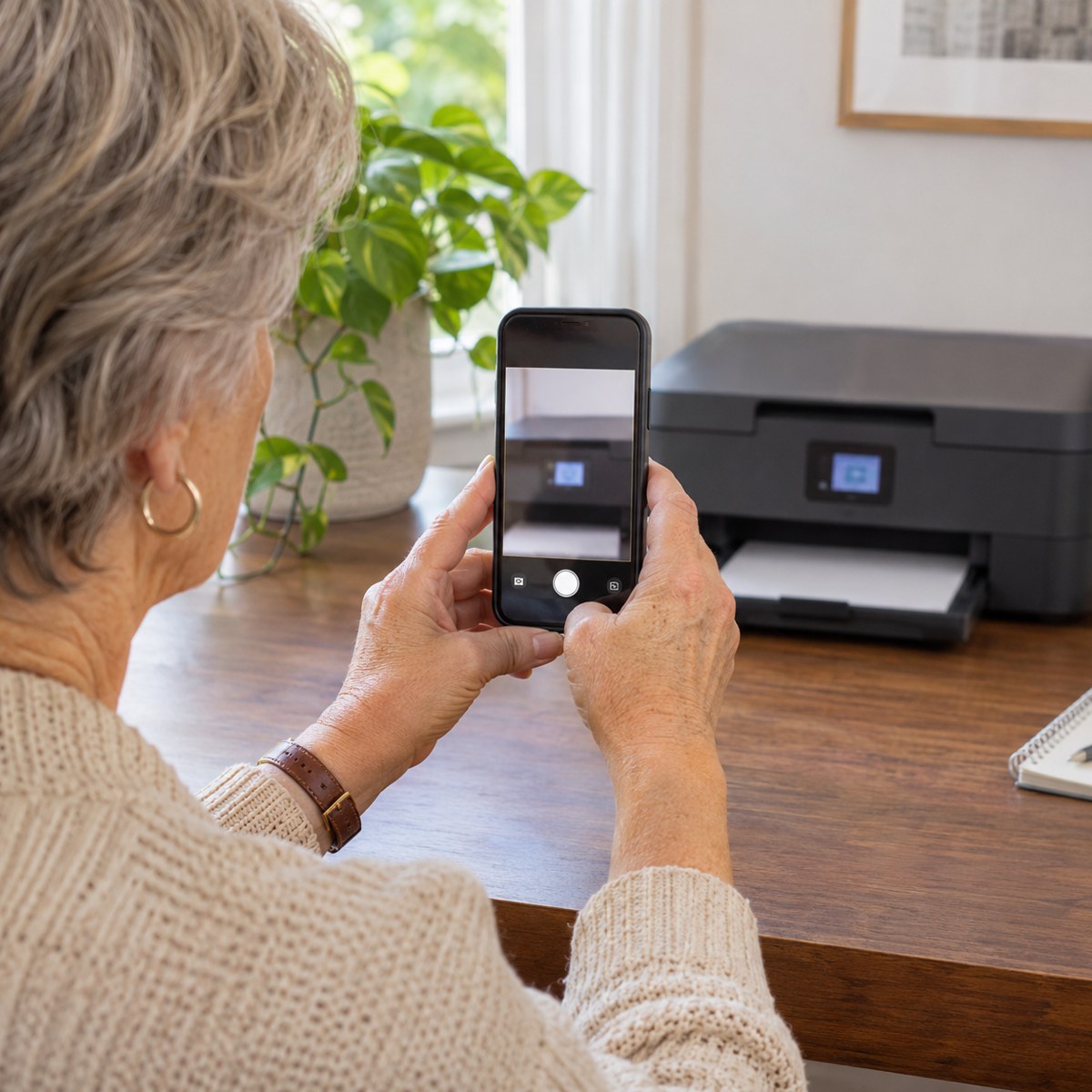
Step 1: Take a clear photo
- Keep the full message visible, including any error code.
- Hold the phone steady and avoid glare across the display.
- If possible, include the device name or write down its brand and model separately.
- Open the photo and zoom in. Make sure you can read every important word.
If the error is on the iPhone itself, a screenshot may be easier than a photo. The goal is the same: a readable record of the actual message.
Step 2: Copy it with Live Text
- Open the image in Photos.
- Touch and hold a word in the message. You can also tap the Live Text button when it appears.
- Move the selection handles so they include the complete message and code.
- Tap Copy.
- Open ChatGPT, tap the message box, and paste the text.
If Live Text is off, check Settings > General > Language & Region > Live Text. Apple lists iPhone XS, iPhone XR, or later with iOS 15 or later for photo text recognition. It is not available in every language or region.
Read the copied result against the photo before sending it. Small displays can make a zero look like the letter O or turn an eight into a B. Fixing one character can prevent a lot of confusion.
Step 3: Add the details a photo cannot explain
Tell ChatGPT which device or app showed the message and what you were trying to do. Include what happened just before it appeared. If you do not know the model or software version, say so.
For a printer, that might be: “This appeared on my printer after I tried to print a document from my laptop. I do not know the model yet.” That is more useful than asking it to guess the entire problem from a code alone.
Copy this plain-English help prompt
This prompt asks for a clear explanation and a careful next step. It does not turn ChatGPT into the device maker or guarantee that its first answer will be correct.

Use the answer to ask better questions
Suppose an answer suggests a connection issue. Ask, “What information would help confirm that?” You might learn that the device model, connection type, or exact point where printing stopped is still missing.
If it gives several possible causes, ask it to label them as possibilities. Then use the manufacturer’s official support site to check the instructions for your exact model. You can also share the photo and a short summary with a trusted helper.
Keep the useful record: save the original image, the exact message, and a note about what you have already tried. That can make a later support conversation much easier.
What if something does not work?
Live Text will not select the words
Try a sharper photo with less glare. If that does not help, type the message by hand and check it twice. The rest of the routine still works.
ChatGPT gives a very confident answer
Ask which parts are confirmed and which are guesses. A confident tone is not a substitute for the correct model information and official instructions.
The image contains personal information
Share only what is needed to explain the problem. Leave out passwords, account numbers, and unrelated details. Copying just the error text can be enough.
Turn a mystery into a useful starting point
You do not need to solve the whole problem at once. A good first result may simply be a readable explanation and a better list of questions.
Live Text helps carry the exact words across. ChatGPT can help organize them. With that record in hand, you can approach the next step with less guessing.
Need another set of eyes?
If a message still does not make sense, Help With My Tech can help you work through it calmly. Bring the photo and a note about what happened. You can contact us about technology help when you would like a hand.
Sources
Instructions checked November 11, 2026. See Apple’s guides to copying text from photos and using Live Text on iPhone, plus the official OpenAI documentation on prompting. Availability and screen labels can vary.
Images: Human Imagined + AI Generated for Help With My Tech. These scenes illustrate the ideas; they are not photographs of actual customers or exact app screens.