
If you have ever said, “I know I used this password somewhere,” you are not alone. Remembering dozens of account passwords is hard. Reusing the same one is understandable—but it can turn one leaked password into a problem for several accounts.
A password manager is a secure place to save unique passwords, so you do not have to memorize every one. It can also help create strong passwords and fill them in when you need them. The goal is not to become a technology expert. The goal is to make everyday sign-ins less stressful and safer.
The bottom line: do not keep passwords in Notes, a spreadsheet, or on paper
Notes apps and spreadsheets are easy to search, copy, accidentally share, or expose if a device is lost. A written list can be photographed, misplaced, or seen by anyone nearby. The worst place for a password is a sticky note attached to the computer or a notebook kept beside it.
Instead, choose one password manager you can use comfortably, protect it with a strong master password or device sign-in, and let it create different passwords for different accounts.
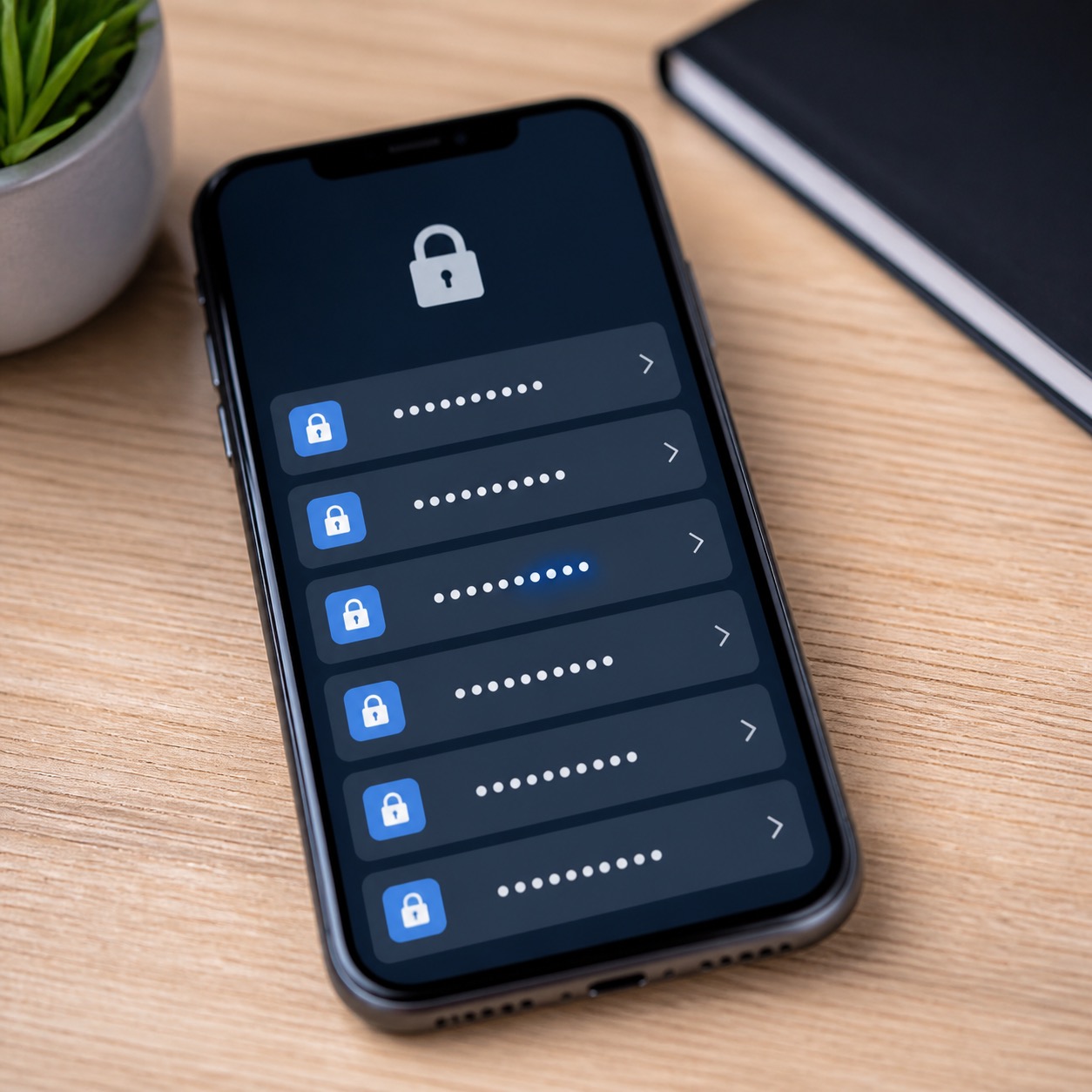
You may already have a password manager
Apple Passwords: On current iPhones, iPads, and Macs, Apple includes the Passwords app. It can save passwords, passkeys, Wi-Fi passwords, and verification codes, and make them available across devices signed into the same Apple Account. It also flags weak, reused, or known-compromised passwords. Apple’s official Passwords guide explains the feature.
Google Password Manager: Android and Chrome users may already have Google Password Manager through their Google Account. It can save and autofill passwords and passkeys across the devices where that account is signed in. Google’s getting-started guide explains how it works.
Either built-in choice can be a good starting point. What matters most is using one consistently and keeping your account recovery information current.
What about Bitwarden?
Bitwarden is a separate password-manager option that works across many types of phones, tablets, and computers. It is useful for people who use a mix of Apple, Android, Windows, and different browsers. Its official help center has setup guides for personal use.
Important disclaimer: Our opinion at the time of writing is that Bitwarden is a good, reliable choice for many people. Help With My Tech is not Bitwarden, does not operate it, and is not responsible for its service, security, availability, account recovery, or future product changes. Choose the tool you are comfortable using, read its current terms and guidance, and keep your recovery information in a safe place.
A simple way to get started
- Pick one manager: Apple Passwords, Google Password Manager, or a dedicated option such as Bitwarden.
- Use your phone or computer lock screen and a strong master password if the service asks for one.
- Start with your most important accounts: email, banking, Apple or Google account, shopping, and medical portals.
- When changing a password, let the manager suggest a long, unique one.
- Turn on two-factor authentication for important accounts when available.
- Make sure account recovery email addresses and phone numbers are current.
Do not try to fix every old password in an afternoon. Start with email, because email is often the key to resetting other accounts. Then work through the rest a few at a time.
What is a master password, and why does it matter?
A master password is the one password that unlocks the manager. It should be long, unique, and memorable to you—not a pet name plus a birthday. A short phrase made of unrelated words can be easier to remember than a complicated, short password. Never share it with someone who contacts you unexpectedly, and be cautious of fake sign-in pages sent by text or email.
For especially important accounts, use two-factor authentication. A password manager helps, but it does not replace paying attention to unexpected sign-in alerts.
When to ask for help
Get help before importing a confusing old spreadsheet, turning on a feature you do not understand, or deleting the only copy of your passwords. A patient setup is far better than being locked out of email or banking later.
Want in-person help? That’s why we’re here.
Help With My Tech offers patient, in-person help setting up password managers, updating important accounts, and making everyday security less overwhelming. If you are in Mesa or the East Valley and would rather have someone guide you through it, contact Help With My Tech.