
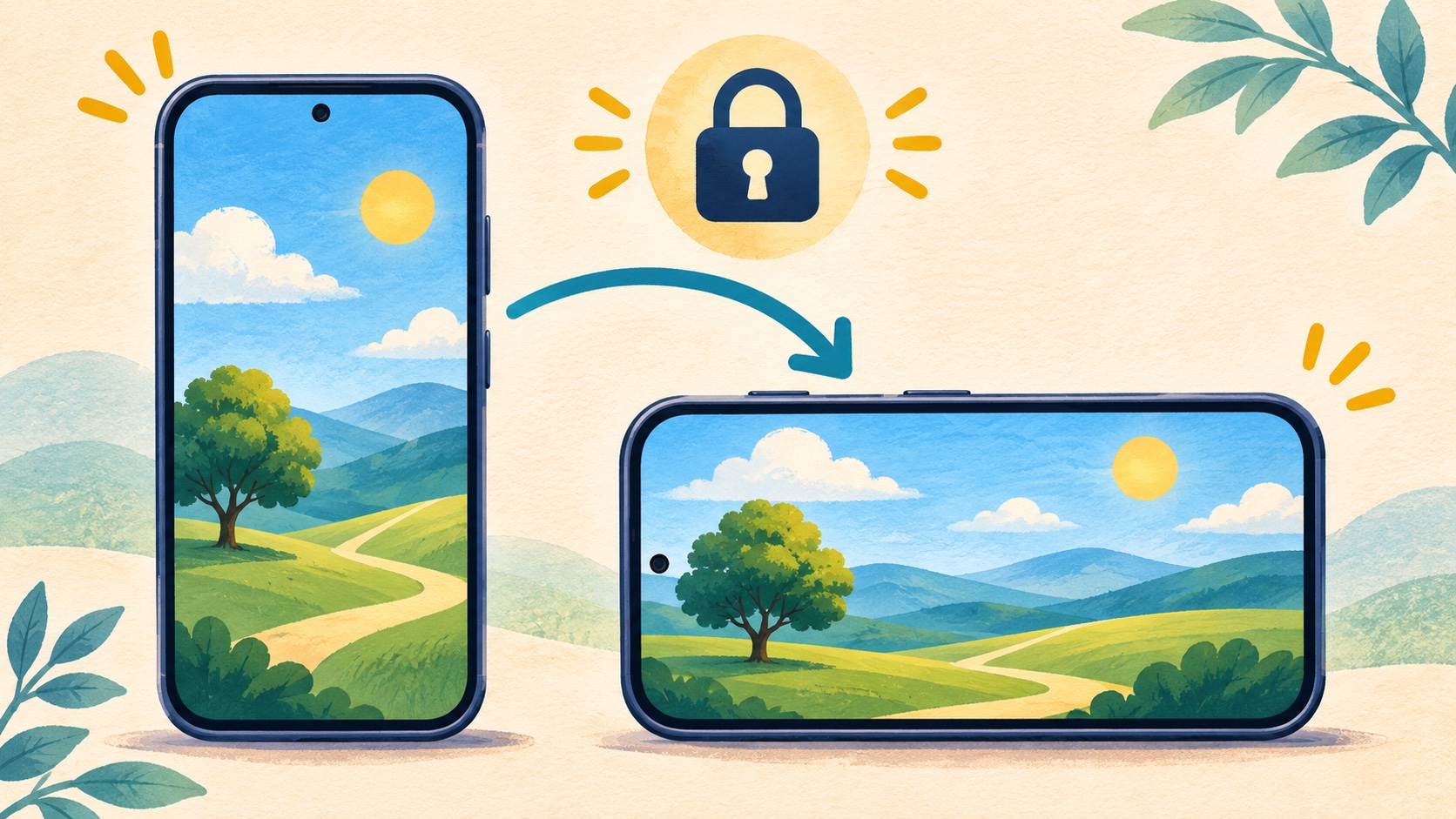
Your screen does not have to swing sideways every time you shift in your chair. Here is how to choose when it rotates.
You settle into a comfortable spot and tilt your phone just a little. Suddenly, the page turns sideways. You straighten the phone, turn it again, and spend more time chasing the screen than reading it.
If that sounds familiar, try the screen rotation setting. It can help keep the display upright while you read a message, follow a list, or browse a page.
Portrait and landscape are just directions
Portrait means upright, like a person standing. Landscape means sideways, like a wide picture of mountains.
You may enjoy a wide view for a video but prefer an upright view for reading. Neither choice is better for everyone. The useful part is knowing how to switch when you want to.
Before changing anything, open an app you normally use and notice how it behaves. That gives you a starting point for your test.
Lock the screen upright on iPhone
- Open Control Center. On an iPhone without a Home button, swipe down from the top-right corner. On older models with a Home button, swipe up from the bottom.
- Find Portrait Orientation Lock, shown as a padlock with a curved arrow.
- Turn the lock on, then close Control Center.
- Open a reading app and gently tilt the phone to test it.
To allow rotation again, return to Control Center and turn that lock off. Then try a page in Safari that supports a sideways view. Apple’s rotation guide shows the control.
If the button is missing from your Control Center layout, look in its available controls. Menu arrangements may change with software updates.
Turn off Auto rotate on Android
On many Android phones, open the Quick Settings panel by swiping down from the top. You may need another swipe to see all the buttons. Look for Auto rotate and turn it off.
On newer Samsung phones, the panel may open from the top-right corner. The rotation button can change its name to Portrait or Landscape when you lock the current view.
For an upright lock on Samsung, first allow rotation, hold the phone upright, and then turn Auto rotate off. Samsung explains these rotation choices.
Why does one app still refuse to turn?
Some apps support only one direction. Turning on automatic rotation does not force every app to work sideways. The Home Screen may also have its own behavior.
That is why it helps to test the setting in more than one place. If one app stays upright but another turns, the difference may be the app rather than your phone.
Do not reset the whole phone just because a single screen stays in one direction. Start with the small setting that matches the problem.
Make one change, then practice
Choose the view you prefer for reading. Open a familiar page, tilt the phone, and check the result. Then practice finding the rotation control one more time.
Little changes can make everyday use feel calmer. If finding people is another frustration, our guide to sorting contacts by first name offers another easy adjustment.
Prefer to learn these controls with someone?
Help With My Tech offers paid, patient phone help in Mesa and nearby areas. We can walk through the controls you use most and give you time to practice. Learn about our iPhone support, review service pricing, or ask about an appointment.