
If you’re anything like most people — especially my friends in the wonderful 55+ communities around Arizona — technology sometimes feels like it exists purely to humble you. One minute your phone works fine, the next minute your favorite app is spinning in circles like it’s trying to win a gymnastics medal. Or your TV decides to freeze right in the final 30 seconds of a show you’ve waited all week to watch. Classic.
Now, I run Help With My Tech, so I see this all the time. And here’s the funny part: most issues can be fixed before I even show up. Not because the device suddenly “heals” itself, but because there are three simple steps — in a very specific order — that solve an unbelievable amount of tech problems.
You don’t need to be tech-savvy. You don’t need special tools. You don’t need your grandson who “knows computers.” You definitely don’t need to buy a new phone.
You just need these three steps.
Let’s get into them.
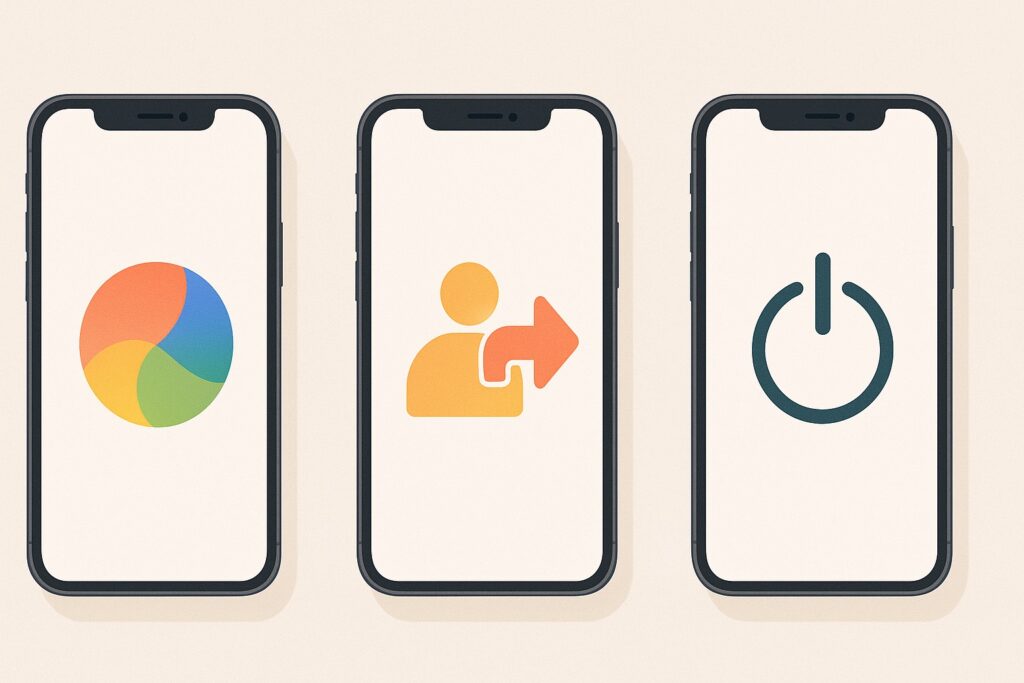
Step 1: Force Quit the App
(Only if it’s being stubborn)
If an app isn’t doing what you asked it to do, there’s a good chance it’s stuck. Apps get overwhelmed just like people. Too many things going on at once, too many screens open, too much memory being used — and boom, everything freezes.
Force quitting is basically telling the app, “Alright buddy, take a lap and try again.”
When should you force quit?
- If an app won’t load
- If it freezes
- If buttons won’t respond
- If it just feels… off
When not to force quit?
- If the app is already working normally
- If you’re in the middle of saving something important
- If it’s a banking app in the middle of a transaction (maybe don’t force quit mid-transfer)
Force quitting is safe, but it’s not the first thing you should always do. It’s just the first thing that often works quickly.
Step 2: Log Out and Log Back In
(Works like magic but without the wand)
A lot of apps today rely on “sessions,” which is a fancy tech-word meaning:
“We need to check who you are every so often, or things get weird.”
If your photos won’t sync, your email isn’t updating, or your favorite app refuses to recognize that you actually do have an account… logging out and back in refreshes everything.
It resets your session.
It renews your connection.
It forces your device and the app to “shake hands” again.
This simple move fixes:
- Blank screens
- Missing messages
- Incorrect passwords (when the app just didn’t update correctly)
- Syncing issues
Logging out and back in doesn’t delete anything. It’s perfectly safe. And honestly, it’s one of the most underrated fixes ever.
Step 3: Turn It Off and Back On
(The classic. The legend. The reboot.)
Yes. The joke is real:
“Did you try turning it off and back on?”
But the reason people say that so much is because it actually works.
Rebooting clears temporary memory, resets a bunch of tiny background processes, and fixes a lot of random nonsense that devices get themselves into. It’s like giving your device a fresh cup of coffee and telling it to start over.
For phones and computers, you usually don’t need to wait.
For TVs, modems, routers, and older electronics, waiting 10 to 60 seconds helps the power drain completely.
This one step solves:
- Wi-Fi issues
- Slow devices
- Frozen screens
- Audio problems
- Apps not loading
- Weird glitches that make no sense
Seriously — people pay for service calls that could be fixed in 30 seconds with this exact step.
If you try all three steps, and the device still refuses to behave?
That’s when you call me.
Help With My Tech is literally here to save you from frustration, wasted time, and expensive replacements you definitely don’t need.