
Help With My Tech · Small skills for everyday technology
Your home internet works, but phone calls are another story. You find yourself standing near a window, moving to another room, or asking callers to repeat themselves.
If weak cellular coverage is part of the problem, Wi-Fi Calling may help. On a supported phone and carrier, it lets ordinary phone calls use a Wi-Fi connection. You can keep using your familiar Phone app and phone number.
The useful first step is to check support, turn on the feature, and test it calmly. It can improve a particular setup without explaining every missed call or voicemail problem.
Cellular service
Your phone connects through your mobile carrier’s network. The signal can be weaker in some buildings and rooms.
Wi-Fi Calling
Your carrier supports calls through a suitable Wi-Fi internet connection. The phone and account must support the feature.
Check These Three Things First
- Your phone is connected to working Wi-Fi. Open an ordinary webpage to check that the connection reaches the internet.
- Your carrier supports Wi-Fi Calling on this phone and account. Ask the carrier if the option is missing or will not activate.
- You know the address to register. Setup may ask you to confirm an address for emergency services. Enter it carefully and keep it current when your circumstances change.
A strong Wi-Fi symbol alone does not prove the internet is working well. For a useful first test, sit somewhere your home connection is normally reliable. If the whole household is having internet trouble, address that before judging the calling feature.
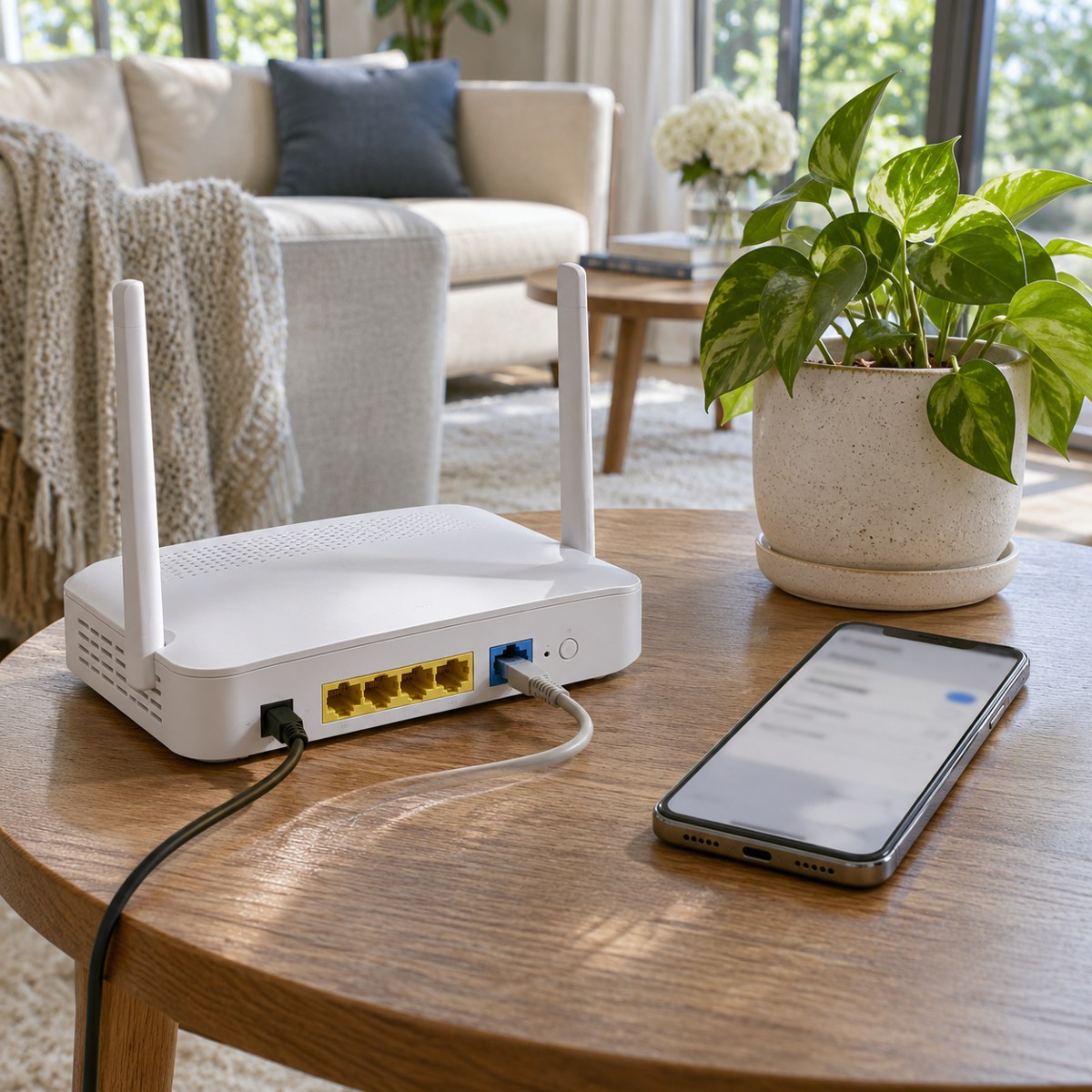
Turn On Wi-Fi Calling on an iPhone
- Open Settings.
- Tap Cellular.
- If you use more than one SIM or phone line, choose the line you want to set up.
- Tap Wi-Fi Calling.
- Turn on Wi-Fi Calling on This iPhone, then tap Enable if asked.
- Complete any carrier instructions, including entering or confirming your emergency address.
Apple says that when the feature is available, “Wi-Fi” appears in the status bar while you view Control Center. Check for that indication rather than assuming that simply joining your home network has activated Wi-Fi Calling.
What About Android Phones?
Android menus vary by phone and carrier. The safest starting point is to search Settings for Wi-Fi calling, then compare the result with your phone maker’s current guide.
Google’s current Phone app guidance gives Settings > Network & internet > SIMs > your carrier SIM > Wi-Fi calling. Samsung’s U.S. guide gives Settings > Connections > Wi-Fi Calling for supported Galaxy phones.
Turn on the feature and follow the carrier’s registration prompts. Some phones put a control in Quick Settings too. If neither the menu nor the search result appears, ask your carrier to confirm support for your exact model and account. A missing option does not mean you overlooked a hidden trick.
Try a Simple Home Test
Suppose the kitchen is where you usually make calls, but cellular reception is weak there. With Wi-Fi Calling enabled, return to that room and check that the phone is connected to your home Wi-Fi.
- Call someone you know using the normal Phone app.
- Have a short conversation. Ask whether your voice sounds clear and listen for gaps or dropouts.
- Ask the person to call you back.
- Make a brief note about what worked and what still happened.
Use an ordinary personal call for this test. Do not place a test call to an emergency number. You also do not need to switch on Airplane Mode for this routine.

If the Call Is Still Unreliable
Start with a few observations. Does the phone show that Wi-Fi Calling is available? Does the same problem happen near the router? Are other devices also losing the internet connection? Those details help separate a weak home connection from a phone or carrier issue.
Check that the feature is still enabled, restart the phone, and try again. If you have another trusted Wi-Fi network available, comparing a call there may give you useful information. You do not need to reset the entire phone as a first step.
When contacting your carrier, describe the result plainly: “The setting is enabled, but I do not see a Wi-Fi Calling indication,” or “Calls connect, but the other person cannot hear me clearly.” Ask the carrier to check whether the feature is active on your line.
Keep separate problems separate. A call that rings only briefly before voicemail, a silenced ringer, and poor audio can need different checks. Better Wi-Fi reception will not automatically repair every setting or carrier issue.
Questions People Often Have
Is this the same as FaceTime or WhatsApp?
No. Those apps provide their own calling services. Carrier Wi-Fi Calling works with supported ordinary phone calls through your usual Phone app.
Will it work if the power or internet goes out?
Wi-Fi Calling depends on a working Wi-Fi internet connection. A powered-off router or failed internet service can interrupt that path. Do not treat it as an independent backup for your home internet.
Do I need to change my plan?
Ask your carrier about support, plan terms, and any international or roaming rules that apply to your calls. Turning on the setting is not a promise about charges or coverage.
Should I update the emergency address?
Keep the address registered for Wi-Fi Calling accurate, following your carrier’s instructions. It is part of setup that deserves attention, even though this guide focuses on ordinary home calls.
Wi-Fi Calling is worth a careful test when home cellular reception is weak. A confirmed setting, a reliable connection, and a few notes about real calls give you a much better starting point for help.
Want Help Checking Your Home Setup?
Help With My Tech can check the phone settings and home connection with you, then help you describe any remaining issue to your carrier. Get in touch when you would like patient help on your own devices.
Sources
Instructions checked November 11, 2026. See Apple’s Wi-Fi Calling guide, Google’s guide to calls over Wi-Fi, and Samsung’s guides to turning on Wi-Fi Calling and checking calling problems. Availability and menu names depend on the phone, carrier, and software version.
Images: Human Imagined + AI Generated for Help With My Tech. These illustrative scenes are not photographs of actual customers or exact app screens.