
For everyday writing, spreadsheets, and presentations, we prefer tools that make your work easy to find—and easy to take to your next computer.
OUR EVERYDAY RECOMMENDATION
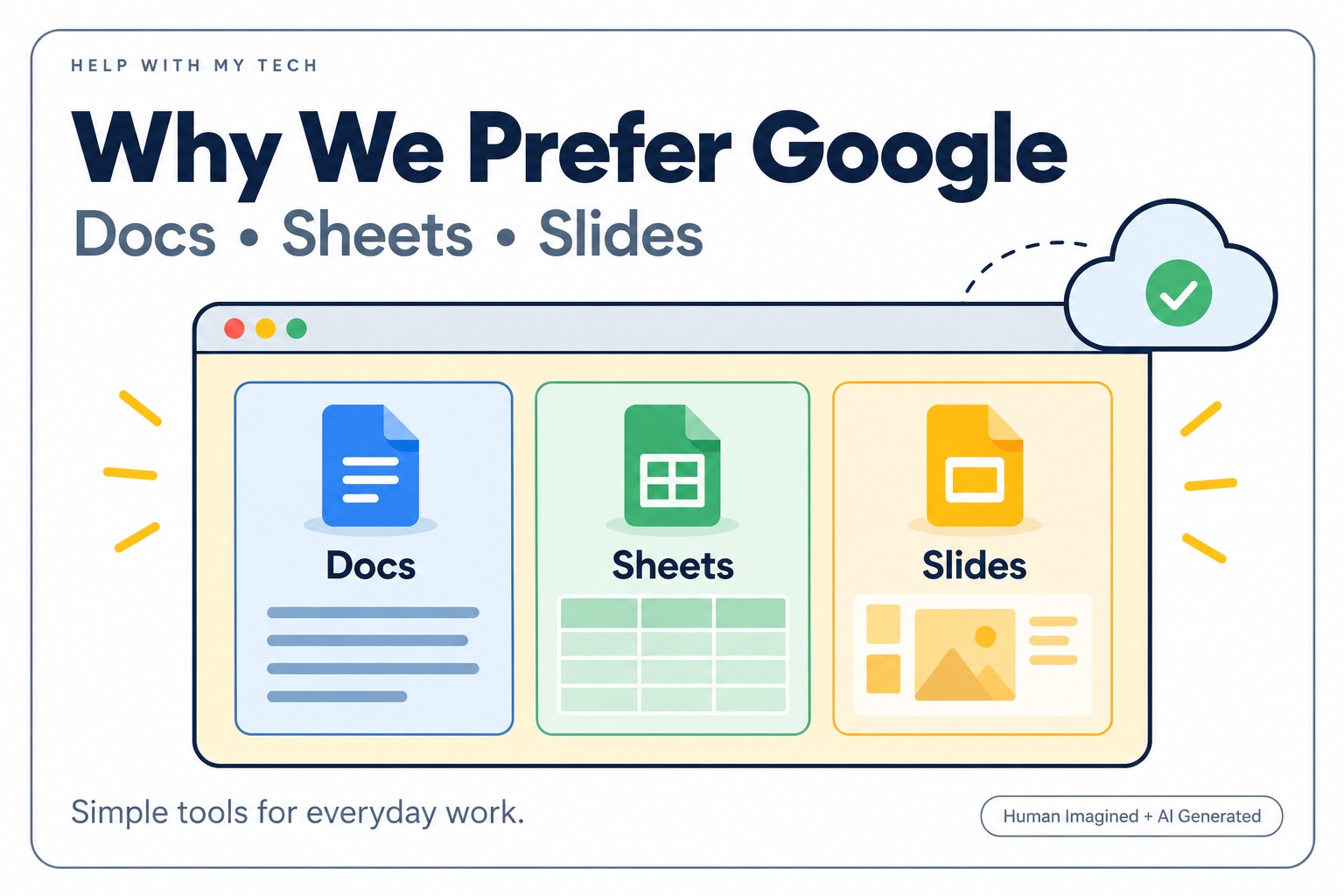
For most people who want to write documents, organize information, or make presentations, our starting recommendation is Google Docs, Sheets, and Slides.
Not because everyone needs to change what they already enjoy. We prefer Google because working in the browser keeps everyday tasks simple. You open your work, make your changes, and get on with your day.
That can be especially helpful for seniors who want fewer things to manage. It is also a sensible approach for anyone who moves between computers or would rather spend time using their documents than figuring out where they were saved.
A new computer should not mean starting over
One of the strongest reasons we recommend Google is what happens when you change computers.
Consider a document saved only in the Documents folder on an old laptop. Before you can use it on a new computer, you need to locate it and transfer it. If you are not sure where it was saved, even that first step can become frustrating.
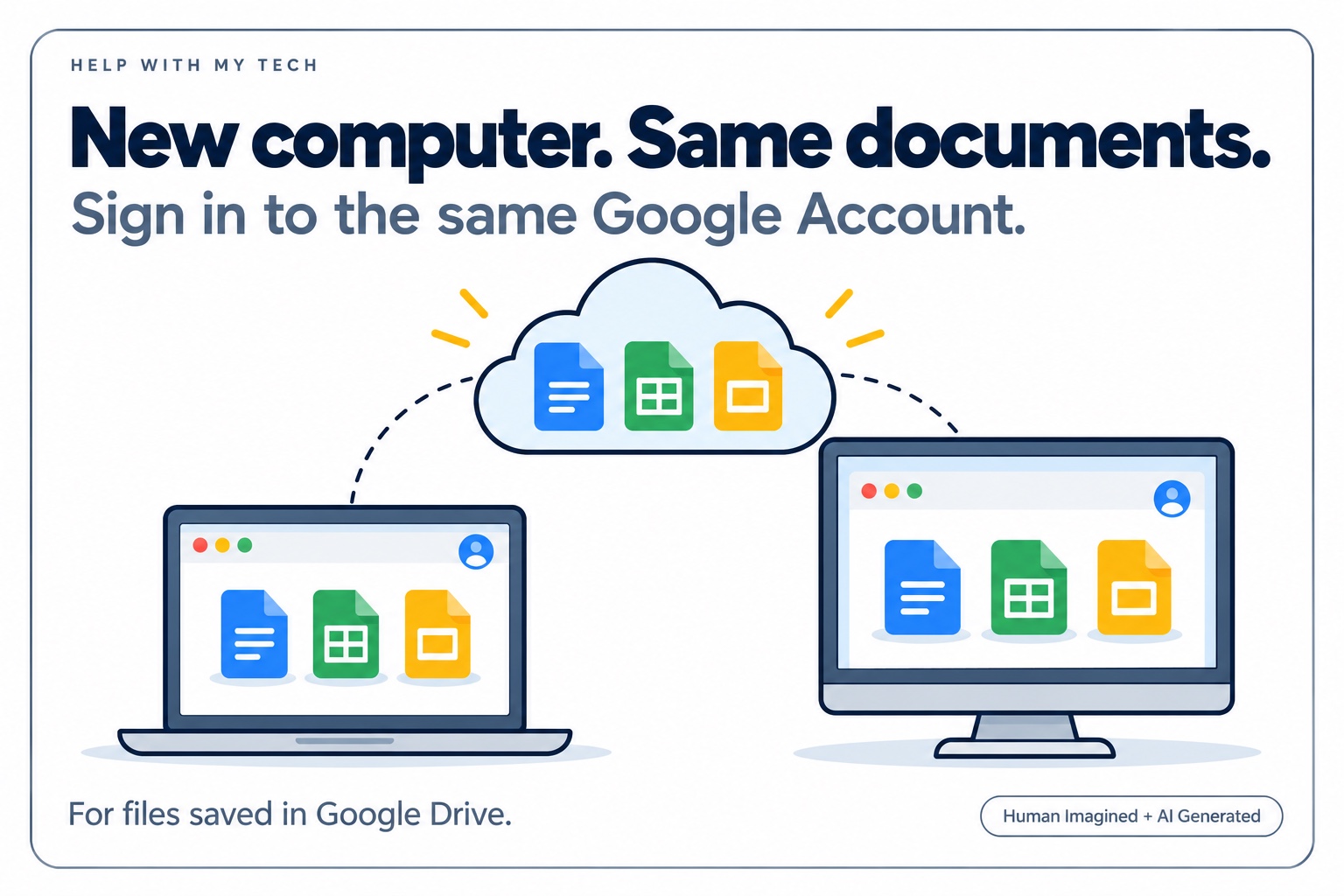
With documents already saved in Google Drive, you sign in to the same Google Account on the new computer and access them there. You are returning to your existing work rather than looking for a copy on the old machine.
This applies to the files in that account. It does not automatically move every item from your old computer into Google. Existing files still need to be uploaded or transferred intentionally.
For a typical computer purchase, though, having your everyday documents waiting in your account removes a whole category of work from the move. That is a practical benefit we value.
The browser becomes your familiar workspace
On a computer, you can use Docs, Sheets, and Slides through a supported web browser. You do not have to begin by installing a traditional desktop office suite to do ordinary work.
Whether you open them on a Mac or a Windows computer, the basic routine is familiar: sign in, find the file, and open it. On phones and tablets, Google’s apps provide another way to access your work.
The devices do not all have identical controls. A large screen and physical keyboard are usually more comfortable for a long document or spreadsheet. But your work can stay connected to your account as you choose the device that suits the task.
Automatic saving removes one more thing to remember
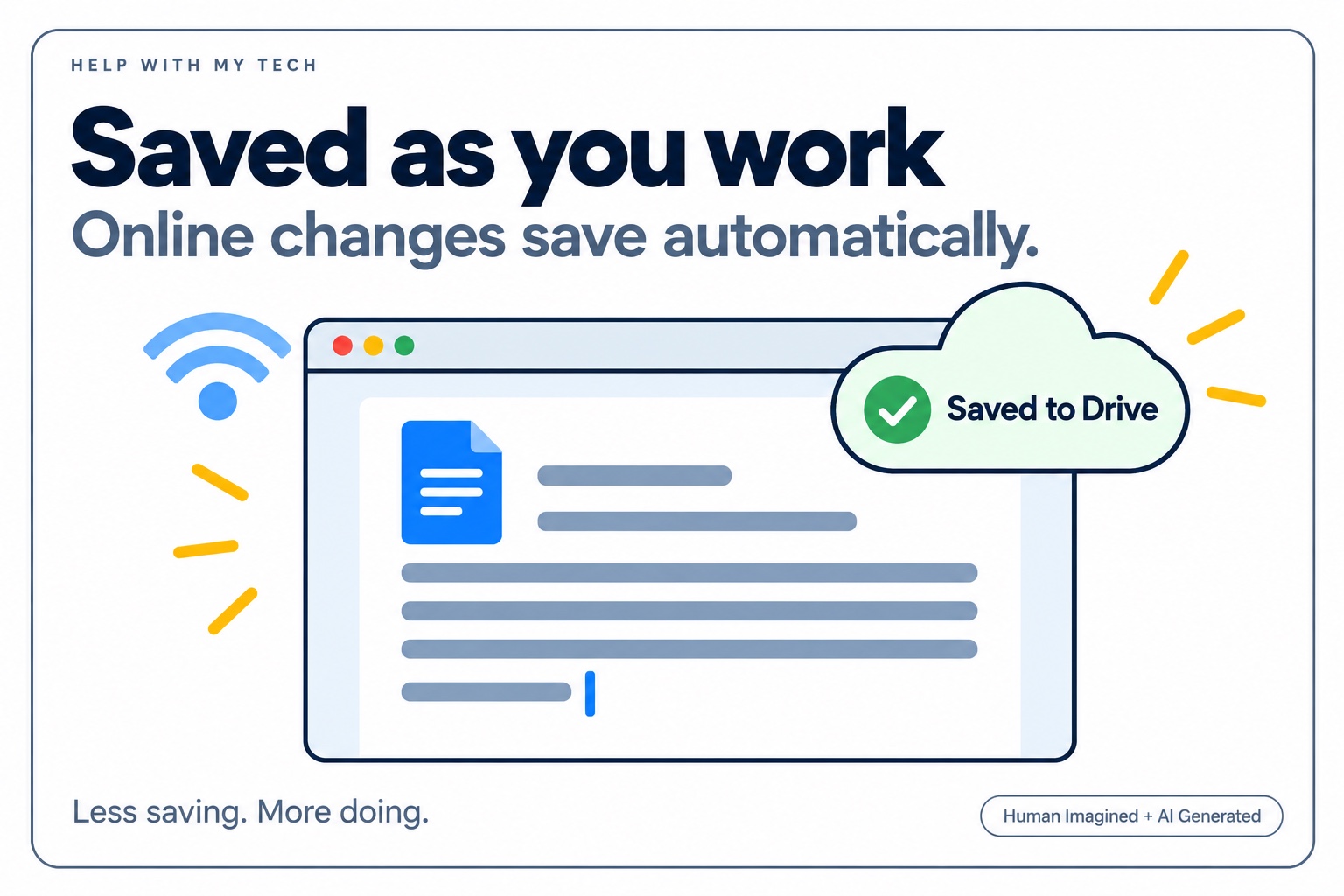
Google saves changes automatically as you work online. You can also check the save status rather than guessing whether your latest edits reached Drive.
For someone accustomed to finishing a letter and then wondering, “Did I save that?”, this is a welcome change. Saving becomes part of the normal workflow.
Automatic saving is not a promise that mistakes are impossible. Google provides version history that can help you review earlier changes. For especially important information, keeping an additional copy can still be sensible.
The everyday advantage is simpler: you can concentrate on what you are writing instead of repeatedly choosing a save location and creating another slightly different copy.
Three tools for ordinary, useful jobs
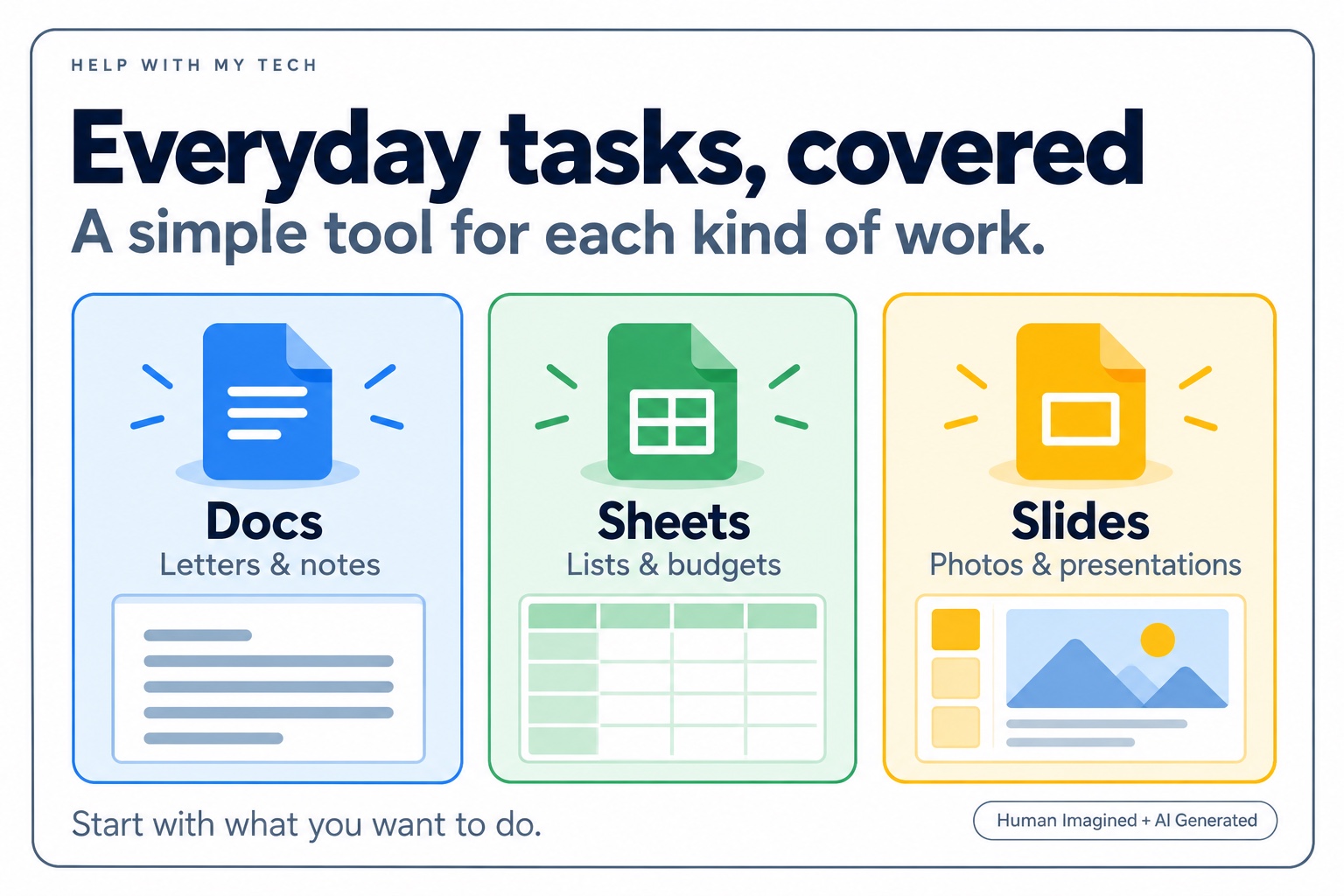
You do not need a business project to benefit from these tools. A family letter, a household list, or photos for a club meeting are good reasons to use them.
Google Docs: letters, notes, and longer writing
Docs is our starting point for a letter, a set of instructions, meeting notes, or a document you want to revise over time. You can write it, organize it with headings, and print or download a copy when needed.
Google Sheets: lists, budgets, and organized information
A spreadsheet does not have to be complicated. Sheets can hold a household budget, a club contact list, a travel checklist, or a list of items you want to compare. You can begin with a simple table and learn calculations when they become useful.
Google Slides: presentations and visual stories
Slides can help you put together a club presentation, a lesson, or a series of family photos with captions. A few readable slides often serve the purpose better than an elaborate presentation full of effects.
Our advice is to start with something you actually want to make. Learning a tool is easier when the result is useful to you.
Sharing can be easier than sending another attachment
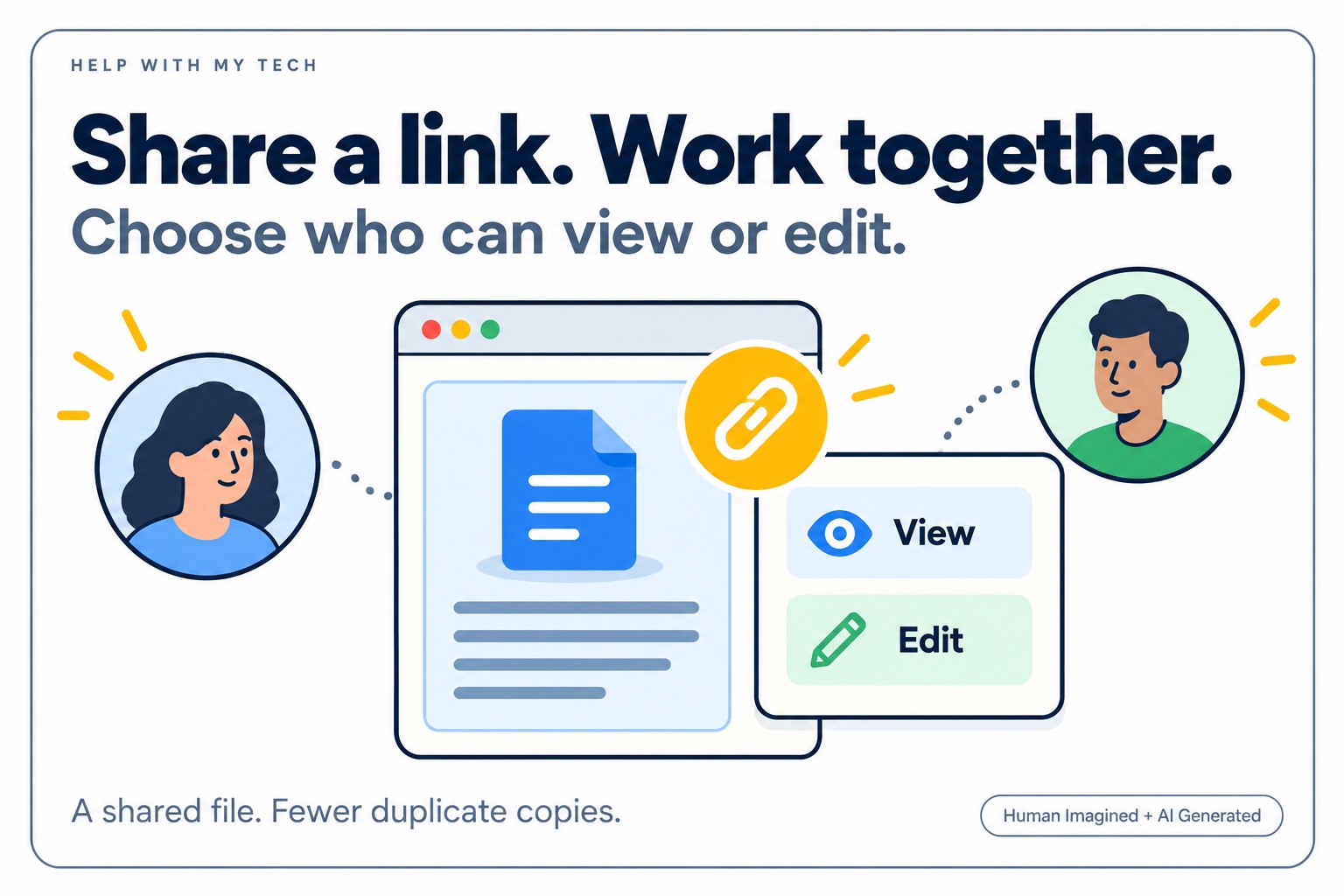
Suppose you want a family member to help revise a letter. You can share access to the document instead of emailing an attachment, receiving an edited copy, and trying to decide which version to keep.
Google lets you choose whether someone can view, comment on, or edit a file. Those choices matter:
- Viewer: when someone needs to read the document.
- Commenter: when you want feedback without giving direct editing access.
- Editor: when you want someone to help change the document itself.
Sharing a link does not mean you must make a document public. Check who has access and choose the permission that fits the job. A shared document can keep everyone focused on the same working copy.
Know which Google Account holds your documents
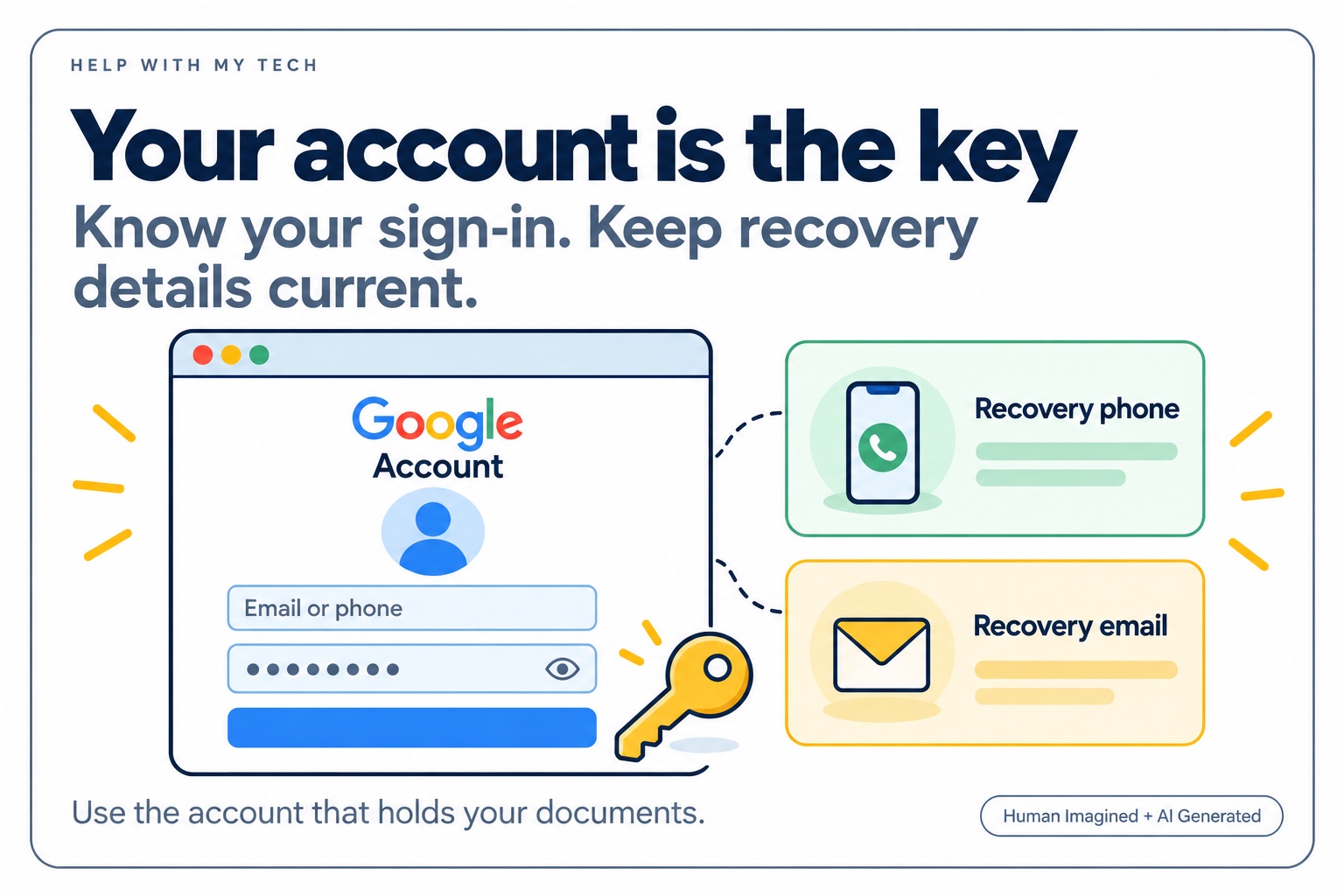
There is one important part of making this approach feel effortless: being able to sign in to the right account.
If you have more than one Google Account, an empty document list may mean you opened the wrong one. Before assuming your files are gone, check the account shown in the corner of the screen.
We recommend keeping these basics clear:
- Know the email address for the account that holds your documents.
- Have a secure way to access your sign-in information.
- Keep your recovery phone number and recovery email current.
- Give important files clear names and use a few understandable folders.
Different people should generally use their own personal accounts. If a family member needs to help, share the relevant document rather than treating one person’s account as everyone’s shared identity.
A couple of reasons to choose something else
If you frequently work without reliable internet, plan around that. Google supports offline work with advance setup on supported browsers and devices. It is worth testing that setup before depending on it during a trip.
If you rely on a complex Excel workbook, a carefully formatted Word document, or specialized desktop features, test your actual files before moving your workflow. Google supports working with Microsoft Office files, but you should check the results that matter to you rather than assume every feature behaves identically.
Those are reasons to assess your needs. They do not take away from Google’s convenience for ordinary daily work.
Use what works for you
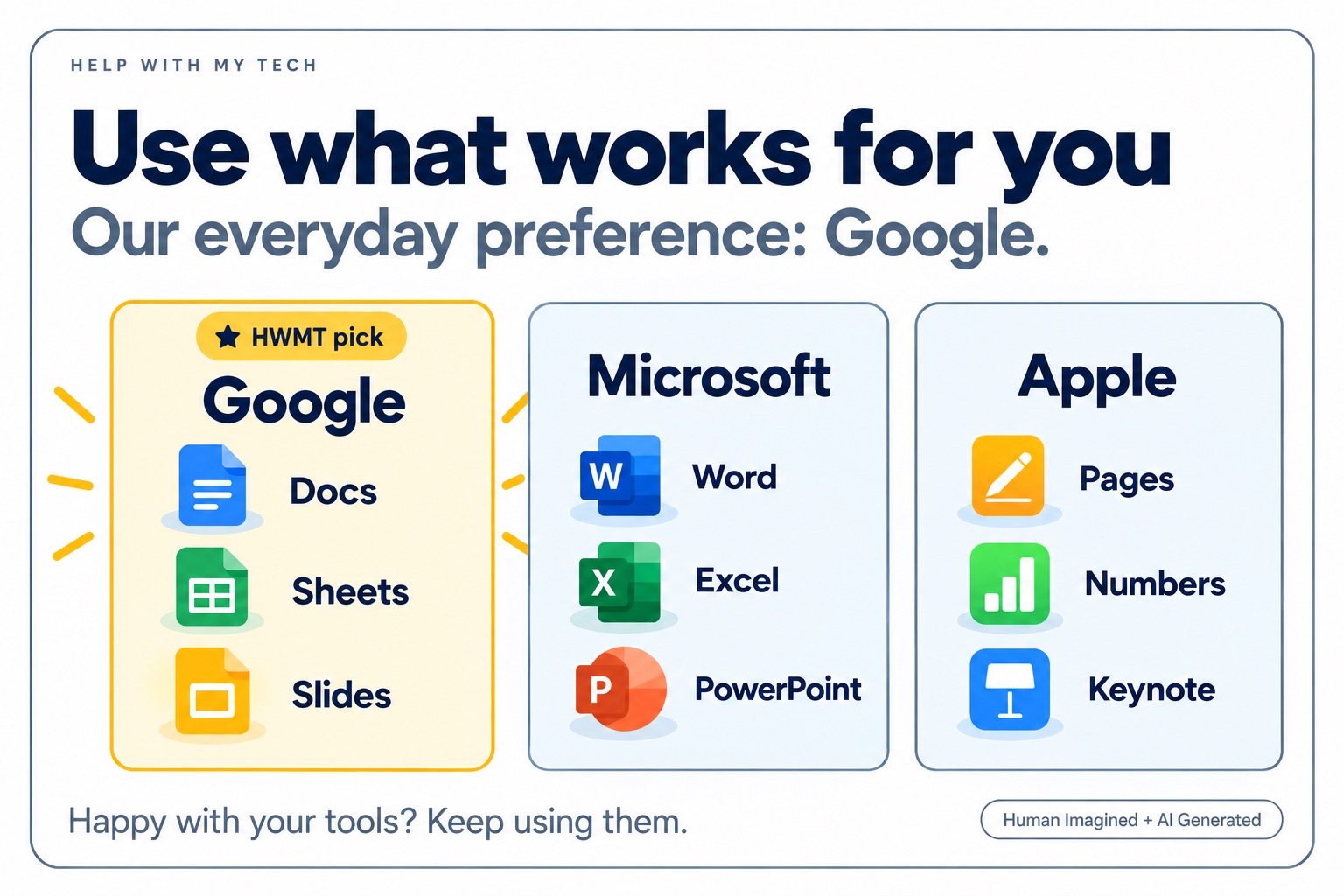
If you know Microsoft Word, Excel, and PowerPoint and are happy with the tools and any subscription you use, that is fine. Microsoft also offers web versions. If you enjoy Apple’s Pages, Numbers, and Keynote, that is fine too.
Apple and Microsoft both offer ways to keep work in the cloud. We are not saying Google is the only option that follows you to another computer.
We are saying that Google’s approach is the one Help With My Tech prefers for most everyday users. Opening the browser, finding your documents, and continuing your work is a straightforward routine we are comfortable recommending.
You do not need to switch away from tools you enjoy just to follow our preference. But if you are starting fresh—or you are tired of managing installations, file locations, and transfers—Google is where we suggest beginning.
A simple way to get started
- Choose the Google Account you intend to use and check that you can access it.
- Create one useful file: a short letter, a simple list, or a few slides.
- Give it a clear name and confirm it has saved.
- Practice finding and reopening it before adding more files.
There is no need to move years of documents in one afternoon. Start small, build a familiar routine, and bring older files over thoughtfully.
Want help getting comfortable with Google?
Help With My Tech can help you get started, organize your documents, move suitable existing files, and practice the tasks you want to do. Contact Help With My Tech for patient, practical assistance.