
A slow computer is frustrating. Before replacing it, find out what is slow, what can be fixed, and whether the computer still fits your everyday life.

You sit down to check your email, and the computer makes you wait. Opening a photo takes longer than it should. By the time the browser is ready, you are already wondering whether it is time to go shopping.
Maybe it is. But we would want to answer a few questions first. A slow website, a nearly full drive, and an aging computer can feel similar while needing very different solutions.
First, is the computer slow—or is the internet slow?
Try an ordinary task that does not depend on the internet, such as opening a document already saved on the computer. Then compare that with loading a few websites.
- Documents and apps open normally, but websites take forever: investigate the connection, browser, or website first.
- One website struggles while others work: that alone is a poor reason to replace the computer.
- Everything feels slow, including menus and typing: look more closely at the computer itself.
- Other devices are also slow online: check whether the problem affects your home internet connection.
This is a way to narrow the search, not a final diagnosis. For example, two devices can have different Wi-Fi reception in the same house. Still, a little comparison can keep you from buying a new computer to solve a connection problem.
Try these simple checks before buying anything
- Save your work and restart. Choose Restart from the computer’s menu. Closing a laptop lid usually puts it to sleep; it does not give you the same fresh start.
- Open only what you need. Try your usual task with a few browser tabs and apps instead of everything you used this week.
- Check available storage. On a recent Mac, open System Settings → General → Storage. On Windows 11, open Settings → System → Storage.
- Review updates and startup apps. Use the computer’s built-in settings. Remove unnecessary startup entries you recognize; leave unfamiliar security and system components alone.
Apple identifies limited free storage and apps needing more memory as possible causes of poor performance. Microsoft’s guidance also includes closing unused apps, restarting, and checking resource use. Neither means every slow computer needs replacement.
If you are uncomfortable deciding what to remove, stop at reviewing the list. Important files are worth more than the few minutes saved by guessing.
Memory and storage solve different problems
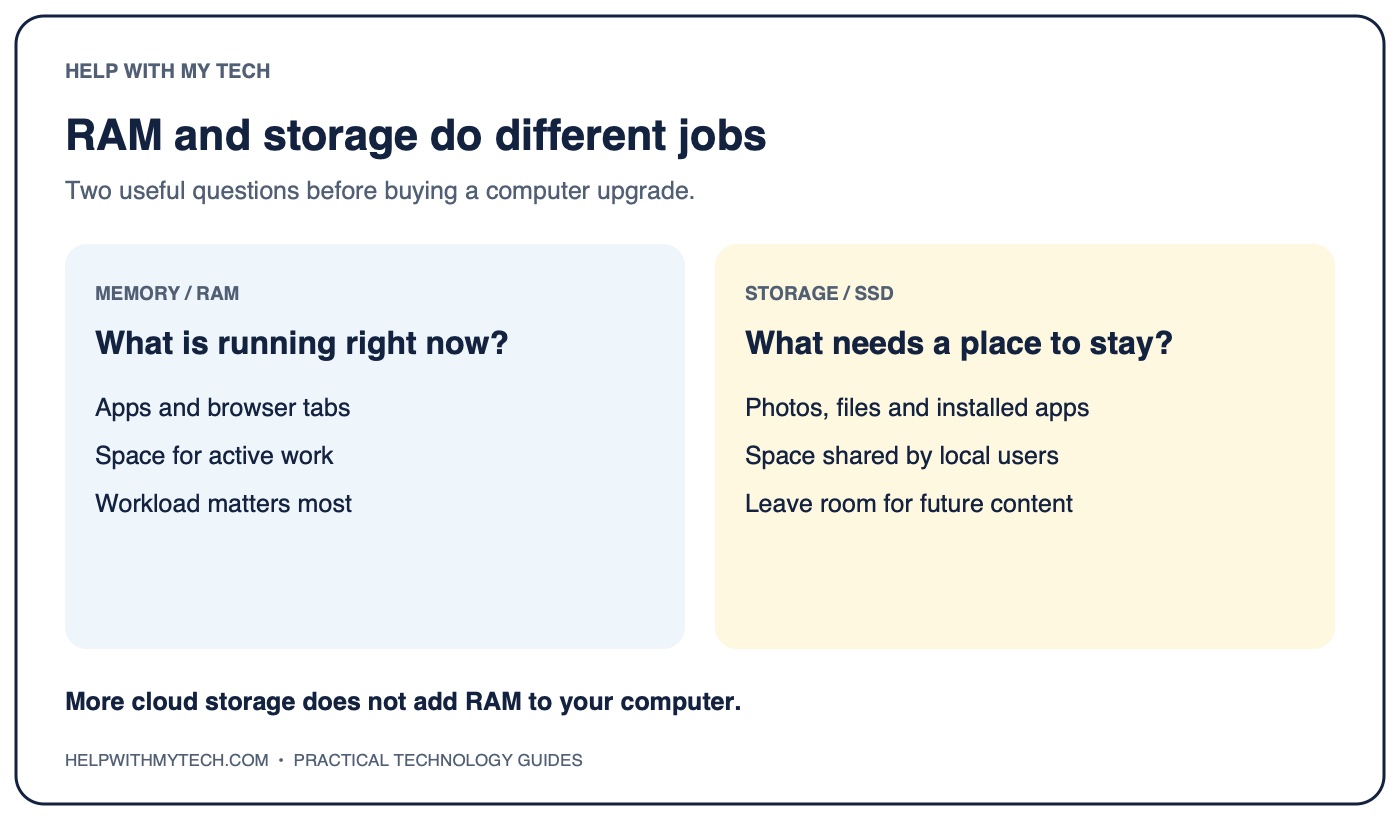
Think of memory, also called RAM, as the space available for work happening right now. Storage is where your files and installed apps live between sessions.
- Memory pressure: the computer struggles when you have several apps or many browser tabs open.
- Storage pressure: the drive is filling up with photos, videos, downloads, apps, or other files.
Buying more online storage does not add RAM. Moving files off a crowded drive can help with space, but it does not guarantee that an old processor will feel new.
Several family members can also use storage faster than one person, especially with separate photo libraries and downloads. The number of accounts alone does not tell you how much RAM you need; what remains running and what people actually do matters more.
Sometimes a repair or cleanup is the better choice
We would consider keeping the computer when it still supports your important software, the hardware is otherwise reliable, and the slowdown has an identifiable cause.
For some older computers, replacing a mechanical hard drive with a solid-state drive can be worth discussing with a technician. Whether that makes sense depends on the exact model, its remaining software support, and the total repair cost. Many modern Macs have memory and storage that are not practical to upgrade later.
Ask for a specific explanation: what is causing the delay, what the proposed work will change, and what limitations will remain. “We can clean it up” is not enough information to judge a substantial repair.
When Help With My Tech would lean toward replacement
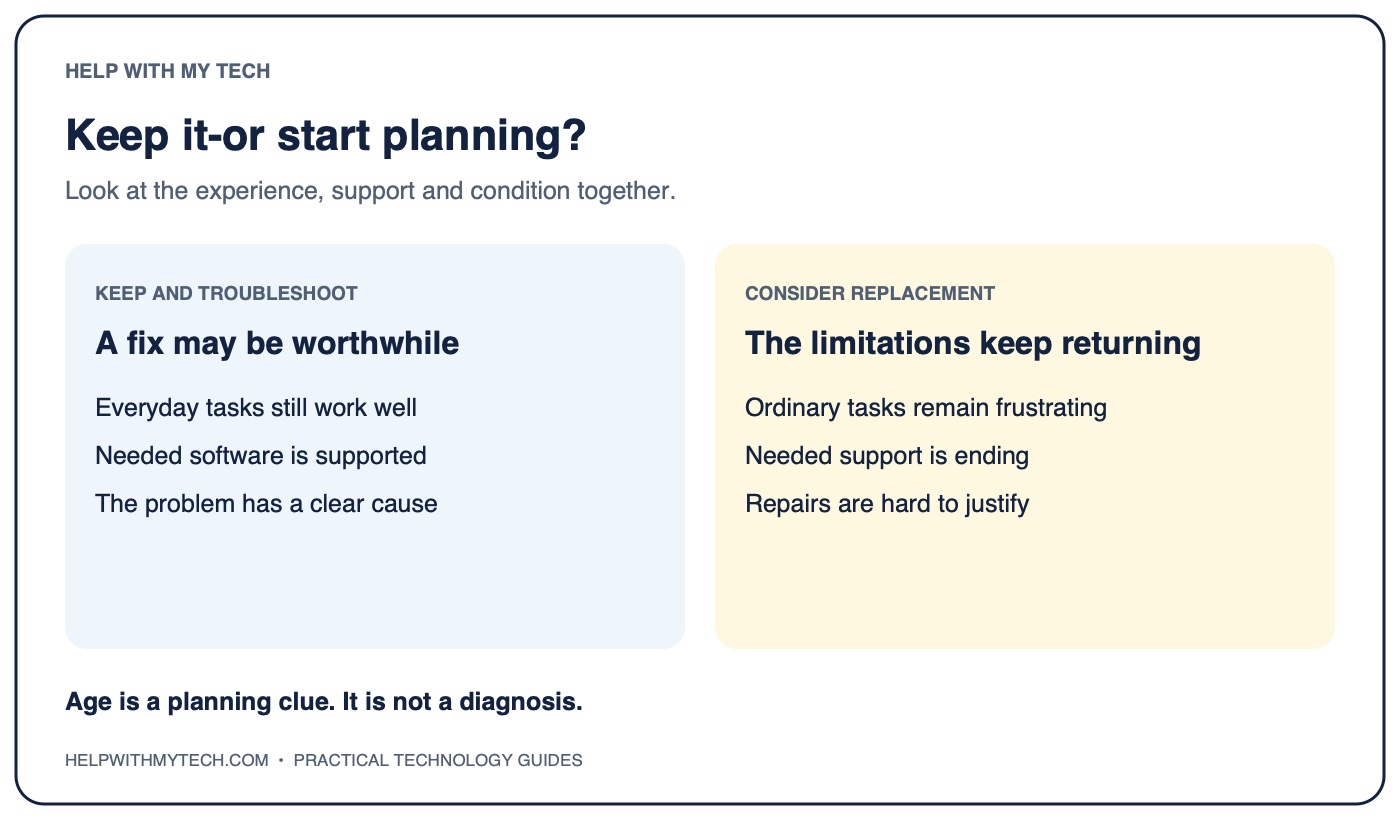
For many everyday users, reviewing replacement around the five- or six-year mark is reasonable. That is our planning guideline, not a rule that a computer expires on its birthday.
- Normal tasks are still uncomfortable after sensible troubleshooting.
- You repeatedly run out of space despite keeping a reasonable amount of content.
- Repairs are becoming frequent or difficult to justify.
- The computer can no longer run the supported software you need.
- You have spent years working around limitations and want a smoother daily experience.
A seven-year-old computer may still turn on and open email. The better question is whether keeping it remains a good experience for the person using it.
Software support matters even when the computer feels fast
Our preference is to start planning a replacement when a Mac can no longer run the newest major macOS version. That gives you time to prepare instead of waiting for an important app to stop working.
However, being unable to install the newest macOS does not automatically mean all security updates have ended. Apple also releases security updates for some earlier versions. Check the exact model, installed version, and current support situation.
A computer that no longer receives the security updates it needs deserves more urgent attention, particularly when used for email, shopping, or banking. The same principle applies to Windows: verify support for the installed version rather than assuming that a computer is supported because it still starts.
If you buy a replacement, buy for your actual use
For email, browsing, video calls, shopping, and everyday documents, we generally begin with a mainstream computer. Most people doing those tasks do not need a high-end workstation.
- 16 GB of RAM: a reasonable starting point for many everyday users.
- More RAM: worth considering if you keep many apps and tabs open, have heavier tasks, or want extra headroom within your budget.
- 512 GB of storage: our preferred starting point for a shared family computer or someone keeping a meaningful amount of content locally.
- 256 GB: can work for one light user who understands their storage needs, but leaves less room to grow.
Choose capacity based on what is already on your computer, then leave room for future use. Extra capacity can extend comfort; it cannot guarantee a particular number of years of support.
Want help deciding whether to keep it?
Help With My Tech can help identify what is slowing things down, explain the options in plain language, and help with a replacement setup when it makes sense. Contact Help With My Tech for patient computer help in Mesa and the East Valley.