
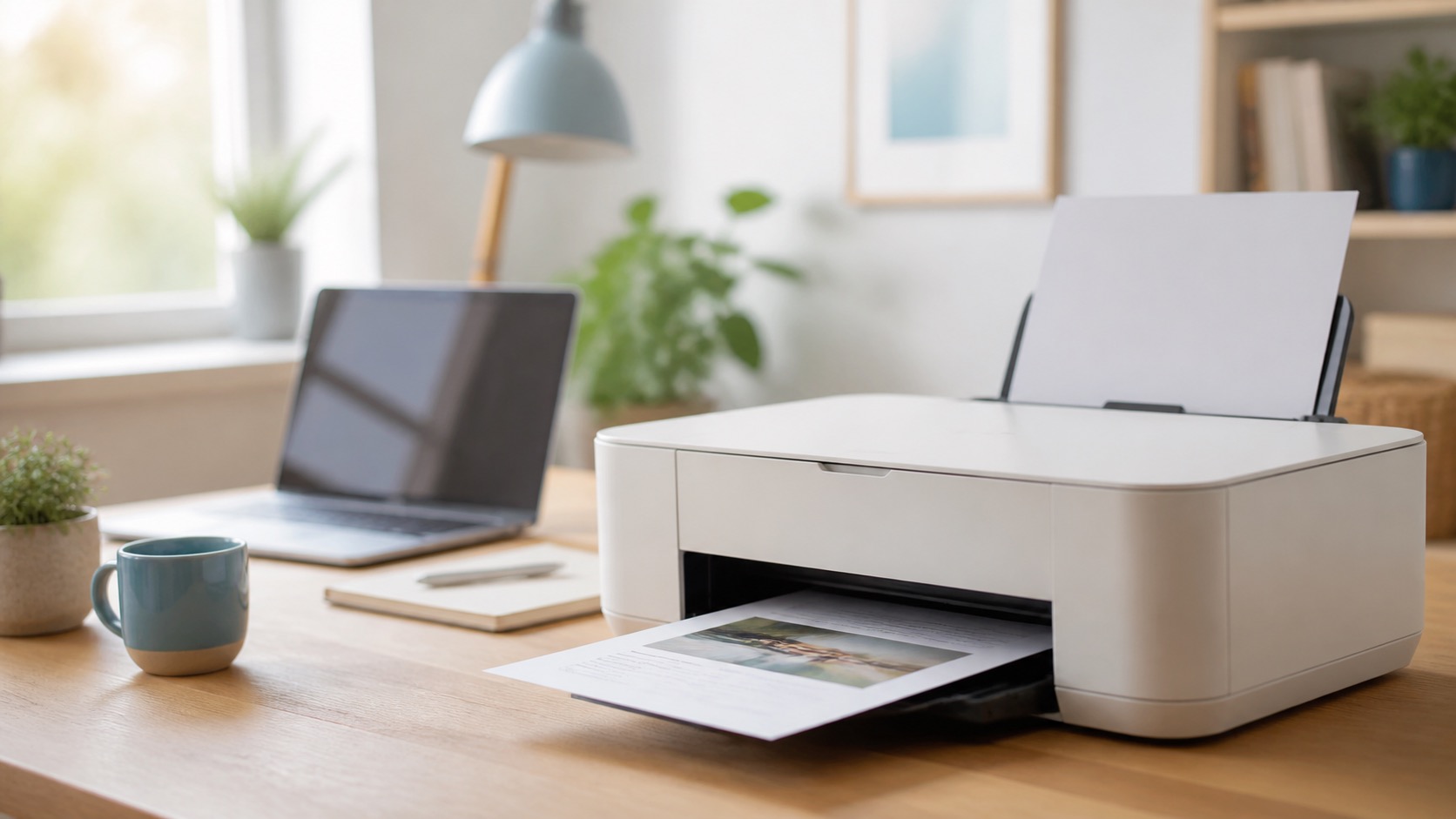
A printer problem has a special talent for showing up when you need one page right now. The good news is that “won’t print” usually means something small is stuck: the printer is asleep, the wrong printer is selected, the Wi-Fi connection changed, or an old job is holding up the line.
Before buying ink, replacing the printer, or changing a dozen settings, work through these simple checks. They are safe, practical, and often solve the problem in a few minutes.
Start with the printer itself
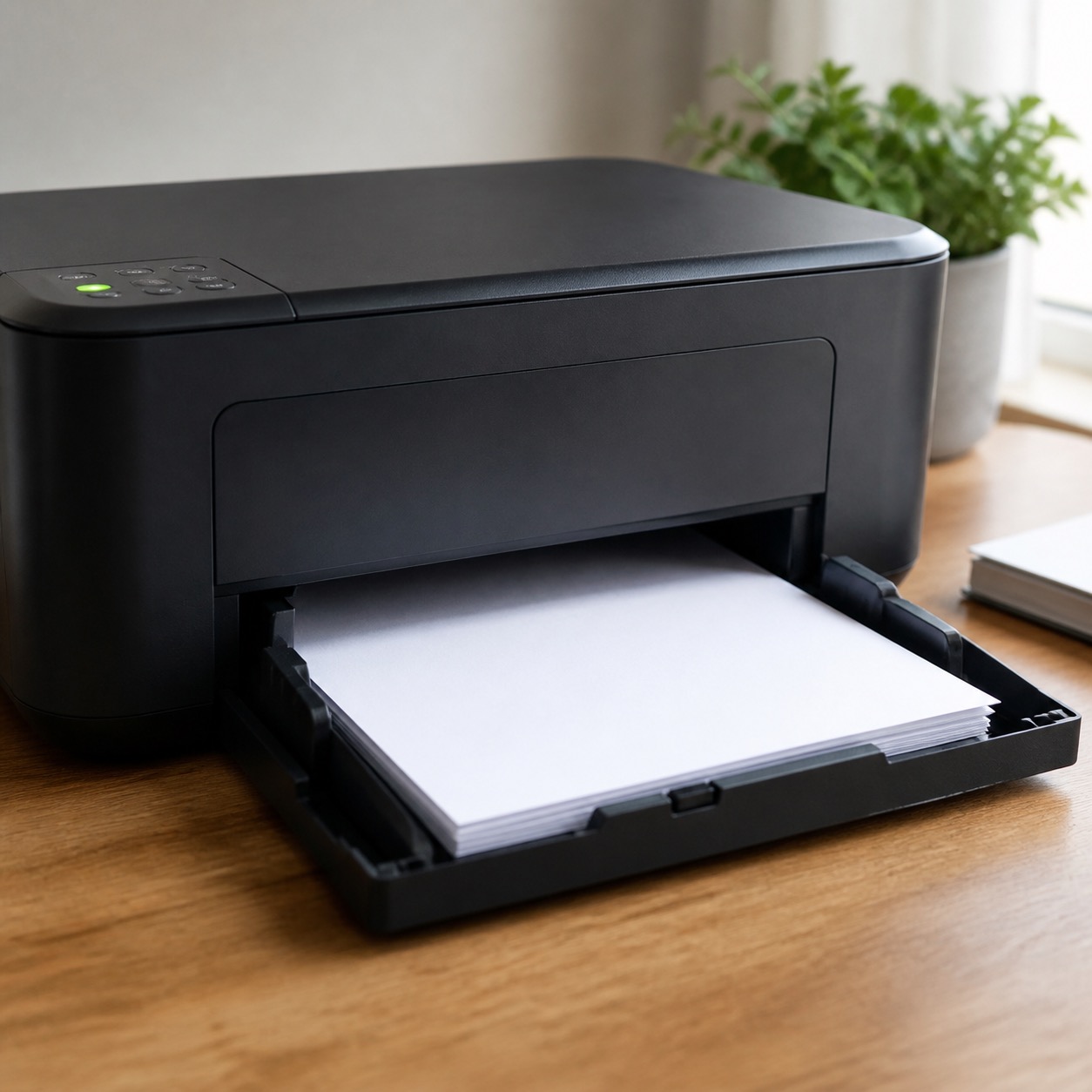
It sounds obvious, but this is the fastest place to start. Look at the printer—not just the computer.
- Is it plugged in and turned on?
- Does its display show an error, a paper jam, low ink or toner, or “offline”?
- Is there paper in the tray, loaded the right way?
- If it uses a cable, is the cable firmly connected at both ends?
Clear a visible paper jam gently, following the diagram inside the printer if there is one. Do not pull paper backward through the printer unless the manufacturer says to; that can leave small pieces behind.
Make sure you are choosing the right printer
It is surprisingly easy to send a job to an old printer, a neighbor’s shared printer, “Save as PDF,” or a printer that is no longer in the room. When you choose Print, look at the printer name before pressing the final Print button.
On a Mac, open Apple menu > System Settings > Printers & Scanners. Your regular printer should appear there. If it is a wireless printer, your Mac and the printer normally need to be on the same Wi-Fi network. Apple’s official Mac printing guide recommends checking the connection, selected printer, paper, ink, and queue before moving to bigger fixes.
On an iPhone or iPad, open the document or photo, tap Share, then Print. Choose the printer from the list. For AirPrint, Apple says the device and printer need to be on the same Wi-Fi network.
Check the print queue
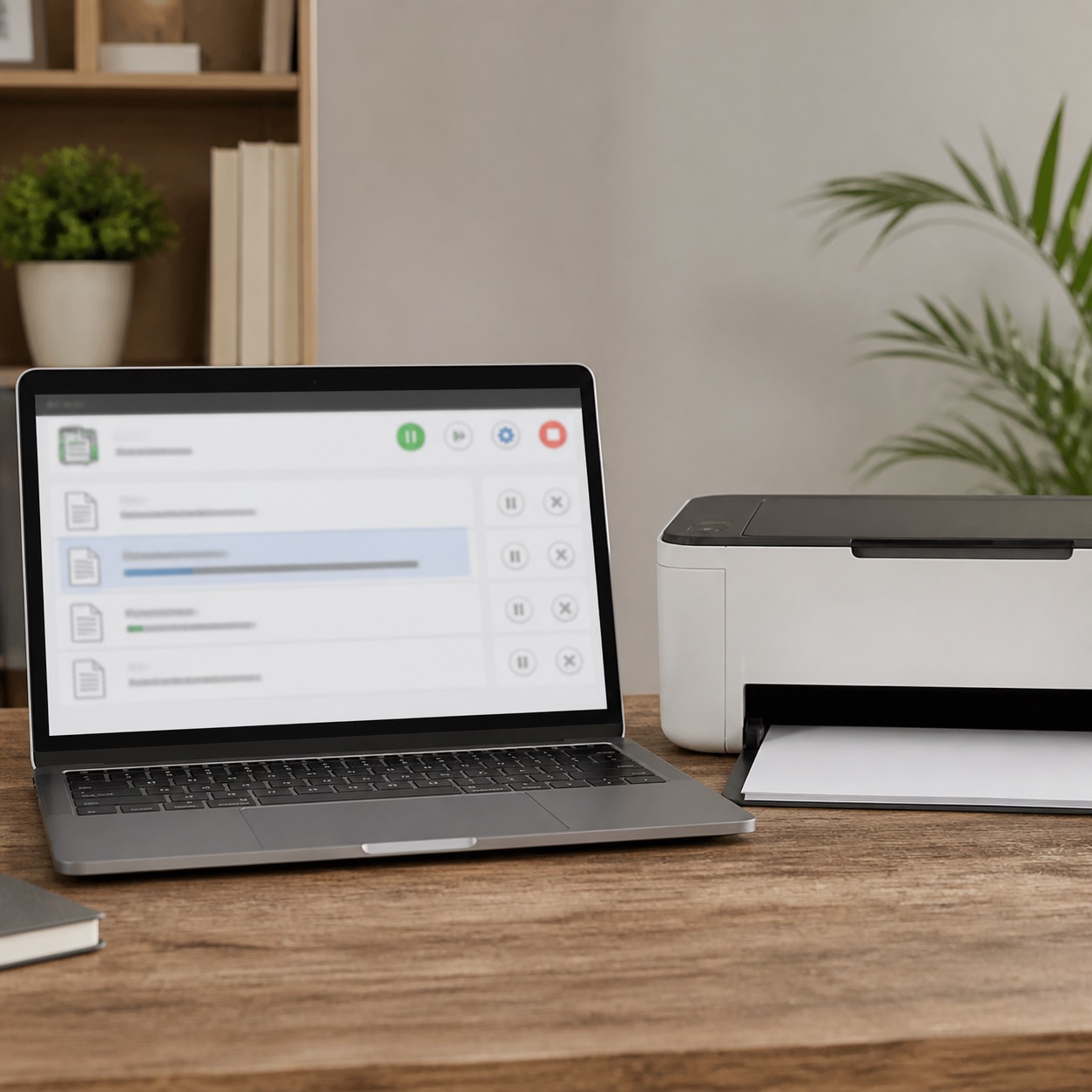
One failed job can block everything behind it. Think of the queue as a small waiting line for your printer.
On a Mac, open Printers & Scanners, choose your printer, then open the print queue. Look for a message such as “Paused,” “Hold for Authentication,” “Out of Paper,” or “Printer is not responding.” Resume a paused job, or remove the one job that is clearly stuck and try printing a fresh, simple page.
If only one document fails, try a different document or a simple test page. That tells you whether the trouble is the printer or the original file.
Restart in the right order
A quick restart clears many temporary connection problems.
- Turn the printer off.
- Wait about 30 seconds.
- Restart the computer or phone.
- Turn the printer back on and wait for it to finish starting.
- Try one small print job.
If your whole household has connection trouble, restart the router only if you are comfortable doing so. Give it a few minutes to come fully back online before testing the printer again.
For wireless printers, check the Wi-Fi name
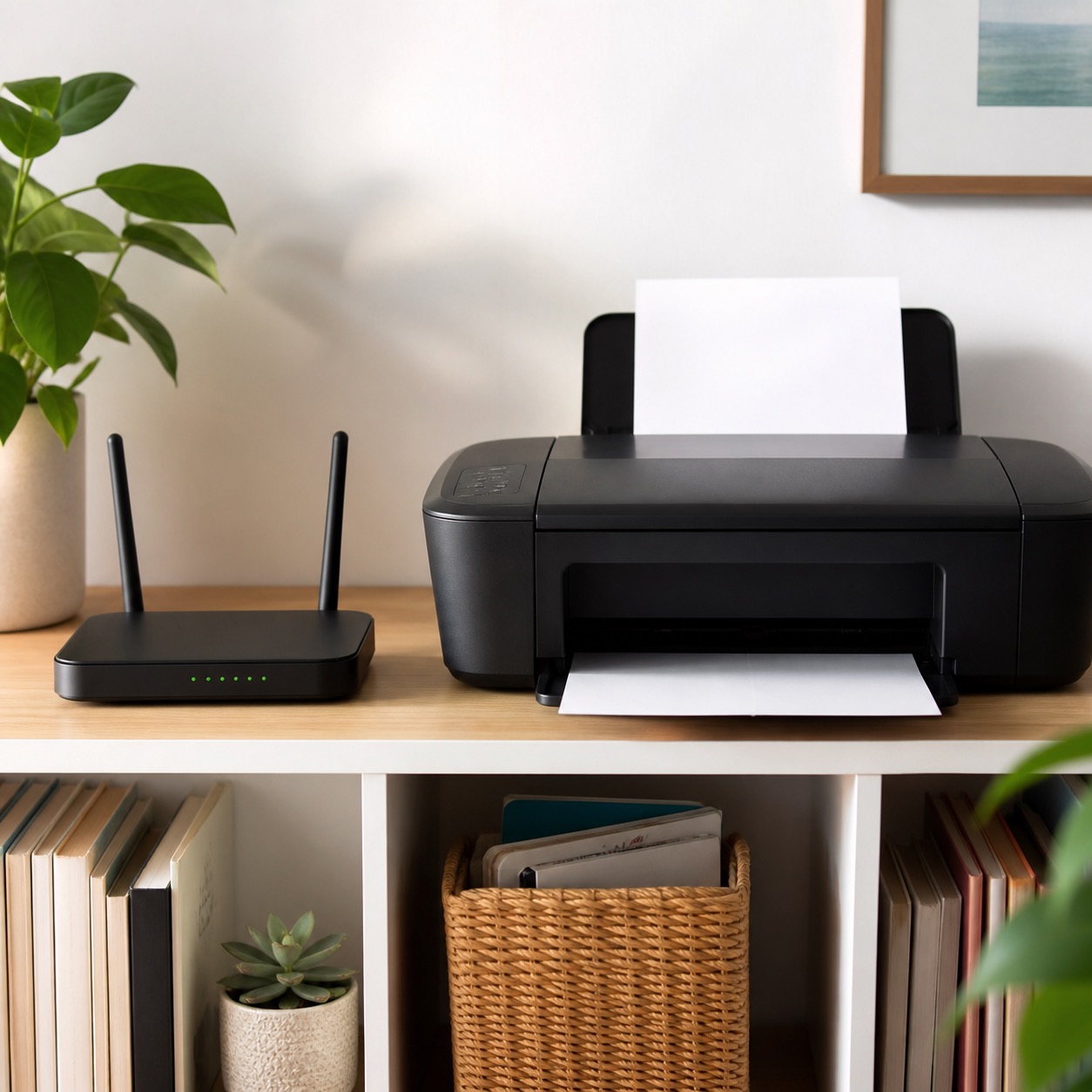
Printers do not always follow your Wi-Fi change automatically. If you recently got a new router, changed the network name or password, lost power, or moved the printer, it may no longer be connected.
Use the printer’s screen or its manufacturer’s app to confirm the Wi-Fi network name. Make sure it matches the network your computer or phone uses. Guest Wi-Fi networks can also prevent devices from seeing each other.
Try the simple fixes before reinstalling anything
- Cancel the stuck job and send it again.
- Try another app or another document.
- Check whether there is enough ink or toner and no paper jam.
- On a Mac, remove an old duplicate printer only after you know which one works.
- Install printer software or updates only from the printer manufacturer’s official website—not from a pop-up or an ad.
For many newer models, AirPrint or the built-in Mac driver is enough. If your printer needs a driver, get it from the manufacturer’s support page for the exact model.
When not to keep guessing
Stop and ask for help if the printer shows a hardware error, makes grinding noises, repeatedly jams, will not connect after the Wi-Fi details are confirmed, or asks for an administrator password you do not recognize. It is also worth getting help if you have important medical, legal, school, or business papers to print and do not want to risk changing settings under pressure.
Want in-person help? That’s why we’re here.
Help With My Tech offers patient, in-person help with printers, Wi-Fi, computers, and everyday device problems. If you are in Mesa or the East Valley and would rather have someone sit with you and get it sorted out, contact Help With My Tech.