
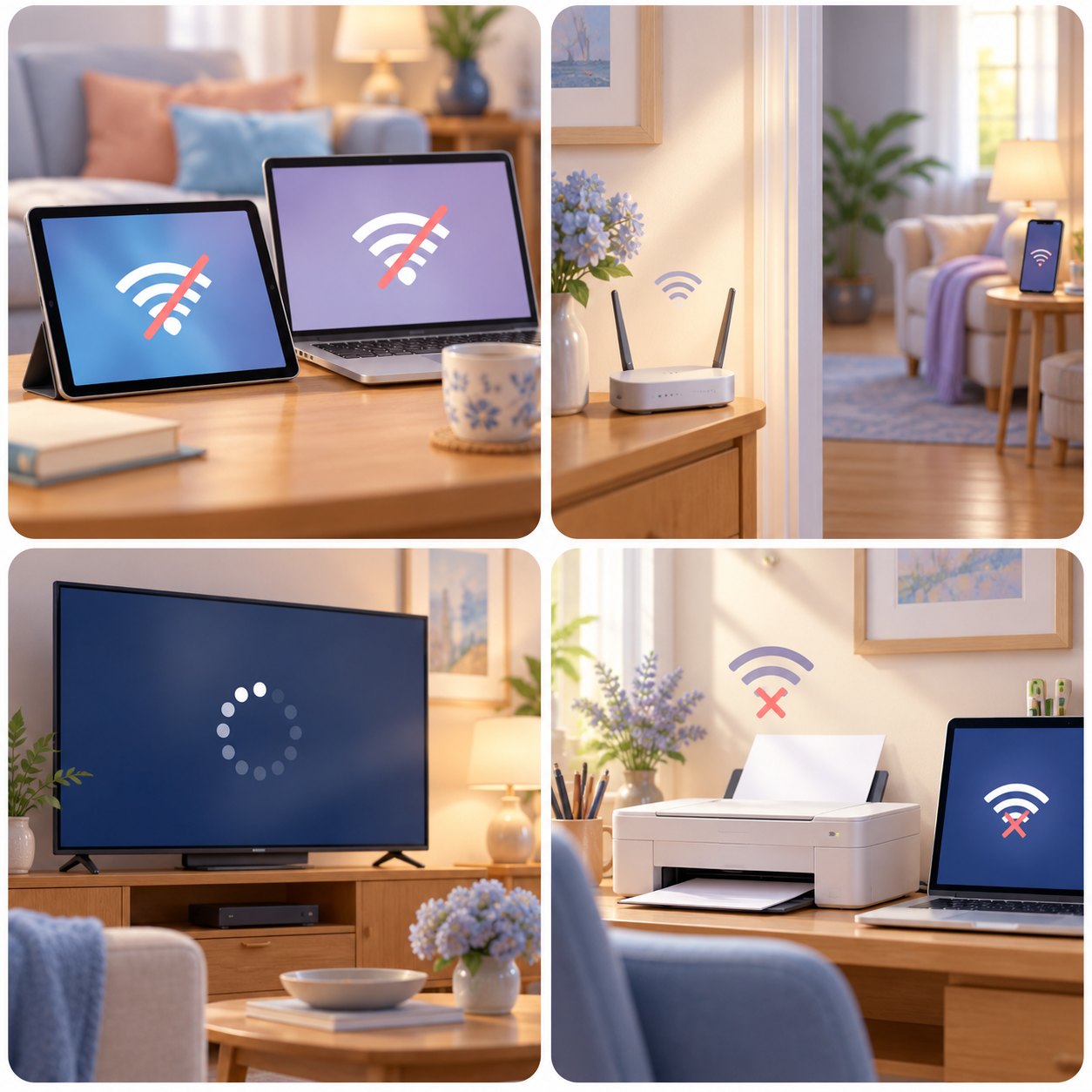
When the internet stops working, several everyday tasks can stop with it. Email, video calls, streaming, and printing may all become confusing at once. Patient help can make the problem easier to sort out.
Help With My Tech offers in-home Wi-Fi and internet support for seniors. We can look at your existing equipment, help connect compatible devices, and explain what may need attention from your internet provider.
- Help connecting your everyday home devices
- Understand Wi-Fi and internet equipment
- Discuss weak or unreliable connections
- Patient explanations in your own home
Tell us which devices are having trouble and what still works. You do not need to identify the router, modem, or technical cause before contacting us.
What Wi-Fi and internet problems can you help with?
A Wi-Fi connection links a device to your home network. Your internet service is the connection beyond that network. Understanding the difference helps explain why a device can appear connected while a website still will not load.
We can help with joining the correct network, reconnecting devices after equipment changes, and looking at unreliable connections around the home. We can also explain what information to share when the internet provider needs to help.
- Phones, tablets, and computer connections
- Streaming devices and wireless printer setup
- Router, modem, and network name questions
- Weak coverage and unreliable connection concerns
Some problems come from the provider’s service, account, or equipment outside the home. We can help narrow the issue and explain which next step belongs with the provider.
What should I check before asking for Wi-Fi help?
A few comparisons can make the problem clearer. Notice whether one device is affected or several devices have stopped working. Try a familiar website and see whether another app works.
You can share those observations without changing the network. If you are unsure which box does what, leave the settings alone and tell us what you see. You do not have to solve the problem first.
- Compare one device with another
- Check the trusted network name
- Look for power on familiar equipment
- Check for a provider service outage
These checks help us choose a useful starting point. You can stop and ask for support whenever the next step feels uncertain.
Is the problem one device or the whole home?
Try a familiar website on a second device that normally uses the same Wi-Fi. If that device works, the first device may need attention. If both fail, the network or internet service may be involved.
This is a clue, not a final diagnosis. Tell us which devices work and whether the problem is constant or comes and goes.
Am I joining the correct Wi-Fi network?
Check the network name against the one you normally use. A neighbor’s network, a guest network, or equipment with a new name can cause confusion after a move or router change.
Use your own network password when needed. We can help identify the appropriate network without asking you to send private passwords in a message.
Should I restart the router or modem?
A normal restart may help some connection problems. If you recognize the equipment, follow your provider’s or manufacturer’s restart instructions. Restarting interrupts the connection, so choose a suitable time.
Avoid pressing a Reset button as a general troubleshooting step. A factory reset can erase network settings and require setup again. Google explains that difference for its Wi-Fi equipment.
When should the internet provider get involved?
Check the provider’s official outage information if several devices lose internet at once. Service outages, account restrictions, and faults on the provider’s side may require their support.
We can help you describe the symptoms and understand the provider’s instructions. In-home assistance cannot guarantee a repair to an outside service connection.
Still stuck, or would you rather have help now? Tell us what is happening. We can discuss a useful next step.
Can you explain my Wi-Fi without technical jargon?
Yes. We can help you recognize the network name, identify the equipment you normally use, and understand how a phone, computer, TV, or printer connects. The explanation can stay focused on what you need day to day.
You can practice finding the correct network or reconnecting a familiar device. We can repeat a step and discuss what to check if the problem returns, using your own equipment as the example.
- Recognize your usual home network
- Understand the equipment you already own
- Practice connecting a familiar device
- Know what details to share later
The aim is a clearer picture of your own setup. You do not need a networking course to ask useful questions or get patient help.
Can you help after I get a new router or internet service?
A new router or provider can change the network name, password, or way devices connect. We can help review the new setup and reconnect compatible equipment such as computers, tablets, TVs, and printers.
We can also discuss placement and coverage options based on your home and devices. You decide whether to buy equipment or change a service, and you keep control of provider accounts and private passwords.
- Review the new network setup
- Reconnect compatible phones and home devices
- Discuss equipment placement and coverage choices
- Identify questions for your internet provider
Results depend on the home, equipment, service plan, and connection supplied by the provider. We can help you understand the options without promising a particular speed in every room.
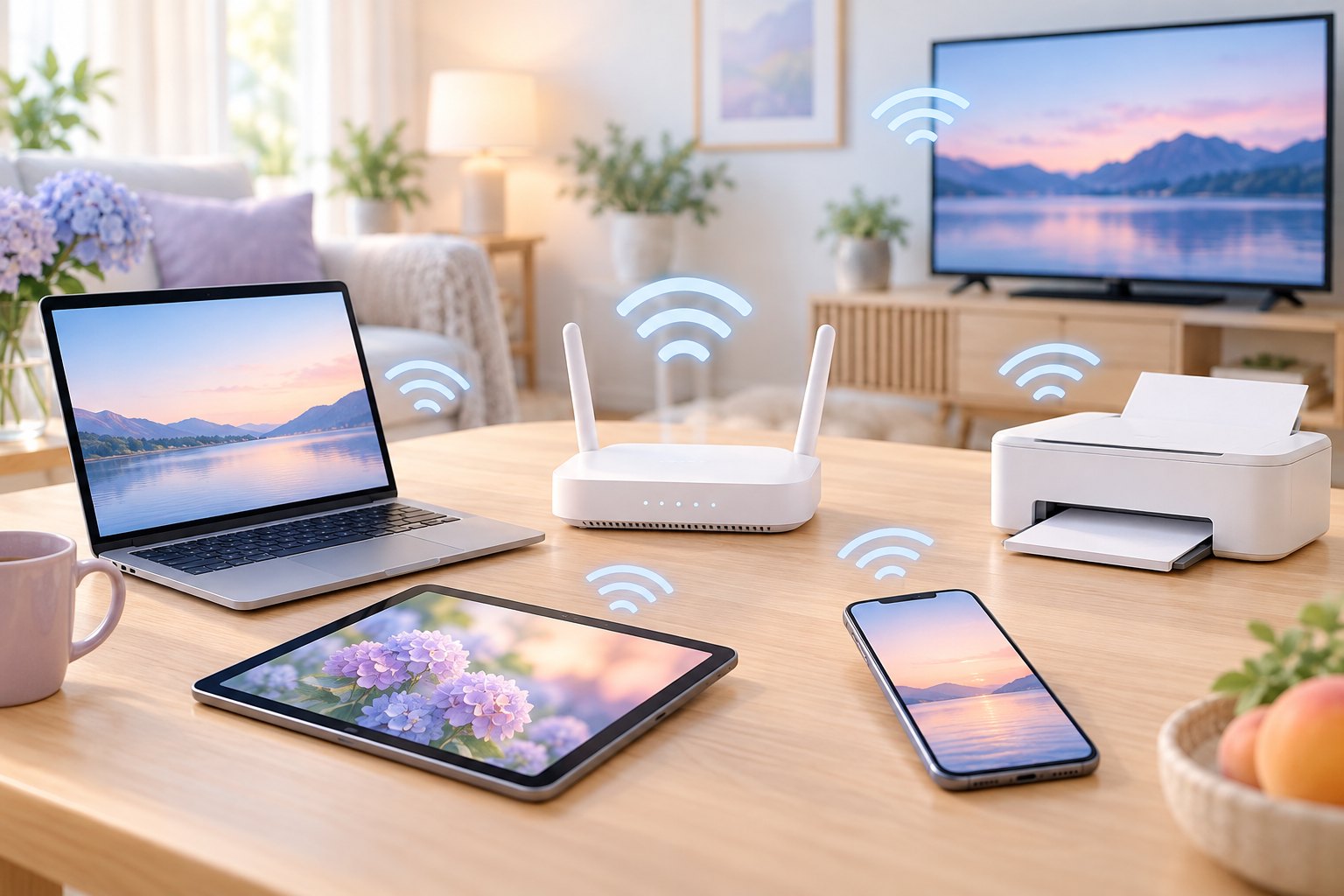
Can I arrange internet help for a parent?
You can contact us if a parent struggles with an unreliable connection or needs devices reconnected after a change. Describe the tasks affected, such as video calls, streaming, email, or printing.
We can discuss how you would like to participate while keeping the person at home involved. Their comfort with the equipment and control of private account information should remain central to the visit.
- Explain which everyday tasks are affected
- Mention any recent equipment changes
- Include your parent in the decisions
- Keep account details and passwords private
A clear description helps us plan a useful starting point. The goal is practical help and an explanation that fits the household.
How do I arrange Wi-Fi & Internet support?
Contact Help With My Tech and describe what you would like help with. Mention the device or setup involved and what happens when you try the task. Everyday language is fine.
We can discuss your goals, service options, and appointment availability. For current service rates and visit details, visit our pricing page. Ask about help in your neighborhood or beyond; we’ll confirm availability when you contact us.
- Tell us what equipment you use
- Describe the help you are seeking
- Ask about a suitable home visit
- Confirm the details before booking
You do not have to work through every problem alone. Text or call 480-463-7030, or send a request so we can discuss the help you need.
Original illustrations are conceptual, not actual customer visits, diagnostic results, or software screenshots. Help With My Tech provides independent assistance and is not affiliated with the device manufacturers or service providers. For manufacturer guidance, use your internet provider’s official support resources.