
Help With My Tech · Everyday technology, made clearer

Your home internet stops working just when you need to send an email from your laptop. If your iPhone still has a working cellular data connection, Personal Hotspot may give the laptop a temporary way online.
Check these three things first
Working cellular data
Your phone needs internet through its mobile carrier. A home internet outage and a cellular outage are separate problems.
Hotspot support
Availability and limits depend on your carrier and plan. Check the carrier’s app or account information if you are unsure.
A charged phone
Your phone will be providing the connection while your laptop uses it. Keep an eye on the battery and have a charger nearby.
To check the first item, turn Wi-Fi off in the iPhone’s Settings > Wi-Fi screen and try loading a new webpage. If it will not load over cellular, the hotspot cannot supply a working internet connection either. Turn Wi-Fi back on afterward so it is ready for the hotspot setup.
A page already open on the phone is a weak test because it may show saved content. Try a page you have not just visited. If cellular service is weak, moving near a window may help, but do not count on it during a wider service outage.
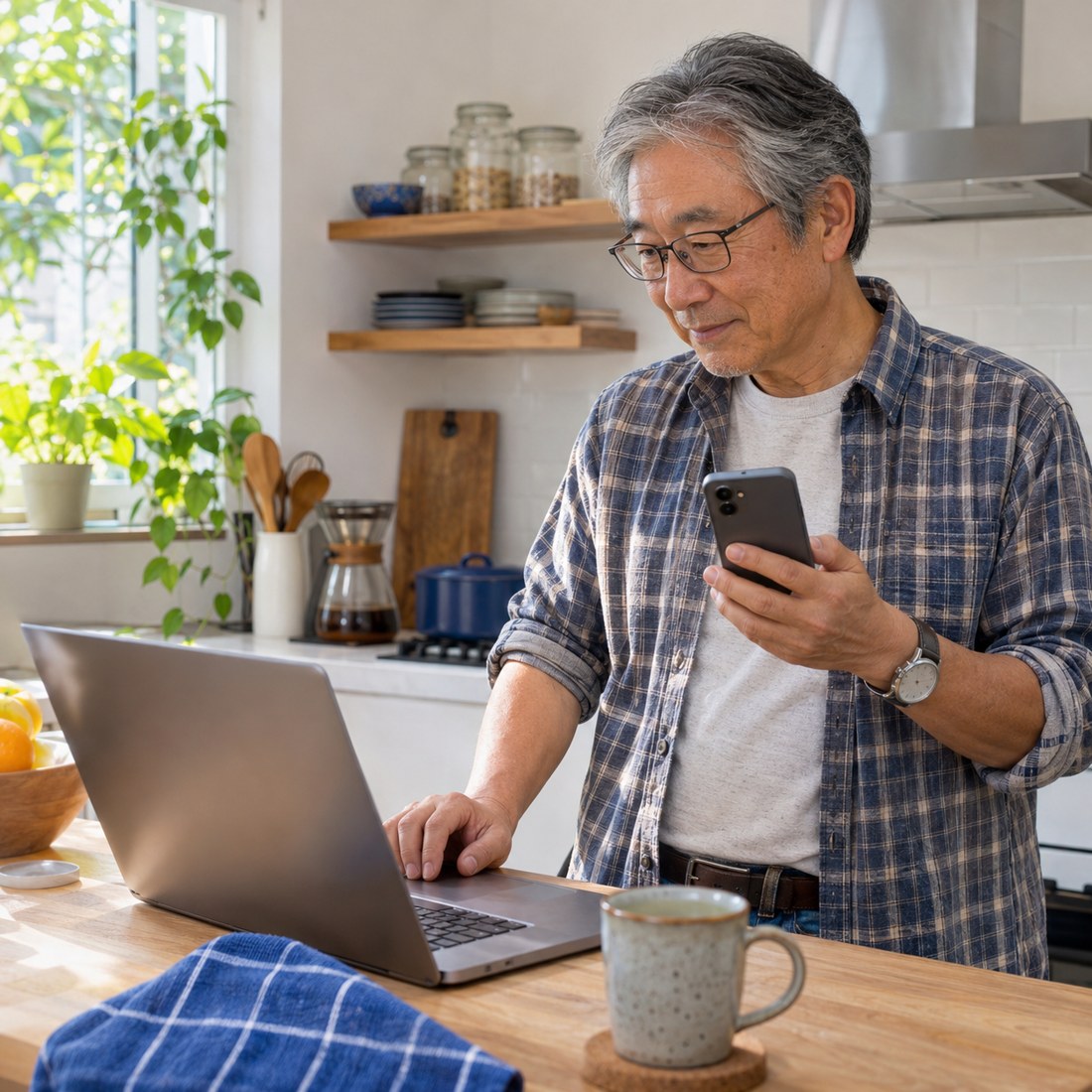
Turn on Personal Hotspot
- On the iPhone, open Settings > Personal Hotspot. On some versions, use Settings > Cellular > Personal Hotspot.
- Turn on Allow Others to Join.
- Look at Wi-Fi Password. This is the password the laptop needs, rather than your home Wi-Fi password.
- Keep the iPhone on this screen until the laptop connects. Keep the devices near each other, with Wi-Fi and Bluetooth on.
If you have not set it up before, you may see Settings > Cellular > Set Up Personal Hotspot. Follow the onscreen instructions. If the option is missing or unavailable even with Cellular Data on, check with your carrier about support for your line.
Apple’s current instructions cover the password connection used here. Apple devices signed into the same Apple Account may also connect through Instant Hotspot with fewer steps. You do not need to change Apple Accounts just to follow the regular Wi-Fi method.
Connect the laptop to the phone
Open the laptop’s Wi-Fi network list and choose your iPhone’s name. On a Mac, you can use the Wi-Fi menu or Control Center. On Windows, open the Wi-Fi network list from the network controls near the clock.
Enter the password shown on the iPhone’s Personal Hotspot screen. After it connects, open a new webpage on the laptop to test the connection. The laptop has switched networks, so its saved home Wi-Fi password is not the password being checked here.
A useful backup for a small task
Suppose you need to send a document before leaving the house. You test cellular data on your phone, connect the laptop to the hotspot, send the document, and check that it went through. Then you disconnect.
That is a more manageable backup plan than starting a long video stream and several large downloads at the same time. Choose the task you need most and finish it first.

Watch data use and battery life
Your laptop can use cellular data quickly. Photo syncing, software downloads, cloud backups, and streaming may continue in the background. Pause large transfers you do not need during the outage, and avoid starting updates simply because the laptop says it is online.
Review usage in Settings > Cellular on the phone. Apple says the carrier is the best source for accurate usage information for your current billing period. A phone’s displayed totals may not match the dates of your plan.
Keep the phone in an open, comfortable indoor spot. If you plug it in, give it room rather than covering it with a cushion or leaving it in direct sun. Check it during a long session instead of assuming the connection can run unattended all day.
If the laptop cannot connect
- Make sure the laptop chose the iPhone’s network, rather than your usual home network.
- Recheck the hotspot password, including capital letters.
- Confirm that Allow Others to Join is on and keep that screen open while connecting.
- Restart both devices and try again if the basic checks do not help.
If the hotspot option remains unavailable, contact the carrier. If the laptop joins but websites fail, test cellular internet on the phone again. That helps you tell a connection problem from a lack of internet service behind the connection.
Disconnect when the task is done
Reconnect the laptop to your home Wi-Fi once that service is working again. Then turn off Allow Others to Join on the iPhone. Check the laptop’s network name before starting a big download, especially after a long outage.
Quick questions
Does this work if my phone has no cellular service?
No. Personal Hotspot needs the phone’s working cellular internet connection.
Is this the same as Wi-Fi Calling?
No. Wi-Fi Calling uses a Wi-Fi connection for supported phone calls. Personal Hotspot shares cellular data with another device.
Can it replace my home internet?
Treat it as a backup unless your carrier’s plan and your needs support more. Speed, data limits, and reliability vary.
Set up a backup before you need it
Help With My Tech can help you practice connecting your laptop and understand which connection it is using. Contact us for a patient walkthrough.
Official Apple references: Connect to Personal Hotspot; Share your iPhone’s cellular connection; View cellular data use; Troubleshoot Personal Hotspot. Checked November 12, 2026.
Images: Human Imagined + AI Generated for Help With My Tech. These illustrative scenes are not photographs of actual customers or exact app screens.