

The quick answer: Apple TV 4K can be an excellent choice for many seniors, especially those who already use an iPhone or iPad.
It offers a fast, fairly clean interface, strong voice controls, clear dialogue tools, customizable captions, family photos, FaceTime on the television, and excellent accessibility settings. It is not the cheapest streaming device, and the remote takes some practice.
Choosing a streaming device should not feel like buying a small computer. The real question is simple: Will it make television easier and more enjoyable? For the right senior, Apple TV 4K can reduce frustration and bring movies, music, family photos, video calls, and smart-home controls into one dependable box.
“A good streaming device should disappear into the background and let you enjoy the show.”
What is Apple TV, and what are you actually buying?
The name “Apple TV” can describe three different things, which causes plenty of confusion:
The small physical box that connects to your television with an HDMI cable.
The viewing app that organizes Apple content, rentals, purchases, channels, and some recommendations.
Apple’s optional monthly streaming service for Apple Original shows and movies.
Buying the Apple TV 4K box does not automatically include every movie, channel, or streaming service. Netflix, Hulu, YouTube TV, and other services still require their own accounts when applicable. The box is the doorway. Your apps and subscriptions are what you watch through it.
Why can Apple TV be easier for seniors to use?
Apple TV 4K is fast and responsive. Apps generally open quickly, and the Home Screen can be simplified by moving the most important apps to the first row and removing apps that are not used. That matters because too many choices can make any television confusing.
The Siri Remote can also control television power and volume on many setups. When everything is configured correctly, a person may need only one remote for everyday viewing instead of juggling the television remote, cable remote, and streaming remote.
Senior-friendly setup tip
Keep the Home Screen simple. Put the three or four most-used apps first, turn off unnecessary notifications, and remove services the person does not use. A quiet screen is easier to remember.
Can Apple TV make voices easier to hear?
Yes. Apple TV 4K includes Enhance Dialogue options that bring spoken words forward over music, action scenes, and background noise. This can make a large difference for viewers who can hear the television but struggle to understand what actors are saying.
Apple TV also supports closed captions and SDH. Caption size, font, color, background, and opacity can be customized. In tvOS 27, transcribed audio can help with some content that does not include standard captions. Availability still depends on the program, app, language, and device.
A useful Siri command is, “What did she just say?” Apple TV can skip back and temporarily show subtitles. It is a small feature that solves a very common frustration.
What Apple TV accessibility features help with vision?
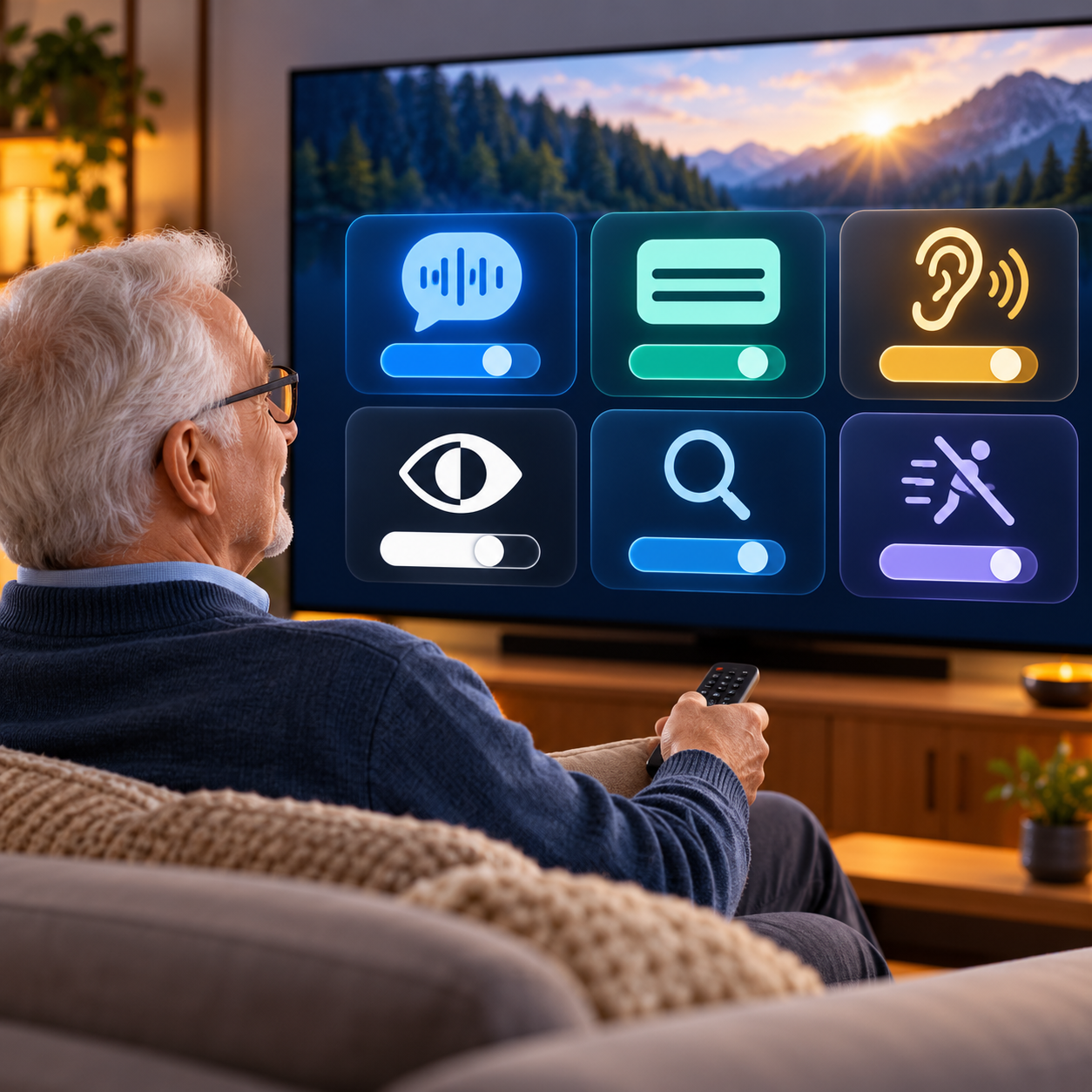
Apple TV 4K includes several built-in tools that can make menus and programs easier to see:
Zoom: Magnifies the screen up to 15 times.
Hover Text: Places selected text inside a larger, easier-to-read box.
Bold Text and larger text: Makes menus and labels easier to read.
Increase Contrast: Helps controls stand apart from the background.
Reduce Motion: Reduces moving icons, posters, and screen effects.
VoiceOver and Audio Descriptions: Reads screen information aloud and describes supported scenes.
An accessibility shortcut can place favorite tools within quick reach. The best settings vary from person to person, so it is worth testing text, contrast, captions, and audio rather than turning on everything at once.
Is the Apple TV remote easy for seniors?
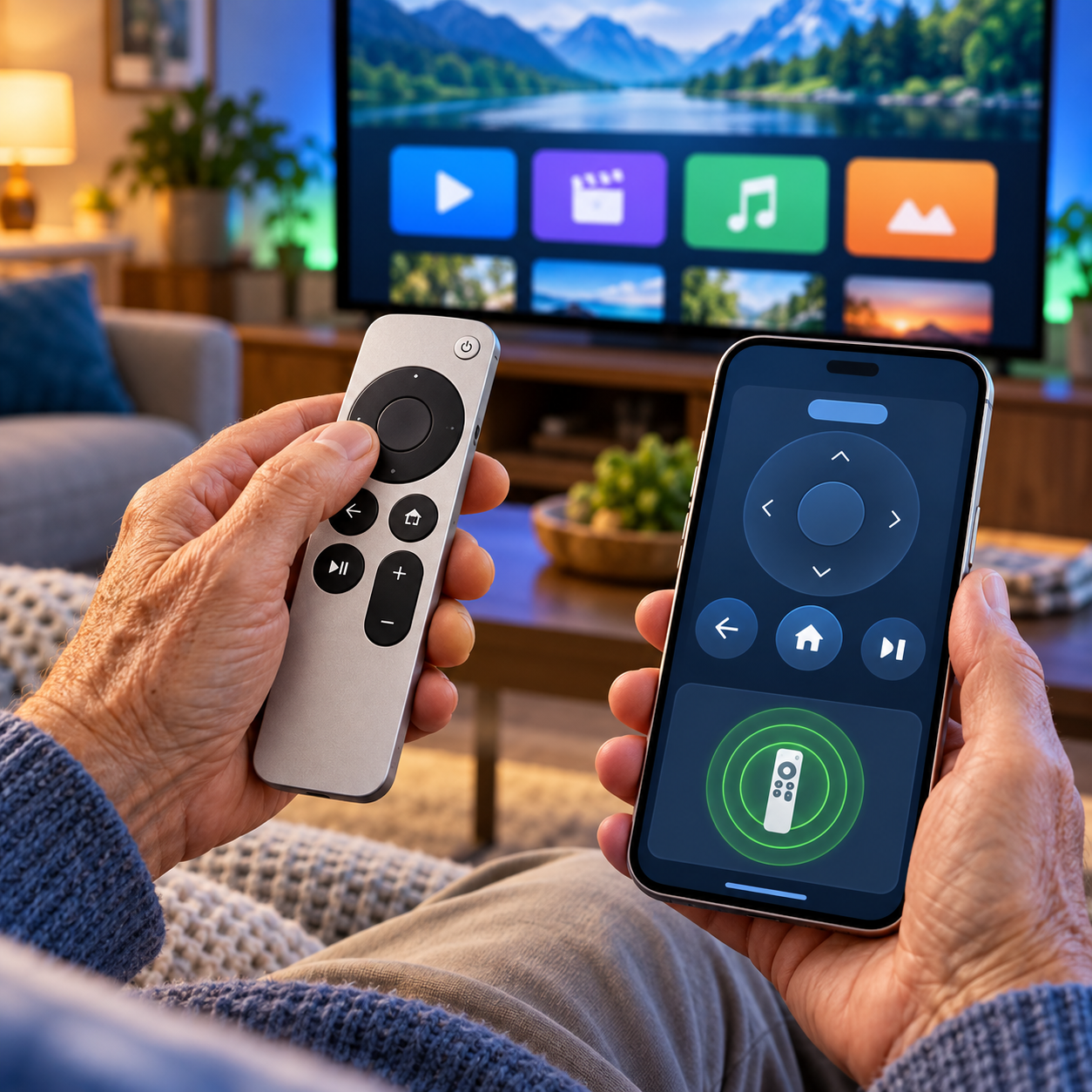
The answer is mixed. The remote is small, rechargeable, and has only a few buttons. Its circular clickpad can scroll through lists or move one item at a time. Siri can find a show, open an app, pause playback, turn on subtitles, or answer a question without typing.
However, the clickpad may feel sensitive at first, and the small remote is easy to misplace. Fortunately, Apple provides several solutions:
- Turn on Tap to Navigate so buttons can be tapped instead of pressed.
- Adjust clickpad tracking speed in Settings.
- Use an iPhone, iPad, or Apple Watch as a second remote.
- Use a compatible television remote for basic navigation.
- Use an iPhone to help locate a newer Siri Remote when it is lost.
Can Apple TV help seniors stay connected with family?
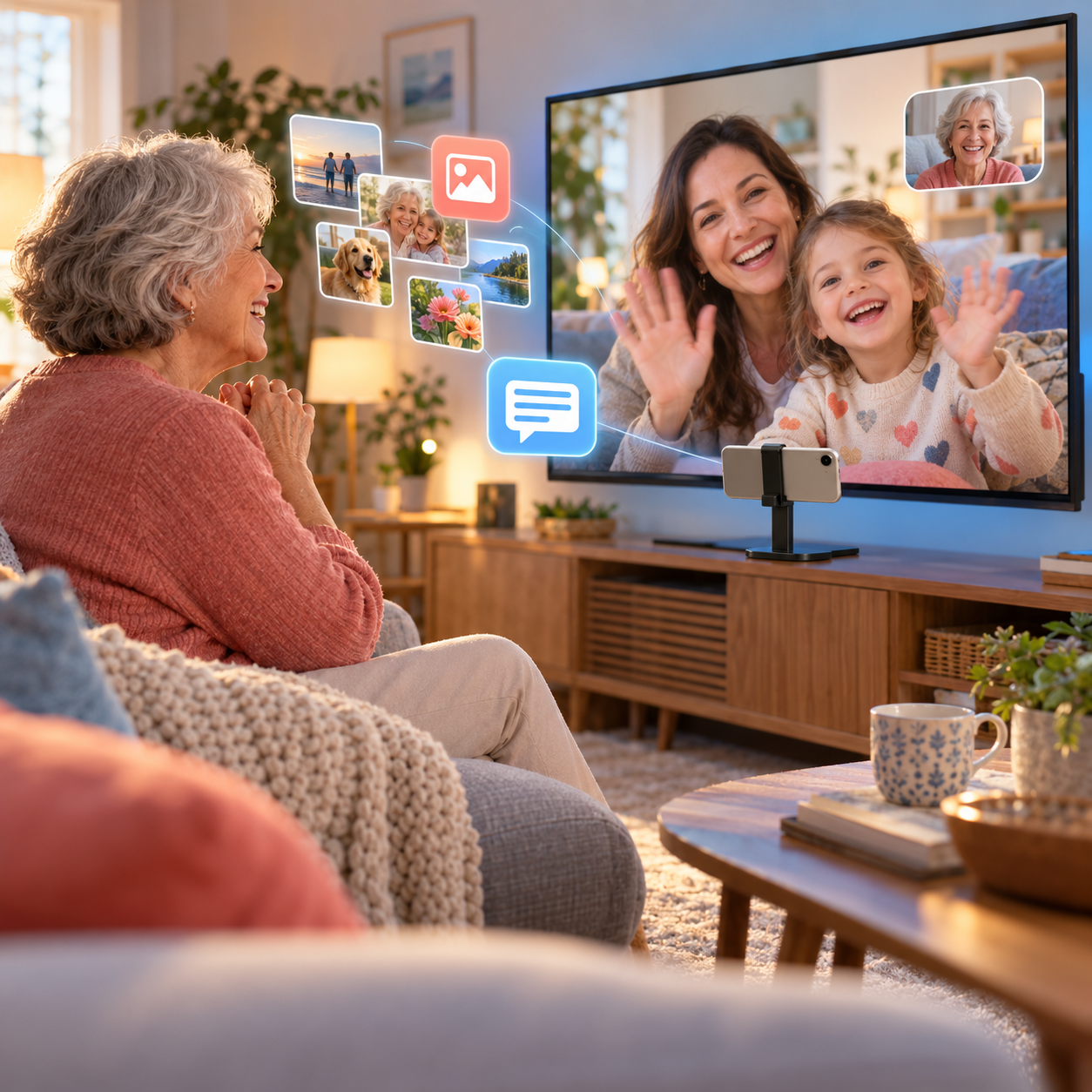
Apple TV 4K can place a FaceTime call on the television using a nearby iPhone or iPad as the camera and microphone. The larger picture can be easier to see, especially during a family call with several people. Center Stage can keep people in the frame, and Live Captions can display a real-time transcription in supported languages and regions.
The Photos app can show personal pictures, shared albums, and memories on the television. For some families, this becomes one of the best reasons to own the device. Grandchildren’s photos no longer have to stay on a small phone screen.
What else can a senior do with Apple TV?
Apple TV is more than a place to open streaming apps. Depending on the household, it can also:
- Play music, radio stations, and video podcasts.
- Show family photos and slideshows.
- Display Apple Fitness+ workouts on the largest screen in the home.
- Send photos, videos, and music from an iPhone or iPad through AirPlay.
- Connect two pairs of compatible AirPods with separate volume controls.
- Act as a hub for compatible smart-home lights, cameras, and other accessories.
If the senior already uses Apple devices, these connections feel natural. Our guide to iOS 27 for seniors explains more ways an iPhone can support accessibility, safety, and everyday routines.
What are the disadvantages of Apple TV for seniors?
It costs more: Apple TV 4K is a premium device, while basic streaming sticks are often cheaper.
Subscriptions are separate: Buying the box does not unlock every streaming service.
Setup can be tedious: Wi-Fi, an Apple Account, app passwords, updates, and television settings may all need attention.
The remote requires practice: Some people love the clickpad, while others find it too sensitive.
An HDMI cable may be needed: Apple lists the HDMI cable as sold separately.
It works best with other Apple devices: It can be used without an iPhone, but several convenient features depend on an iPhone or iPad.
“Apple TV is simple after it is set up well. The setup is the part that often decides whether it feels easy or frustrating.”
Which Apple TV model is best for most seniors?
For most people who stream television over good Wi-Fi, the standard Wi-Fi model with 64GB of storage is enough. The Wi-Fi and Ethernet model adds 128GB, a wired network connection, and Thread support for compatible smart-home accessories.
Choose the Ethernet model if Wi-Fi is unreliable near the television, the household uses many smart-home devices, or several large games will be installed. Storage does not hold downloaded Netflix or cable programs the way a DVR does, so most viewers do not need extra storage simply for watching shows.
How should Apple TV be set up for a senior?
- Connect the hardware: Apple TV, power cord, HDMI cable, television, and reliable internet.
- Update tvOS: Install current security and reliability improvements.
- Arrange the Home Screen: Put favorite apps first and remove clutter.
- Sign in carefully: Add only the services the person actually uses.
- Configure the remote: Test television power, volume, and input control.
- Adjust accessibility: Review dialogue, captions, text, contrast, motion, and audio descriptions.
- Turn on purchase protection: Require a password for rentals, purchases, or in-app spending when appropriate.
- Practice common tasks: Open a favorite app, find a show, pause, go back, change volume, and return Home.
- Write down a short guide: Leave simple instructions near the remote.
Should seniors buy an Apple TV?
Yes, for the right household.
Apple TV 4K is a strong choice for a senior who uses an iPhone or iPad, appreciates clear sound and captions, wants family photos or FaceTime on the big screen, and values speed and long-term reliability.
A cheaper device may be better for someone who wants only one basic streaming app, does not use Apple products, or is unlikely to use the extra accessibility and family features. The best device is the one that can be set up simply and used confidently.
Want Apple TV set up without the frustration?
Help With My Tech provides patient, in-home technology help for seniors in Mesa and the East Valley. We can connect the Apple TV, simplify the Home Screen, sign in to streaming apps, configure the remote, improve dialogue and captions, and leave everything ready for comfortable everyday use.
Features vary by Apple TV model, television, app, content, language, and region. Streaming subscriptions and internet service are sold separately.
2 Responses