
Quick answer: A message saying Netflix no longer supports your device does not automatically mean you need a new television. First, read the exact message. An app that needs an update is a different problem from equipment Netflix no longer supports. A compatible streaming player may let you keep using a working TV.
It is frustrating when yesterday’s familiar Netflix button suddenly leads to a warning. Before you buy anything, take a picture of that warning with your phone. Keep the whole message and any error code visible. That small step helps you choose the right fix.
1. Match the message before changing settings
Three problems can look similar at first. They need different next steps.
The device is no longer supported
Netflix’s device-support notice covers codes R40, R12, and R25-9, along with messages saying Netflix is no longer available on the device or will stop working on a stated date. Netflix says this concerns the device, not a change to your account or membership.
If that matches your screen, do not spend the afternoon repeating password changes or factory resets. Find out which device displays the message, then check your other viewing options below. A reset cannot promise to restore support the service has ended.
The app or system needs an update
A message asking you to upgrade the app or operating system has a different meaning. Netflix provides separate instructions for unsupported app versions, including codes such as R39-1 and R22-1.
Follow the instructions for your particular device. An Android TV, an Apple TV box, and an iPad do not use the same update menu. If the required update is unavailable, or the warning remains afterward, check with Netflix or the manufacturer before deciding the device must be replaced. Some devices cannot move to a supported version.
The Netflix app has disappeared
A missing app alone does not prove the TV has lost support. Netflix’s missing-app guide says a TV or streaming device may need a software update. If it is current, ask the manufacturer whether Netflix is available for that exact model and how to find it.
A spinning circle, a sign-in request, or an internet error is another issue. Record its exact wording instead of treating every Netflix failure as an unsupported TV.
2. Identify what is actually running Netflix
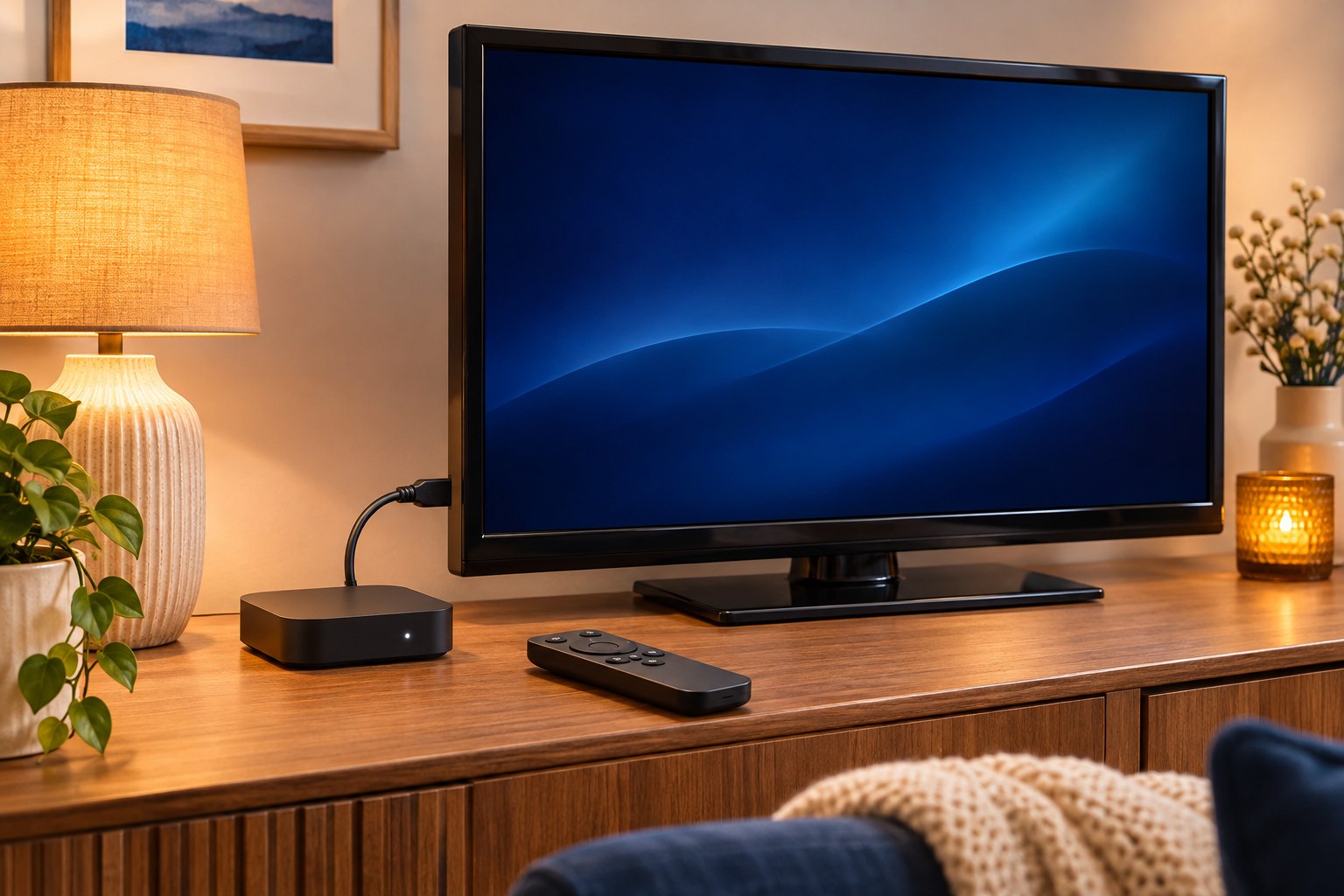
The screen and the device playing Netflix may be separate things. Your television might show Netflix from its own built-in app, a Roku plugged into HDMI, an Apple TV box, or a cable provider’s box.
Before checking compatibility, write down:
- The TV’s brand and model number.
- The name and model of any separate streaming player.
- Which remote you used to open Netflix.
- The input shown on the TV, if a separate player is connected.
Look in the device’s About or System Information screen, its paperwork, or an accessible label. Do not pull a heavy TV away from the wall just to read a sticker. A family member or technician can help identify it safely.
This matters because the warning may come from an old streaming box while the TV itself is fine. Or the TV’s built-in app may have stopped working even though a separate, supported player already connected to it can still run Netflix.
3. Check equipment you already own
Before shopping, look at the devices already connected to the TV. Netflix recommends checking whether an existing HDMI streaming stick, cable box, or game console has a supported Netflix app.
Use Netflix’s supported-device guide to look up the brand or provider. Then confirm the model. A familiar brand name on the box is not enough to establish that every generation still works.
- Choose one existing device to check.
- Confirm its Netflix support using the official device or provider instructions.
- Open its Netflix app, following any required update steps.
- Sign in to your existing account when appropriate.
- Play a program briefly and check sound, captions, and the remote controls you use.
Keep account details private while someone helps. You can enter your own password. If the app offers a sign-in code, follow its official instructions and check the address before entering the code. You should not need to create an extra paid Netflix membership merely because you are checking a different supported device.
4. Decide whether an additional player fits your TV
If your existing equipment cannot run Netflix, a supported streaming player may be an option. Before purchasing, check the player’s current Netflix support and the connections it requires. Confirm that the TV has a suitable working connection, that power is available, and that the player can connect to your home internet.
Do not order an adapter based only on the shape of a socket. Older televisions, unusual connections, and particular video requirements need a closer compatibility check. A model number and a clear photograph of the available ports can help someone recommend the right next step.
Ease of use also matters. Ask whether the new arrangement will require a different input, another remote, or a new sequence of buttons. A device is only helpful if you feel comfortable using it after the setup visit ends.
If Apple TV is one option you are considering, our guide to Apple TV benefits and setup considerations explains that choice in more detail.
5. Write down the new everyday routine
Once a supported setup works, practice starting from a TV that is turned off. Turn it on, select the right input if needed, open Netflix, and choose your profile. Then practice returning to regular television.
A short note beside the remote might list the input name and the buttons to press. Use the labels on your own equipment. Avoid a long page of instructions you will never want to read while relaxing.
Before anyone leaves, check that you can repeat the routine yourself. If two remotes are needed, agree on a simple place for each one.
Patient help with Netflix and streaming in the East Valley
Help With My Tech offers TV and streaming support in Queen Creek, Mesa, Gilbert, Chandler, Apache Junction, and nearby East Valley communities. We can help identify the message, check your equipment, explain suitable options, and practice the viewing routine with you.
Contact us to discuss a visit. A photograph of the warning and the device model are useful starting points. You can find current service details on our pricing page.
Official sources and review date
Reviewed November 2, 2026. Device support can change. These instructions draw on manufacturer guidance; they do not describe a hands-on test of your television.