
There is a big difference between buying an iPhone and making it comfortable to use every day. A phone can have a beautiful screen, plenty of storage, and the latest features, yet still feel confusing if the important things are hard to find.
For many older adults, a few thoughtful changes can make an iPhone feel calmer, clearer, and more useful. The goal is not to turn it into a different phone. It is to make the phone fit the person using it.
Start with the things they use most
Ask one simple question: “What do you want this phone to help you do?” The answer is often much shorter than the list of apps already on the phone.
For many people, the priority list is:
- Call family and friends
- Read and send text messages
- Take and look at photos
- Check the weather, calendar, or email
- Use a favorite app, such as YouTube or a medical portal
Put those apps on the first Home Screen. Move less-used apps to another page or a folder. This small change means fewer decisions every time the phone is unlocked.
Make words and buttons easier to see
A larger screen does not always mean larger words. On iPhone, go to Settings > Display & Brightness > Text Size and move the slider to the right. You can also turn on Bold Text from that same screen.
If the standard choices are still too small, go to Settings > Accessibility > Display & Text Size > Larger Text. Turn on Larger Accessibility Sizes and adjust the slider. It is worth trying the phone afterward in Messages, Mail, and a few favorite apps. The best setting is the one that is easy to read without making the screen feel crowded.
Set up important people before there is a problem
Contacts are much more useful when they include a clear name, a photo, and the right phone number. Add the most important people as Favorites in the Phone app. That makes calling simpler and gives the person a familiar place to start.
It is also smart to review Emergency SOS and Medical ID together. These are safety features, not something to set up in a hurry. Make sure the person knows who their emergency contacts are and understands how to get help. Apple has an official Emergency SOS guide with the current steps.
Keep the ringer loud enough to hear
Missed calls can feel like the phone is “not working,” when the real issue is that the ringer has been turned down. Check Settings > Sounds & Haptics and raise the Ringtone and Alerts slider to a comfortable level. If the buttons on the side keep changing it by accident, turn off Change with Buttons.
Try a real call before calling this finished. A quick test from another phone is much better than assuming the settings are right.
Use a simple Home Screen, not a scavenger hunt
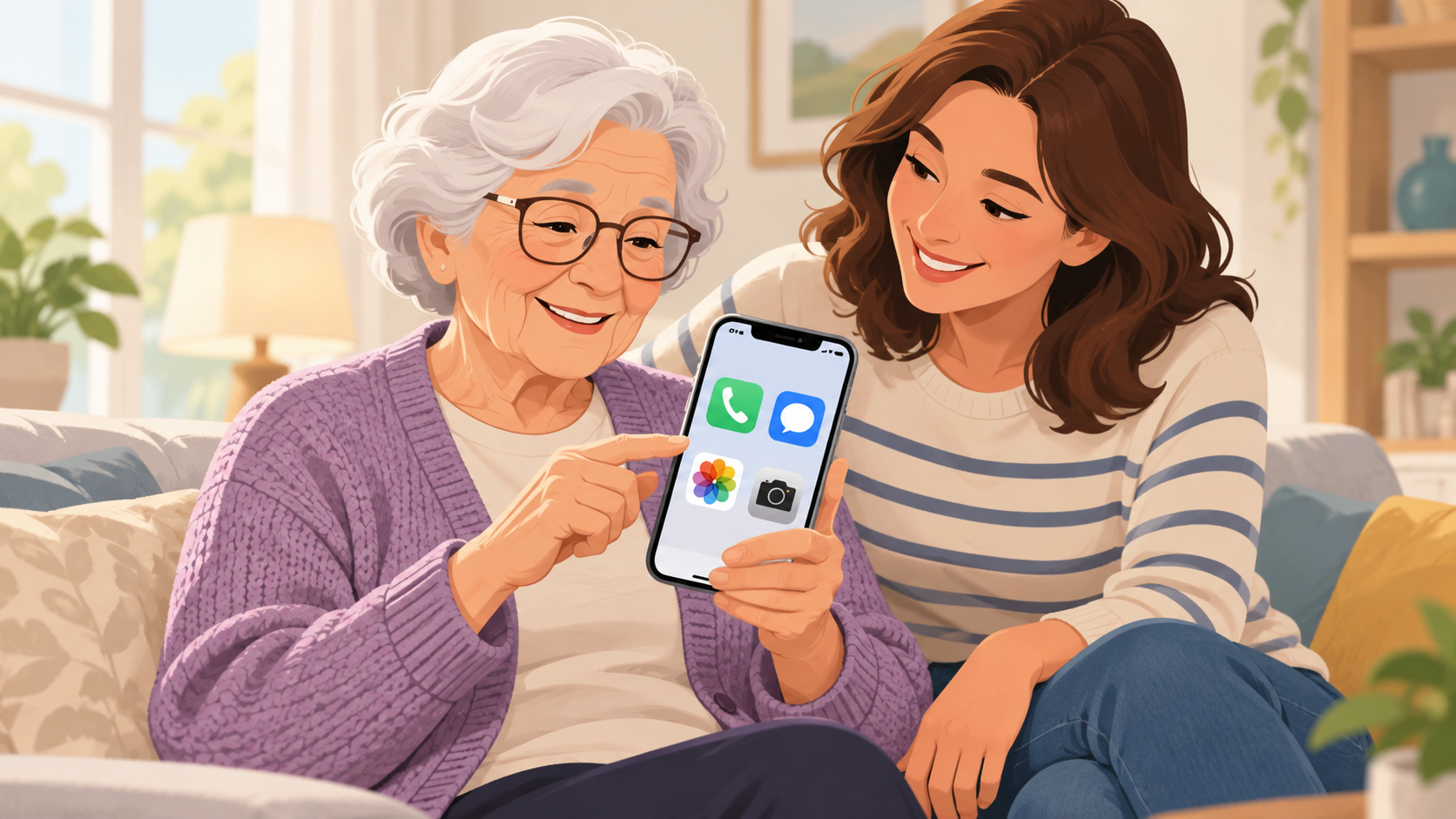
Keep the first screen focused. A helpful layout might put Phone, Messages, Camera, and Photos in the bottom row, with a few other everyday apps above them. Avoid making a huge folder called “Important.” A person should not have to remember where the important things went.
Some people also benefit from a plain wallpaper with good contrast. A busy family photo can be wonderful, but it can make icons harder to spot. You can always use the family picture on the Lock Screen and keep the Home Screen simpler.
Consider Assistive Access for the right person
Apple’s Assistive Access is a special simplified iPhone experience. It makes onscreen items bigger, keeps features more focused, and can limit the phone to the apps and contacts a person truly needs. It can be a wonderful option for someone with cognitive changes or someone who feels overwhelmed by a regular Home Screen.
It is not automatically the right choice for every older adult. It changes how some things work, so set it up slowly with the person, a family member, or caregiver who knows their needs well. Apple specifically recommends a trusted supporter help choose the apps and features. You can find it at Settings > Accessibility > Assistive Access.
Before turning it on, read Apple’s current setup guide and its important differences. For example, regular software-update notices are not shown while Assistive Access is active, and some emergency features work differently.
Teach one short routine
A phone feels easier when the person knows what to do when something unexpected happens. Keep the routine short:
- Do not tap a scary pop-up or call a number it shows.
- Take a screenshot if possible.
- Text or call someone trusted before doing anything else.
For more on this, read our guide: When in Doubt, Toss It Out: A Simple Rule for Suspicious Emails.
Give the setup a calm test drive
Before you leave, have the person try the important things themselves. Ask them to place a call, send a message, find a photo, and open the app they use most. If they get stuck, that is useful information. It usually means the screen needs to be simpler or the explanation needs one more calm try.
If this is a new iPhone, it is especially important to make sure photos, messages, and account access moved correctly. Our calm guide to moving to a new iPhone can help with that part.
In-home iPhone help in Mesa and the East Valley
Sometimes the best solution is simply having a patient person sit beside you, see the real setup, and make the changes together. Help With My Tech provides friendly, in-home iPhone and iPad help for seniors in Mesa, Queen Creek, Gilbert, Chandler, San Tan Valley, and nearby communities. We can help organize the phone, set up important contacts, review safer settings, and make sure the person using it feels more confident.
Contact Help With My Tech to ask about an in-home visit, or see our membership options for ongoing support by text or email.
One Response